Feature tour
119features in one hub
Every feature works with Google Workspace and Microsoft 365.
Every one of them works from the same private index of your mail, attachments, drives, ERP and spreadsheets. That is why search is instant and every answer has a source. All of it is in the product today.
- Areas
- 21
- Screenshots
- 81
- On its own
- 33
33 features run on their own
Proactive
These run without being asked: on arrival, on a schedule or on a date. Zilbee Hub does the research, builds the file or flags the problem, and puts the result in front of the right person.
- 01Email research on arrivalEmail
- 02Everything about the senderEmail
- 03Linked records on every emailEmail
- 04Suggested next questionsAssistant
- 05Scheduled checksAssistant
- 06Bid calendarBids
- 07Bid resultsBids
- 08DeadlinesDaily work
- 09My tasksDaily work
- 10Safety overviewSafety
- 11Timesheet weekPayroll
- 12Certification expirationsPeople
- 13TodayDaily work
- 14LicensesCompliance
- 15AP intakeBooks
- 16AR billingBooks
- 17Job cost importBooks
- 18Suspicious mail flaggedEmail
- 19Files made before you askDocuments and files
- 20Corrective actions from failed inspectionsSafety
- 21New contracts reviewed on arrivalContracts
- 22LearningsAssistant
- 23Bids from bid-board emailsBids
- 24Job state found for the license checkBids
- 25Contract value found in the job’s documentsBooks
- 26Notifications on phones and computersMobile
- 27Document requests started when the email arrivesCompliance
- 28Training sessions from the trainer’s calendarSafety
- 29Research on the whole conversationEmail
- 30Every subscription, and what to cancelBooks
- 31Every contractor’s invitation under one bidBids
- 32Utility locate tickets on every jobCompliance
- 33Job-site photos from your photo appMobile
Systems without an API
No API? No problem.
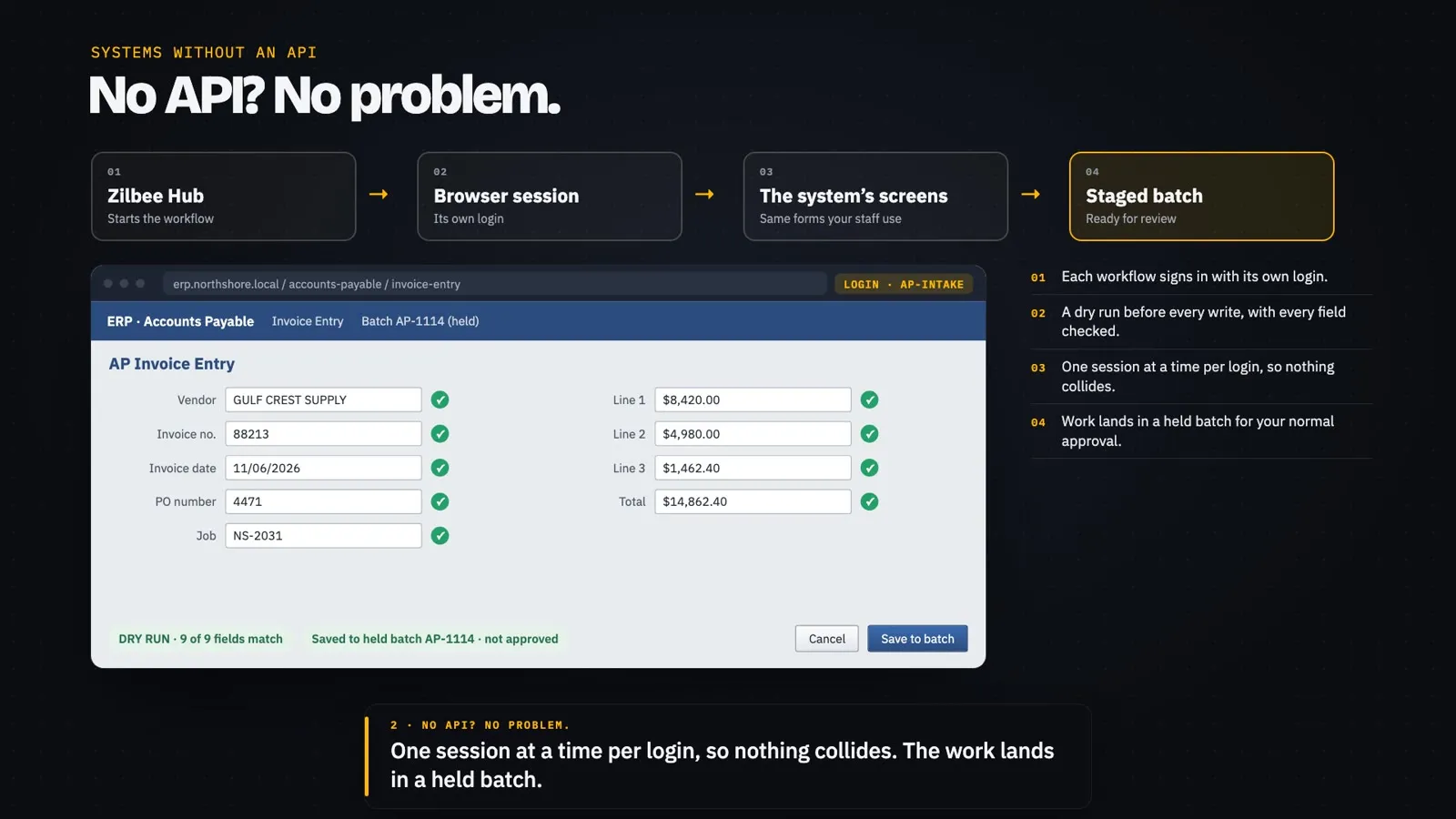
When a system only has screens, Zilbee Hub uses the screens: a controlled browser session that logs in with its own user, fills the same forms your staff do and checks every field. Safe, repeatable and fully auditable.
In accounts payable, that means vendor invoices entered into the ERP exactly as a clerk would enter them, every line checked against the PO.
01
Zilbee Hub
Starts the workflow
02
Browser session
Its own login
03
The system’s screens
Same forms your staff use
04
Staged batch
Ready for review
- 01Each workflow signs in with its own login.
- 02One session at a time per login, so nothing collides.
- 03A dry run before every write, with every field checked.
- 04Work lands in a held batch for your normal approval.
- 05Screenshots and a log of every run.
01 / 8 features
01.01Runs on its own
Email research on arrival
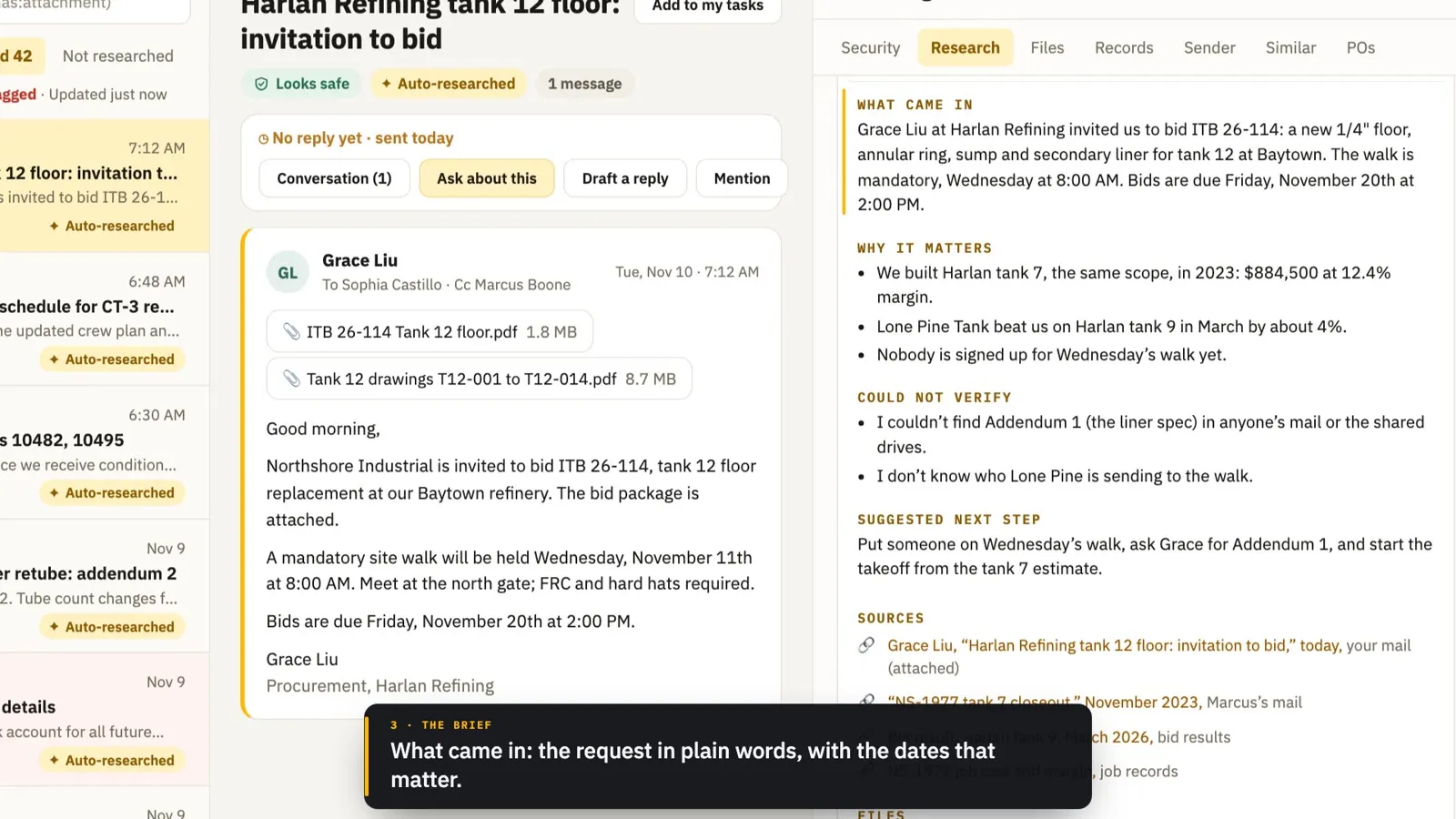
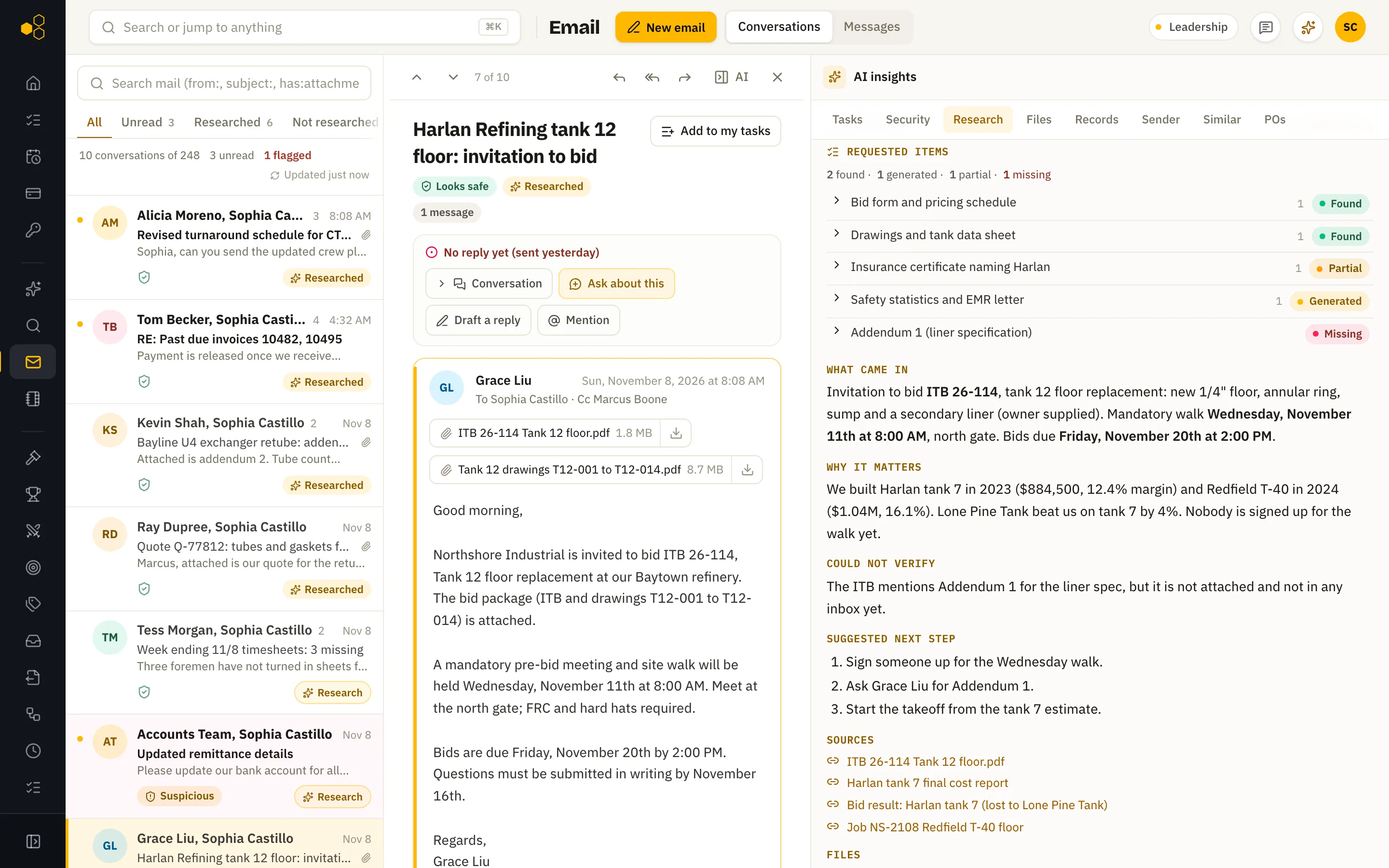
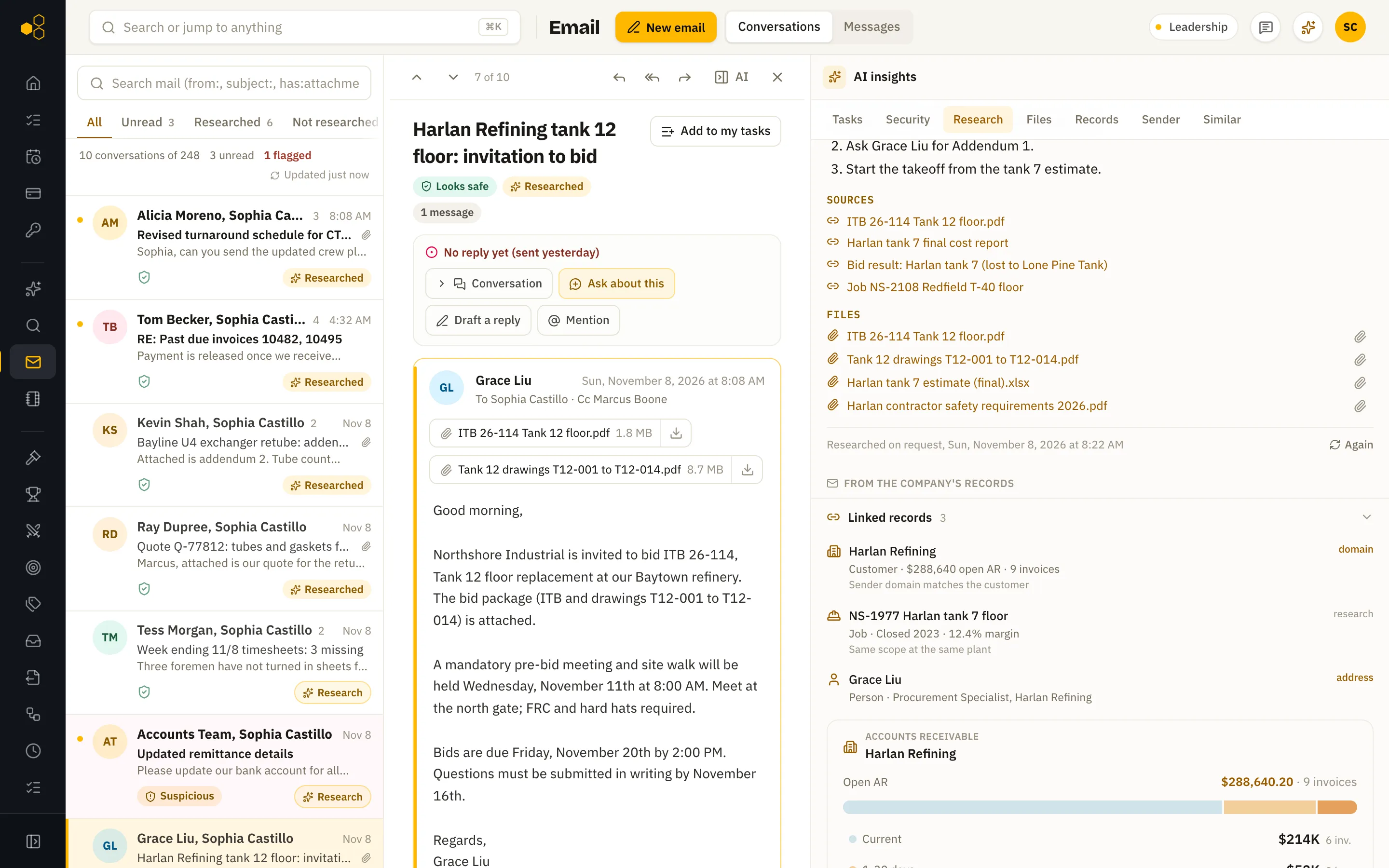
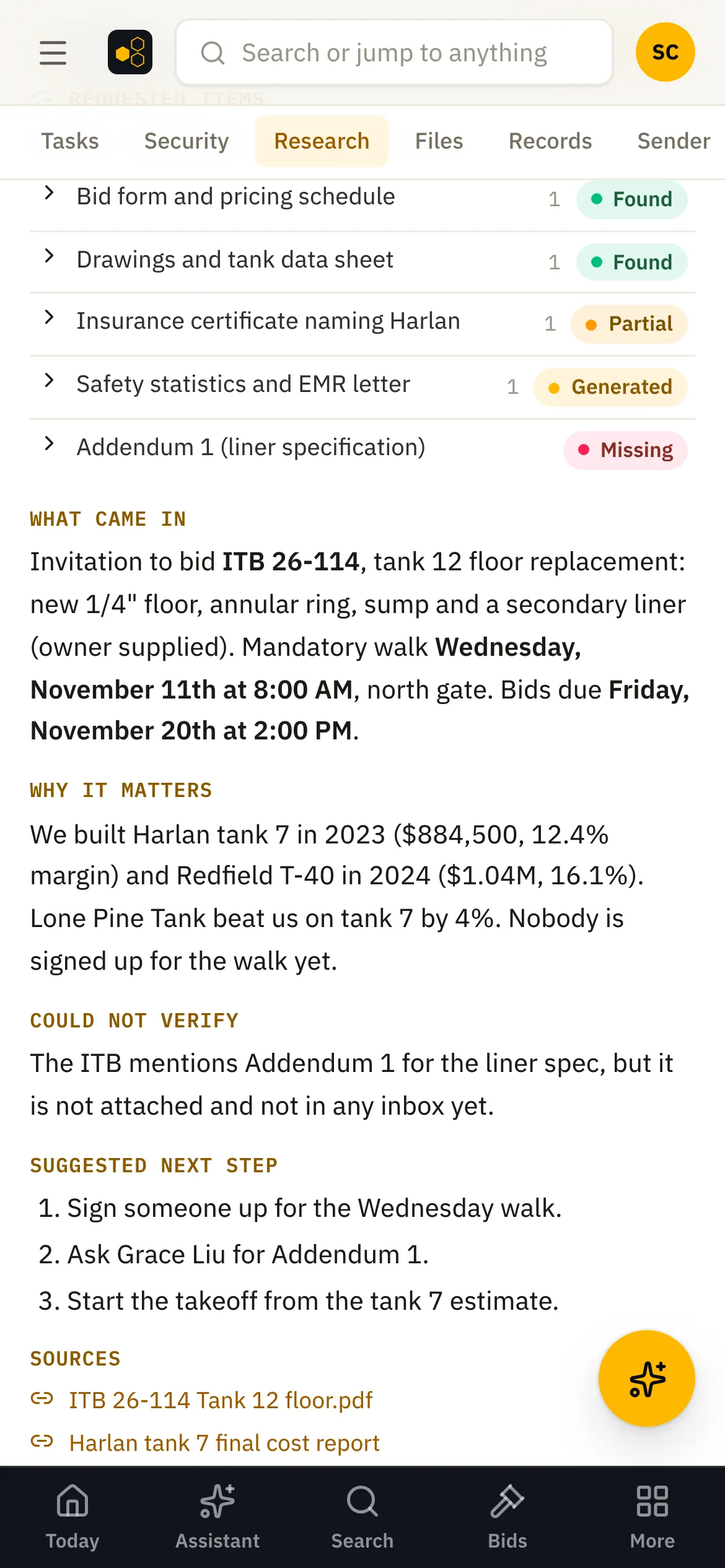
When a business email comes in, the assistant reads it, checks your records, files and past mail, and writes a short brief: what came in, why it matters, what it could not verify and what to do next. For requests it builds a checklist of the documents asked for, marked found, partial, missing or made for you.
01.02Runs on its own
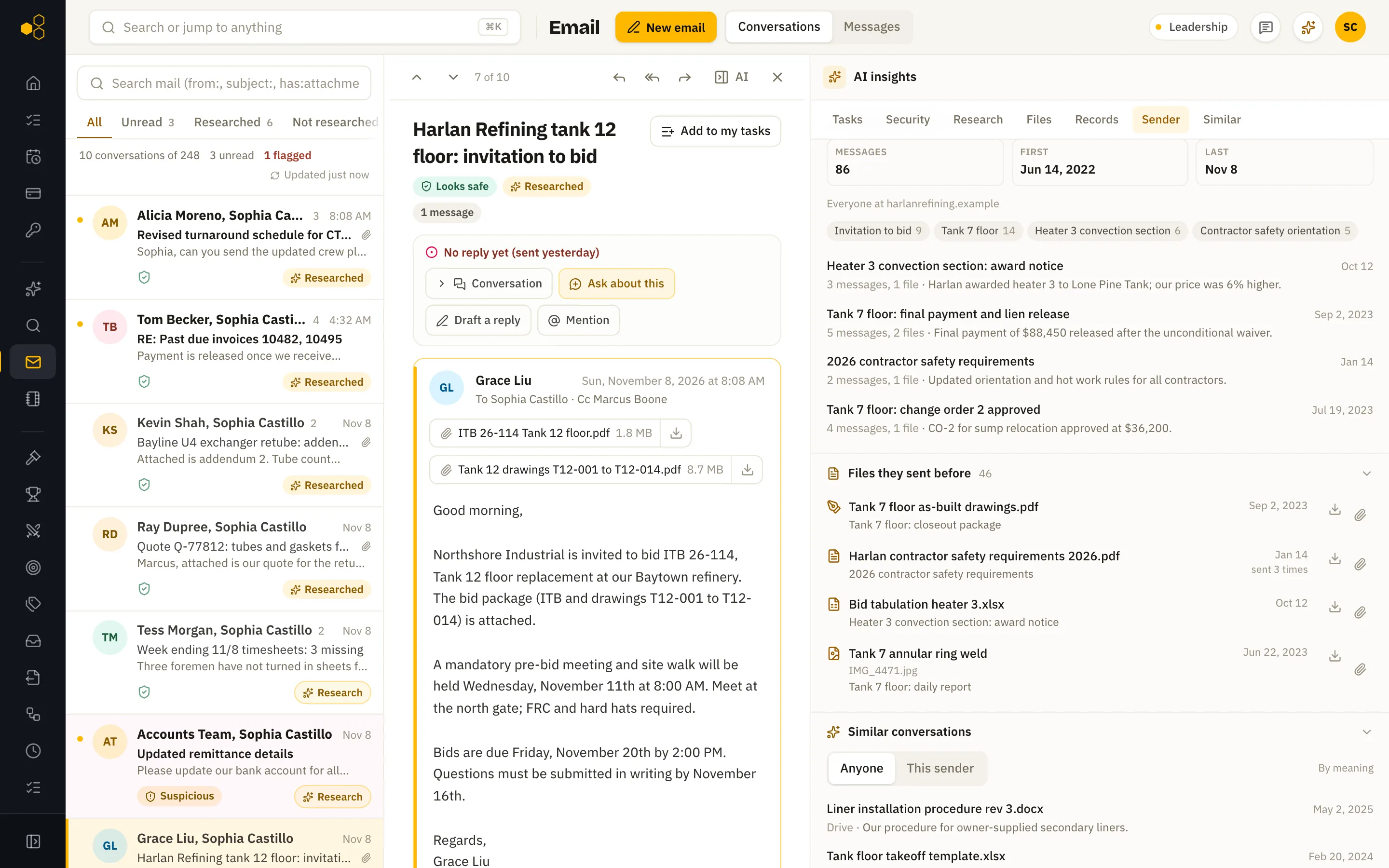
Everything about the sender
Next to any email you see your whole history with that sender: past conversations with one-line summaries, the files they sent before, and similar conversations across the company.
01.03Runs on its own
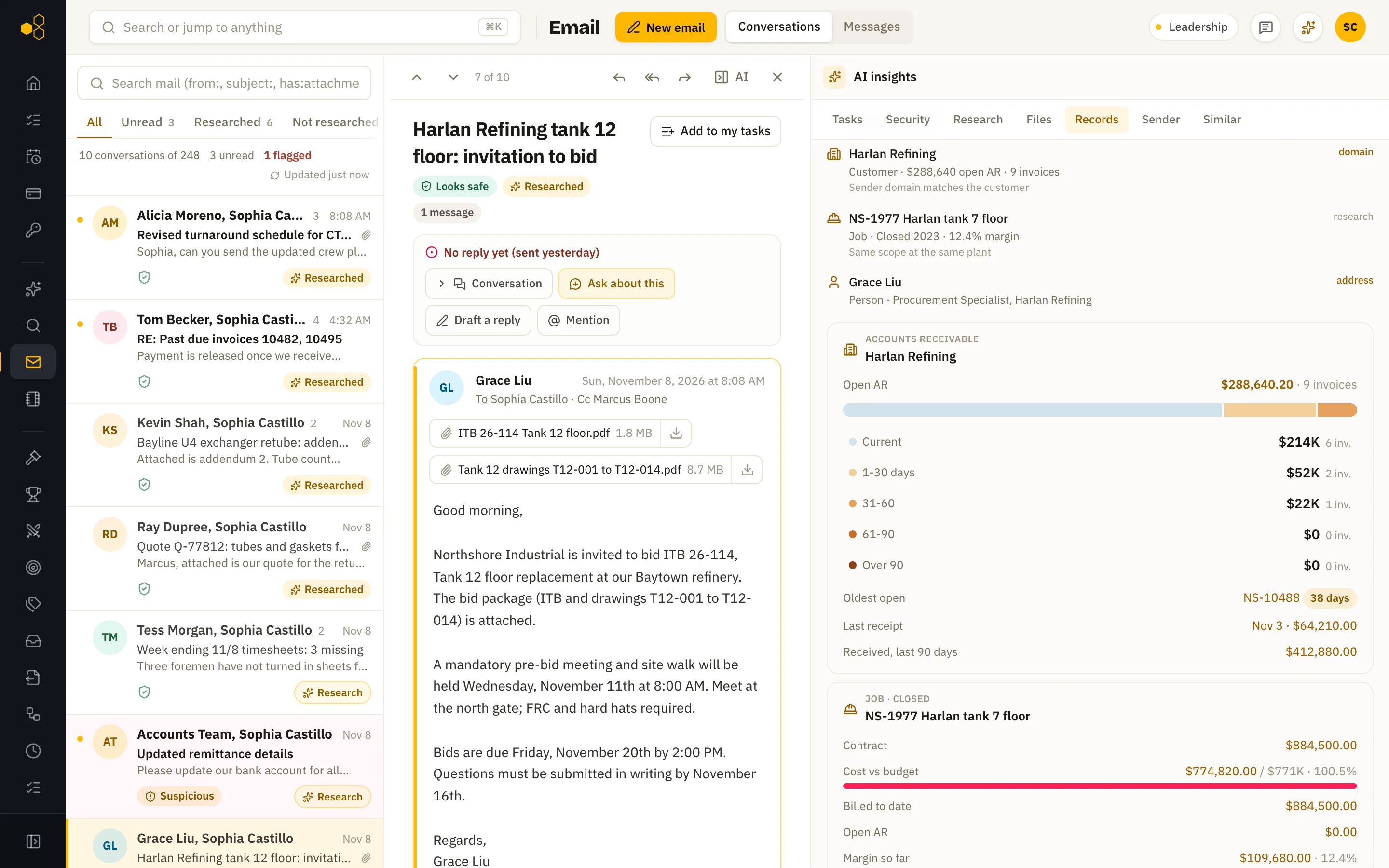
Linked records on every email
The hub matches each email to the customers, vendors, jobs, invoices and people it mentions, and shows their live numbers right beside the message.
01.04
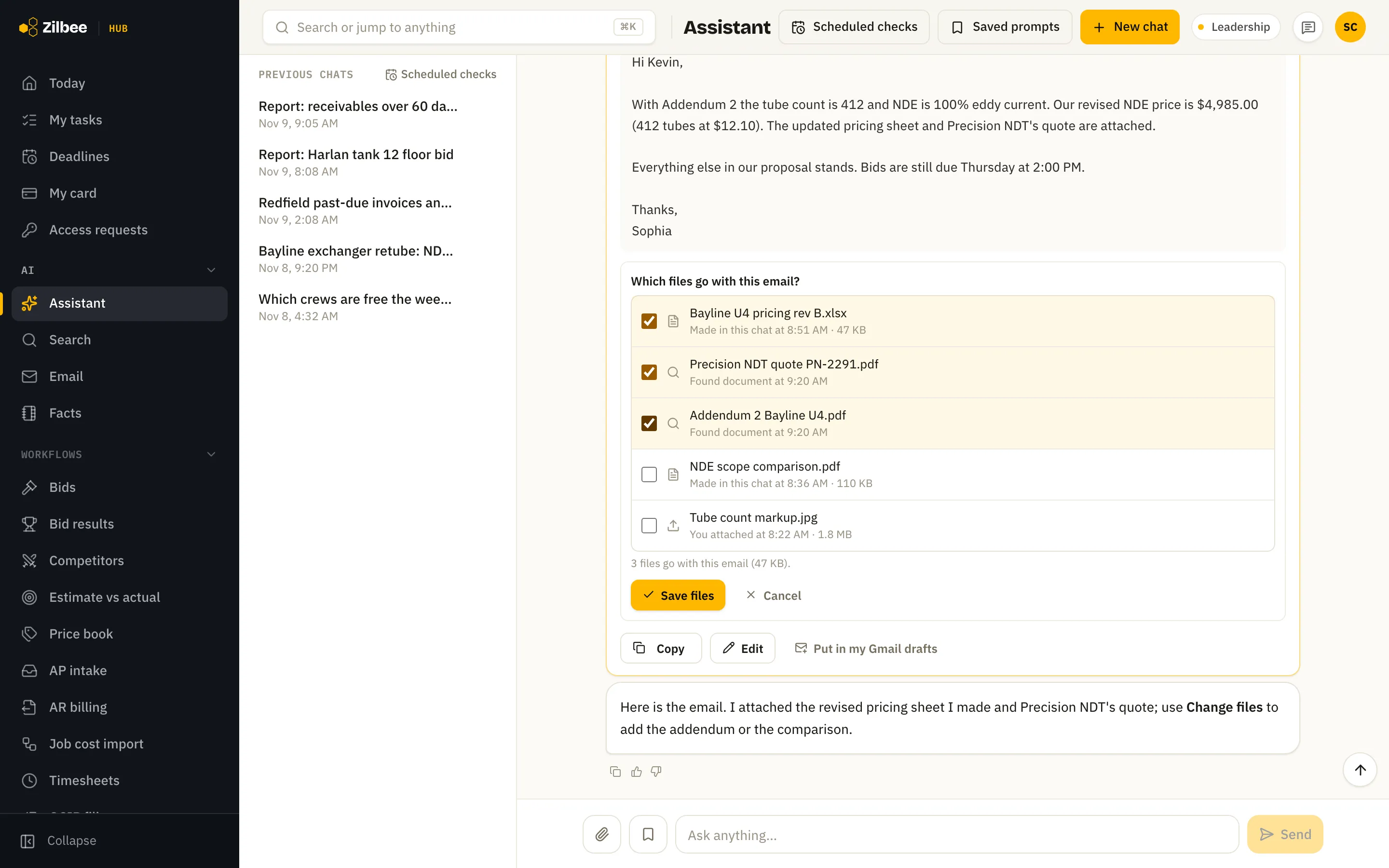
Choose the files on an email
Before you send an email the assistant drafted, pick exactly which files go with it: files it made, files you attached and documents it found.
Asked for real · 45 s
“Draft an email with the pay app and the four lien waivers attached.”
01.05
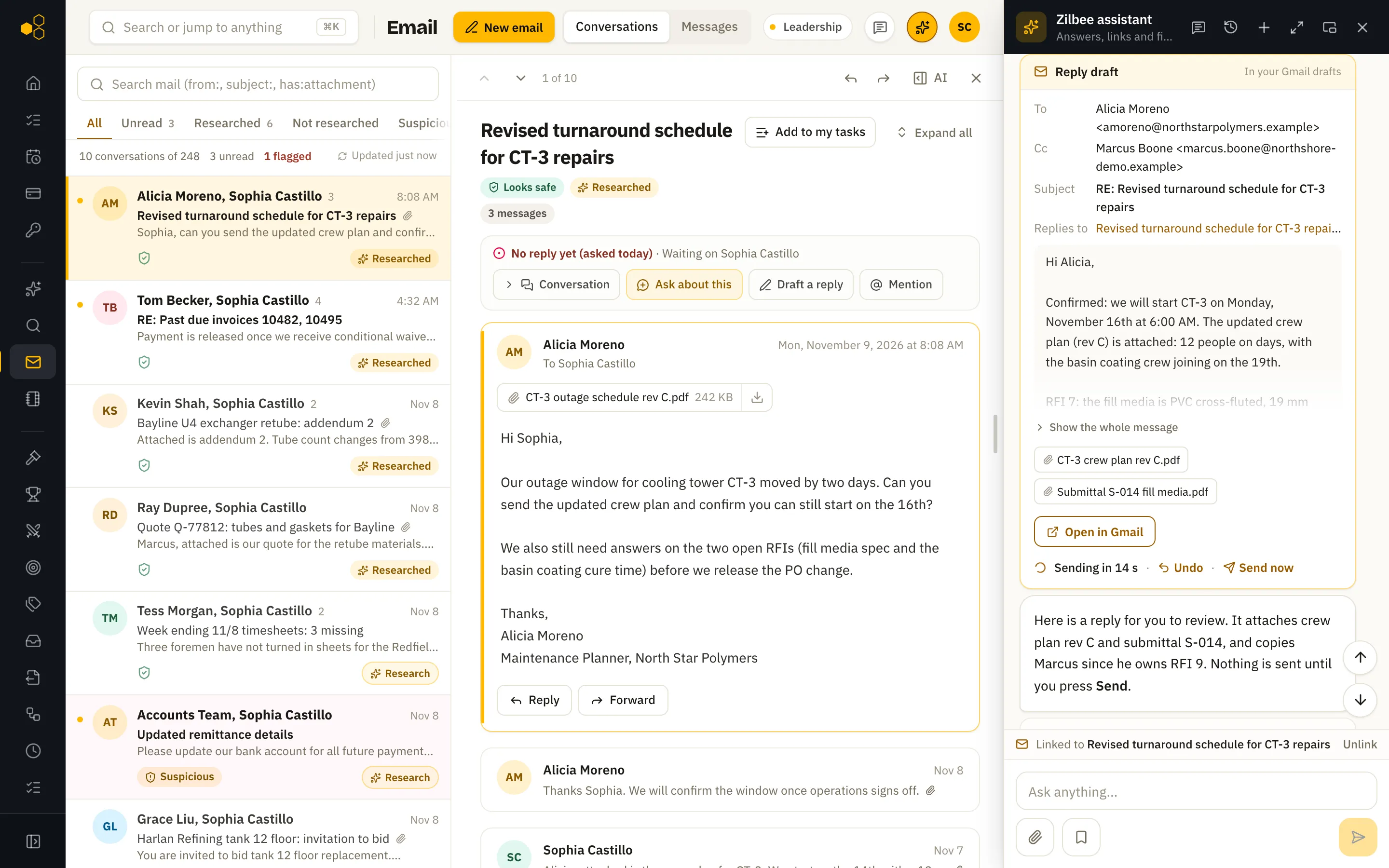
Send with a 20-second undo
Press Send on a draft and you get 20 seconds to undo or send right away. Emails going outside the company are flagged first. If the mail service is down, the hub tries again on its own over the next several minutes, and the card says plainly if it still failed.
01.06Runs on its own
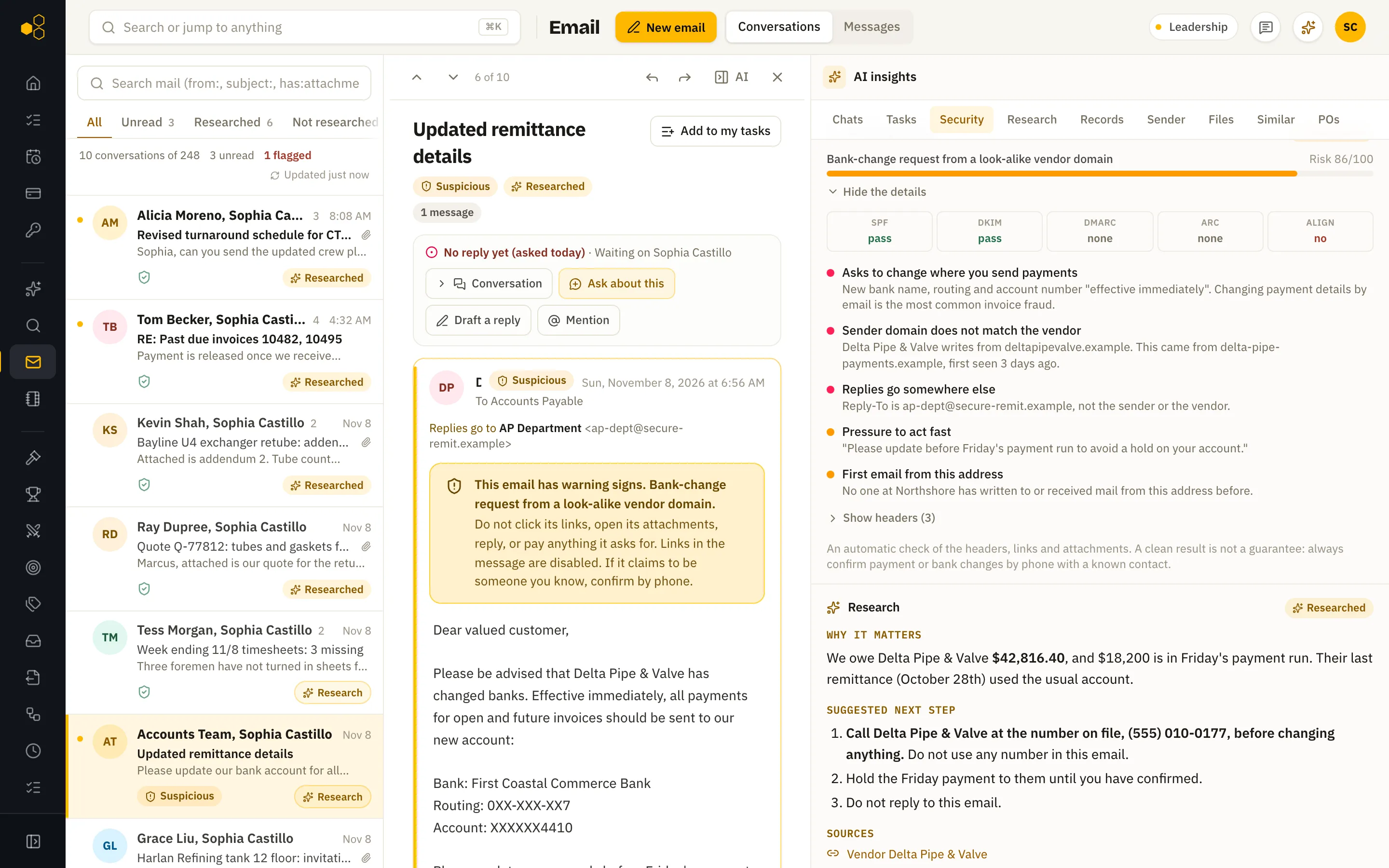
Suspicious mail flagged
Messages that look off, like a sudden change of bank details, are flagged Suspicious with the reasons spelled out, before anyone acts on them.
Also included
01.07
Replies stay in the thread
Replies the assistant drafts go in the original email thread, not a new message, and it can look up a coworker’s address by name.
01.08Runs on its own
Research on the whole conversation
Open an email conversation and see the newest research on any message in it, with its document checklist, led by the run that has the checklist. Earlier research runs are listed below it, newest first.
02 / 12 features
Assistant
02.01
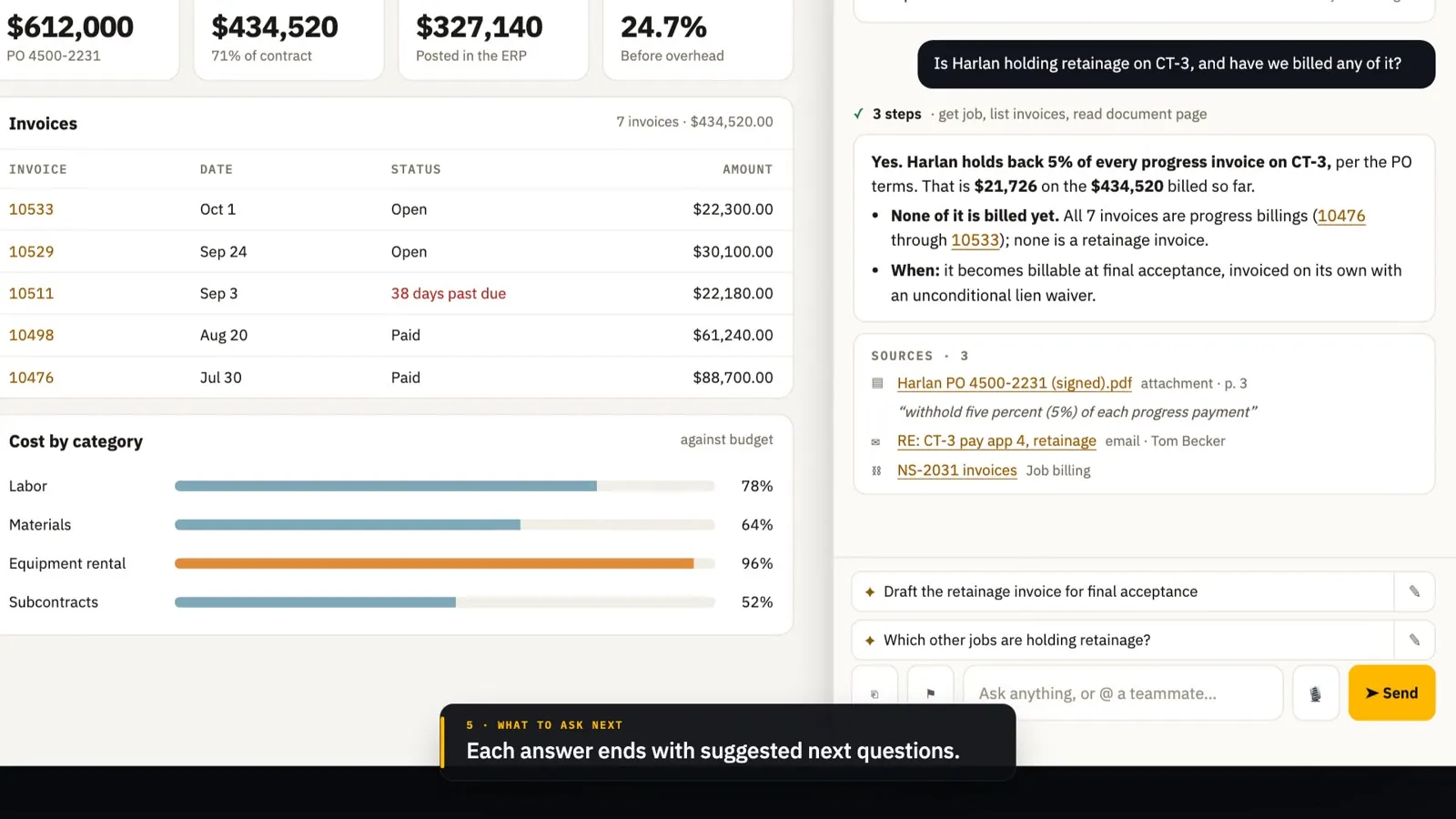
Chat about this, on every record
Every record page has a Chat about this button. The assistant opens already knowing the record and answers with links back to the invoices, jobs and bids it used. A New button beside it starts a fresh chat about the same record.
Asked for real · 20 s
“30417” (a job number and nothing else). Back came dates worked, hours by type, crew size and labor cost.
02.02Runs on its own
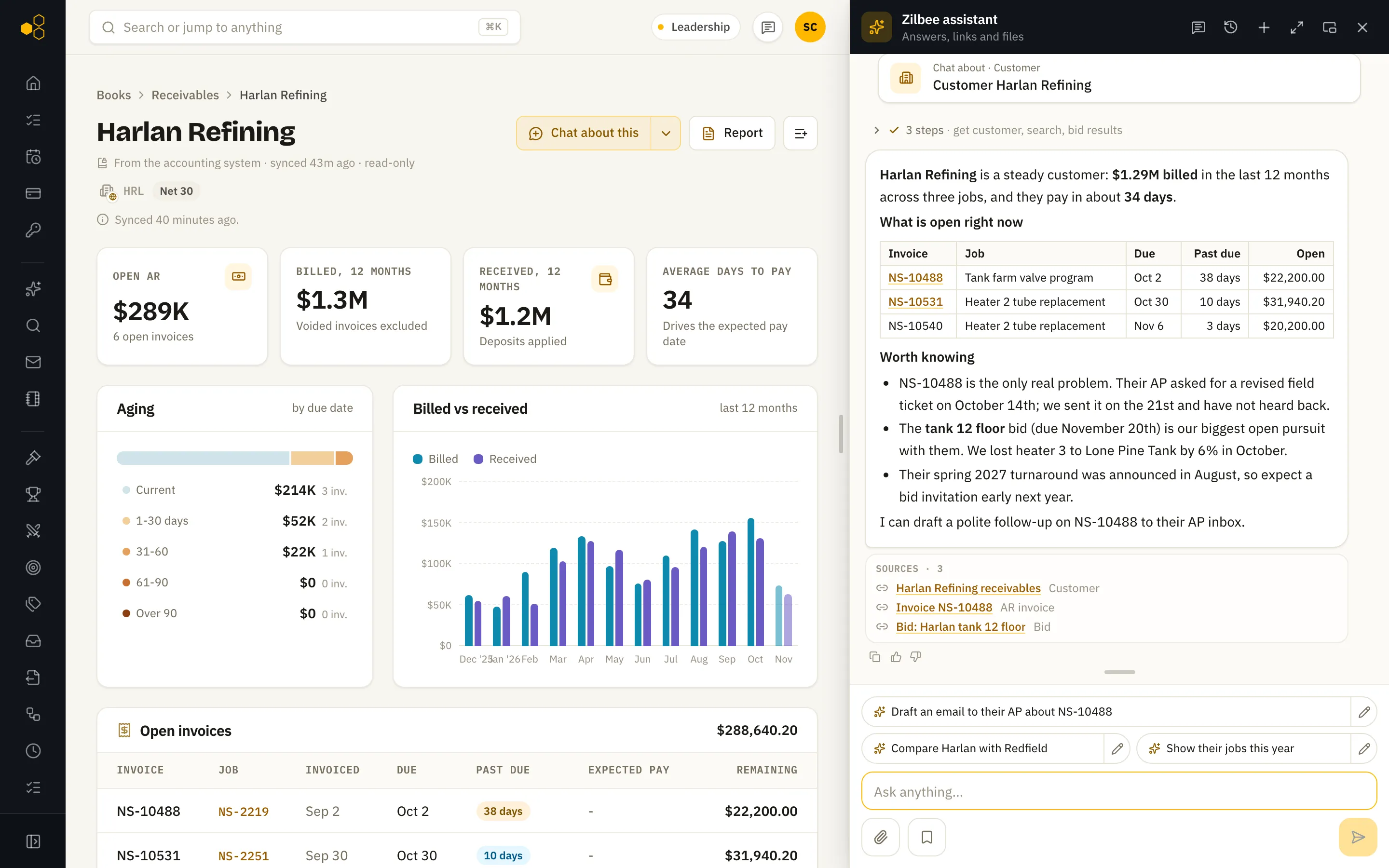
Suggested next questions
Each answer ends with a few suggested follow-ups, such as drafting the email the answer points to. Tap one to ask it, or edit it first.
02.03
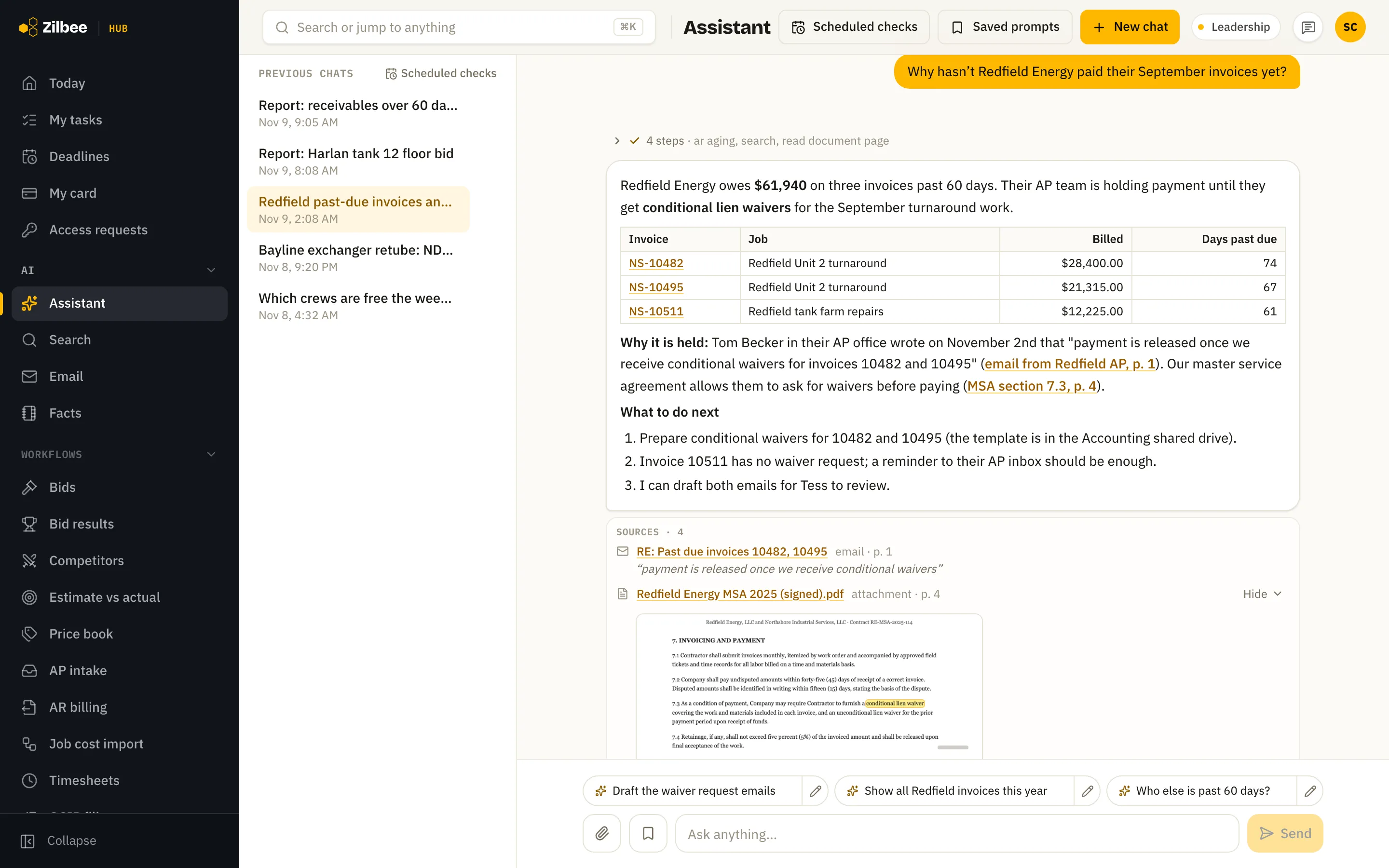
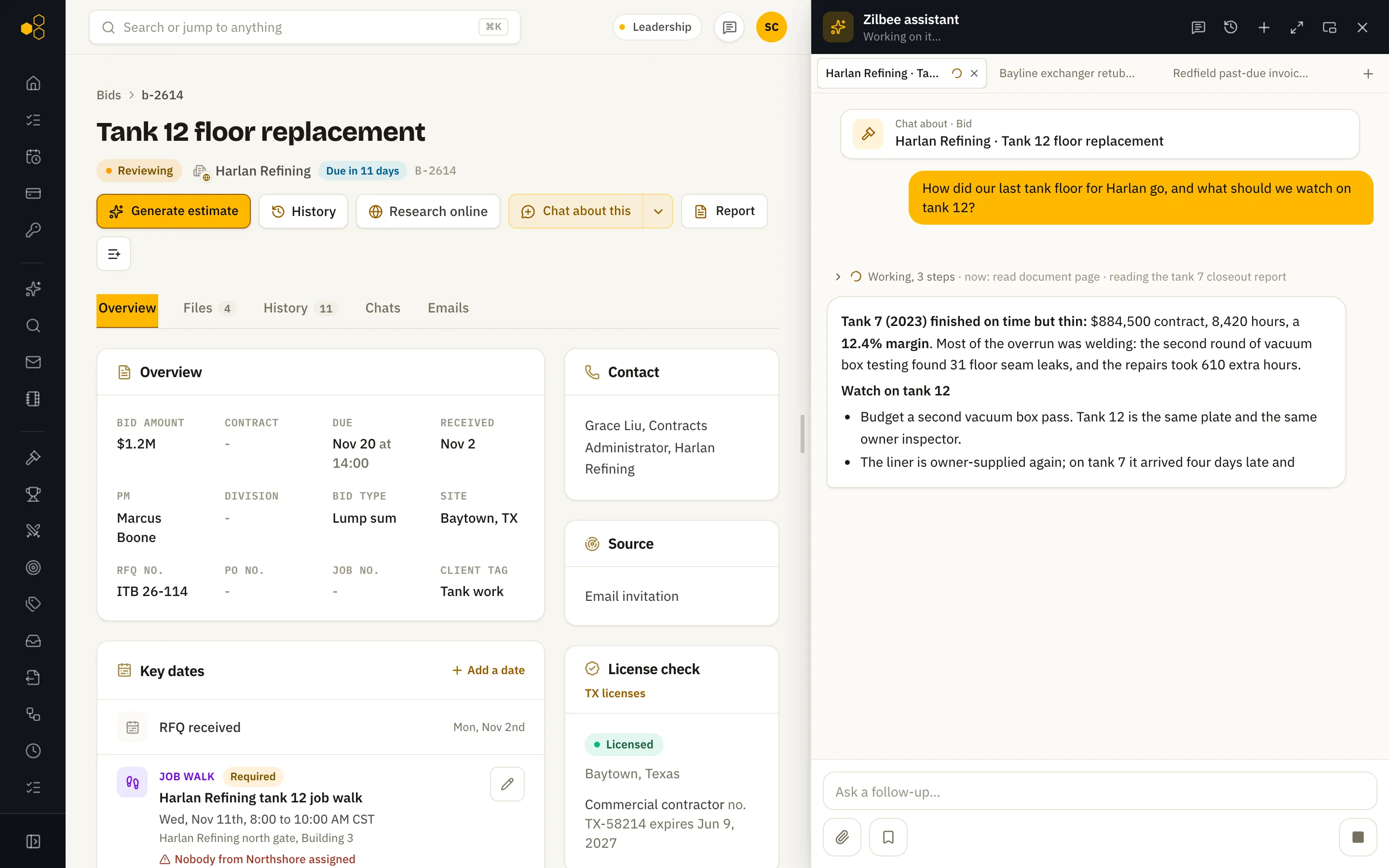
Several chats at once
Keep several conversations open as tabs in the side panel while you work on a record, and switch between them while an answer is still being written.
02.04Runs on its own
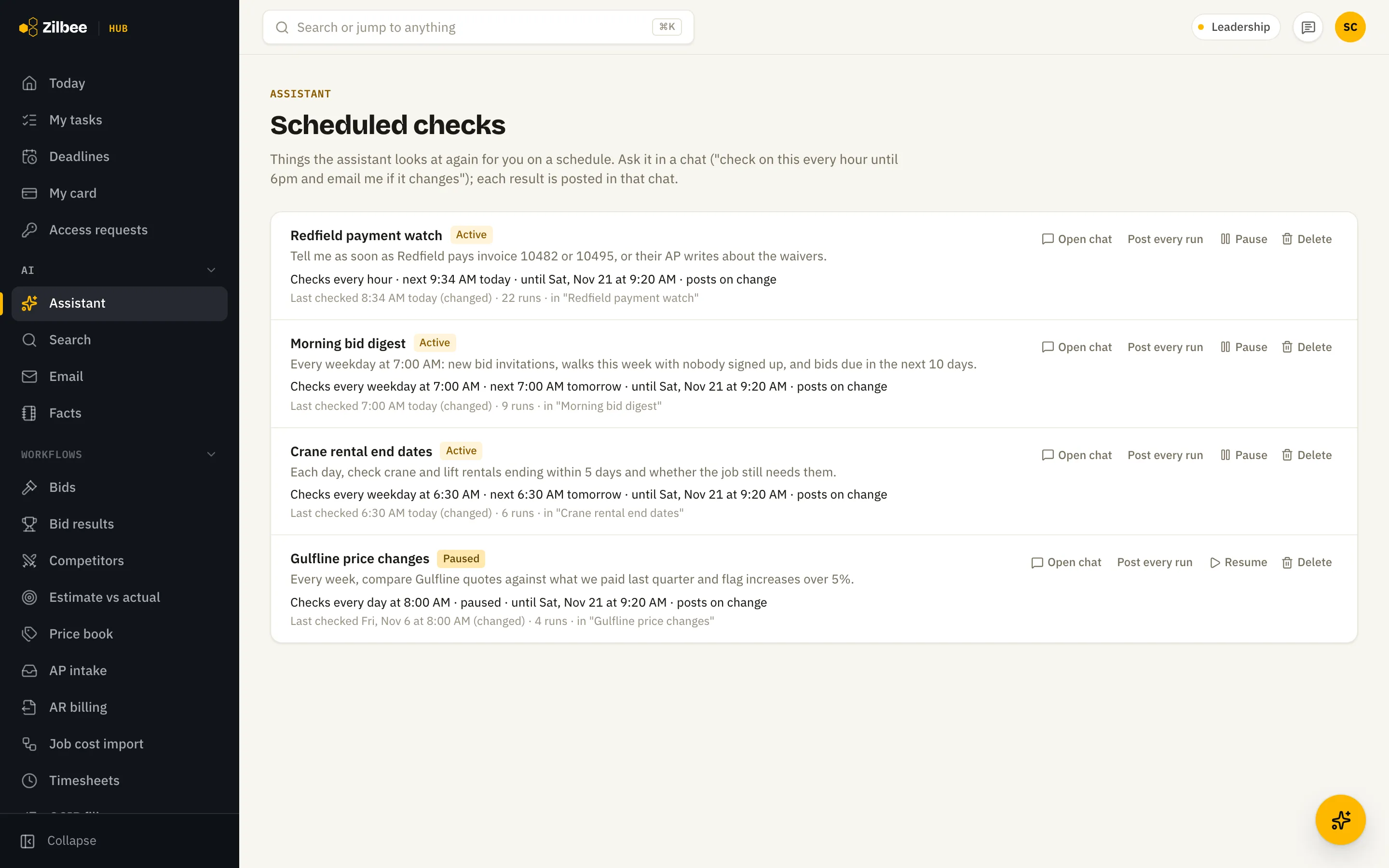
Scheduled checks
Ask the assistant to keep an eye on something, like a payment or new bid invitations, every hour or every morning. Checks can also run monthly or quarterly, on a date or a day like the first Monday, such as pulling the numbers for a quarterly tax filing, and keep running until you turn them off. It posts in the chat when something changes.
Asked for real · set up in 19 s
“Check every 10 minutes for an email from the client’s IT person saying the servers are on the VPN. Stop after an hour.”
02.05
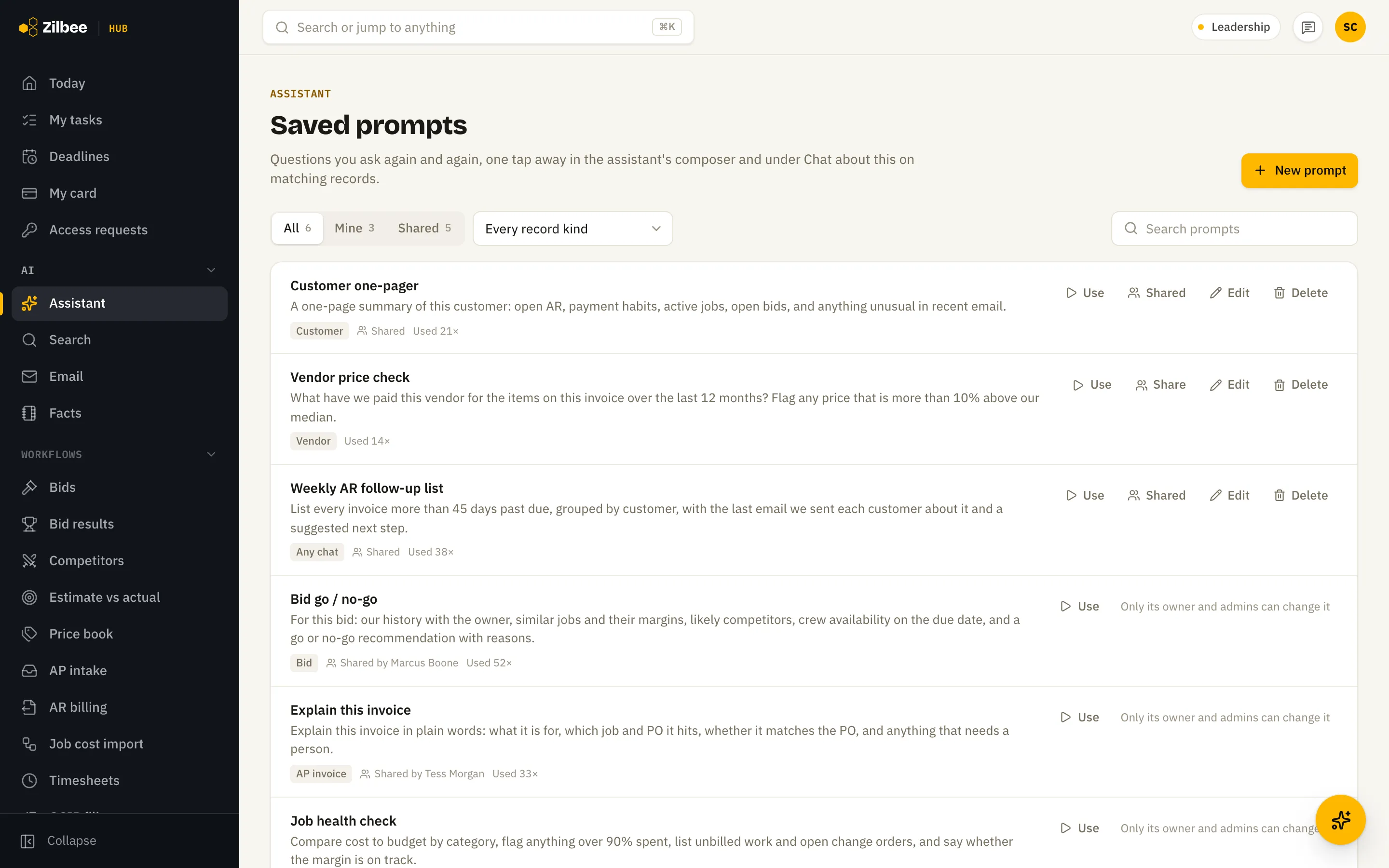
Saved prompts
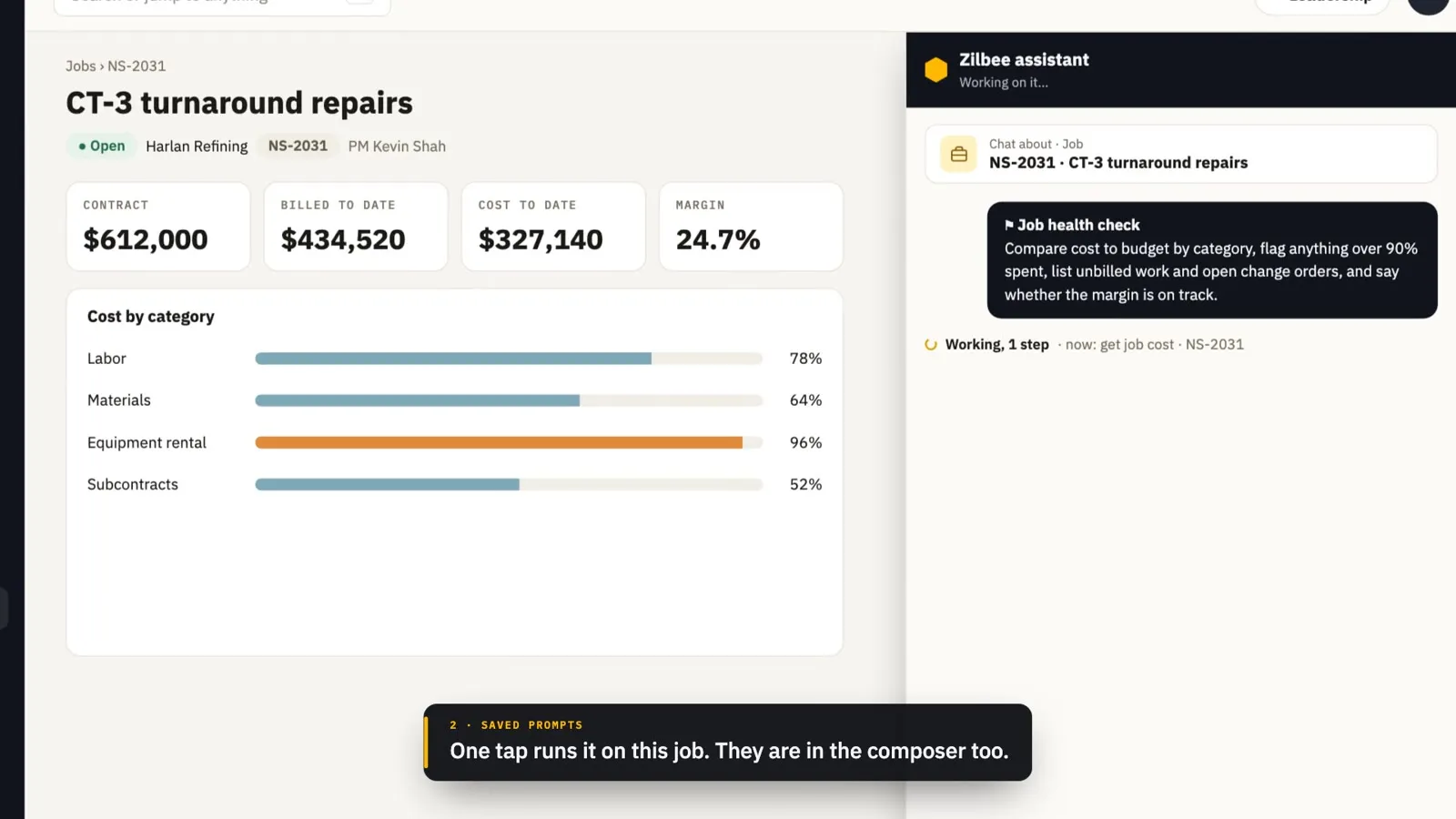
Save the questions you ask often and share them with the team. They show up in the composer and under Chat about this on matching records.
02.06
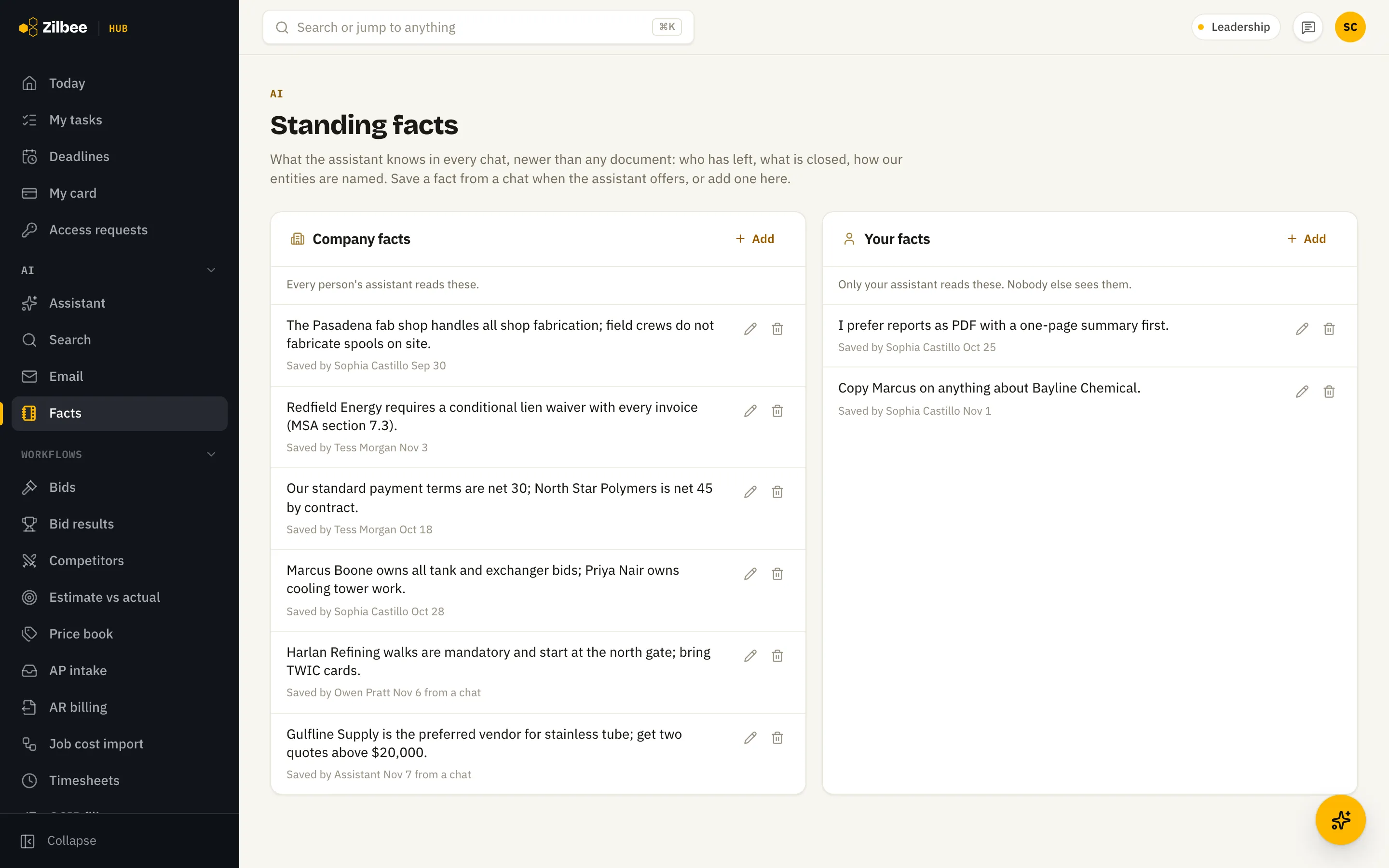
Standing facts
Teach the assistant what it should always know, like payment terms, who owns which bids and site rules, for the whole company or just for you.
02.07
Answers with sources
Ask a question in plain words and get an answer that cites the emails and pages it came from, with the quote highlighted.
Asked for real · 22 s
“Are we owed that amount, and did we ever bill retainage?”
02.08
Shared chats and mentions
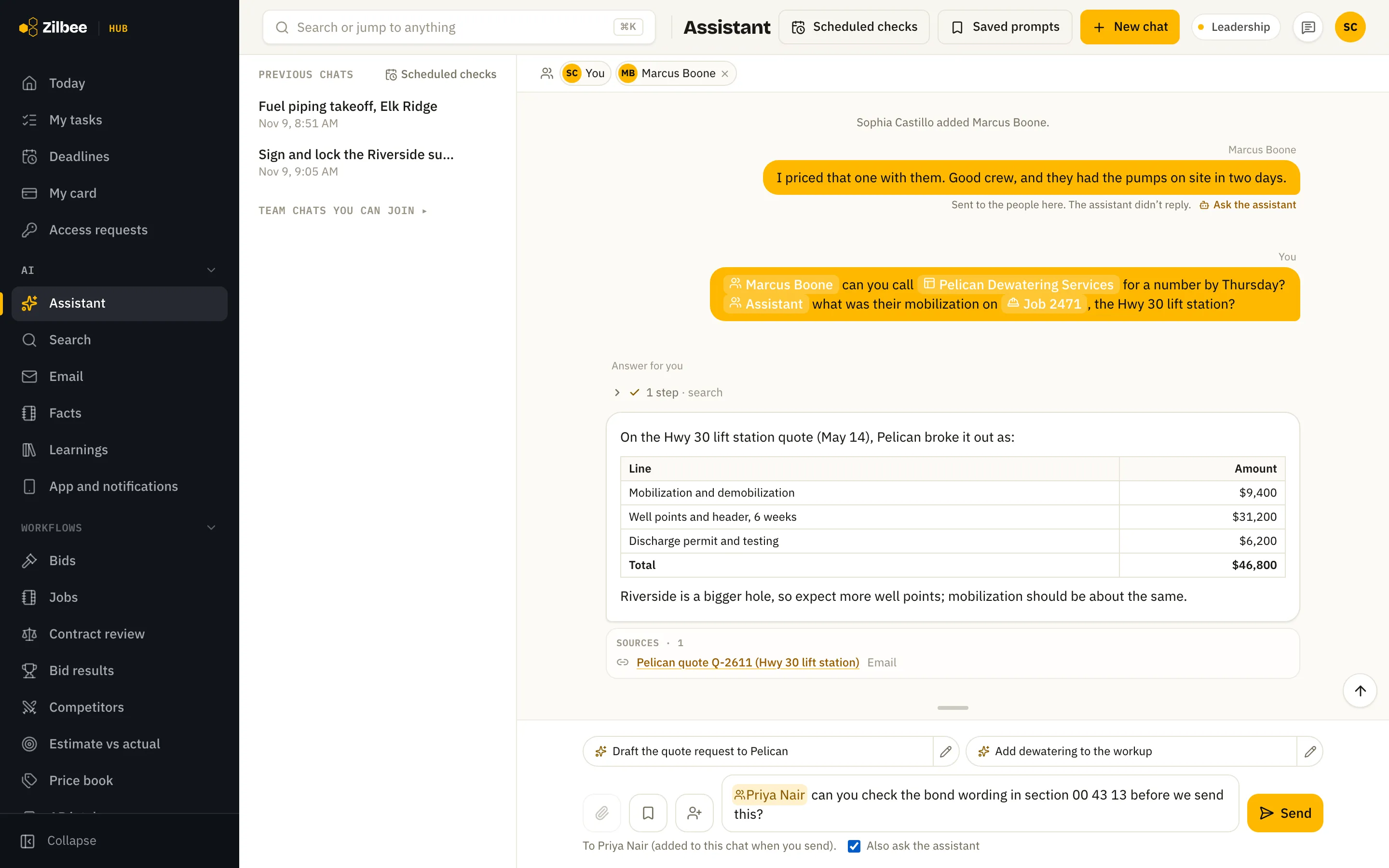
Bring a coworker into an assistant chat with an @mention and work on the same question together. They get an email that opens the chat. A note meant only for people doesn’t wake the assistant unless you tick Also ask the assistant, and when you mention a job or bid, each person sees only what their own access allows. When an answer uses mail or files only you can open, you pick which items to share with the chat, and everyone in it can then open them. Ask privately starts your own chat that already knows the record.
02.09
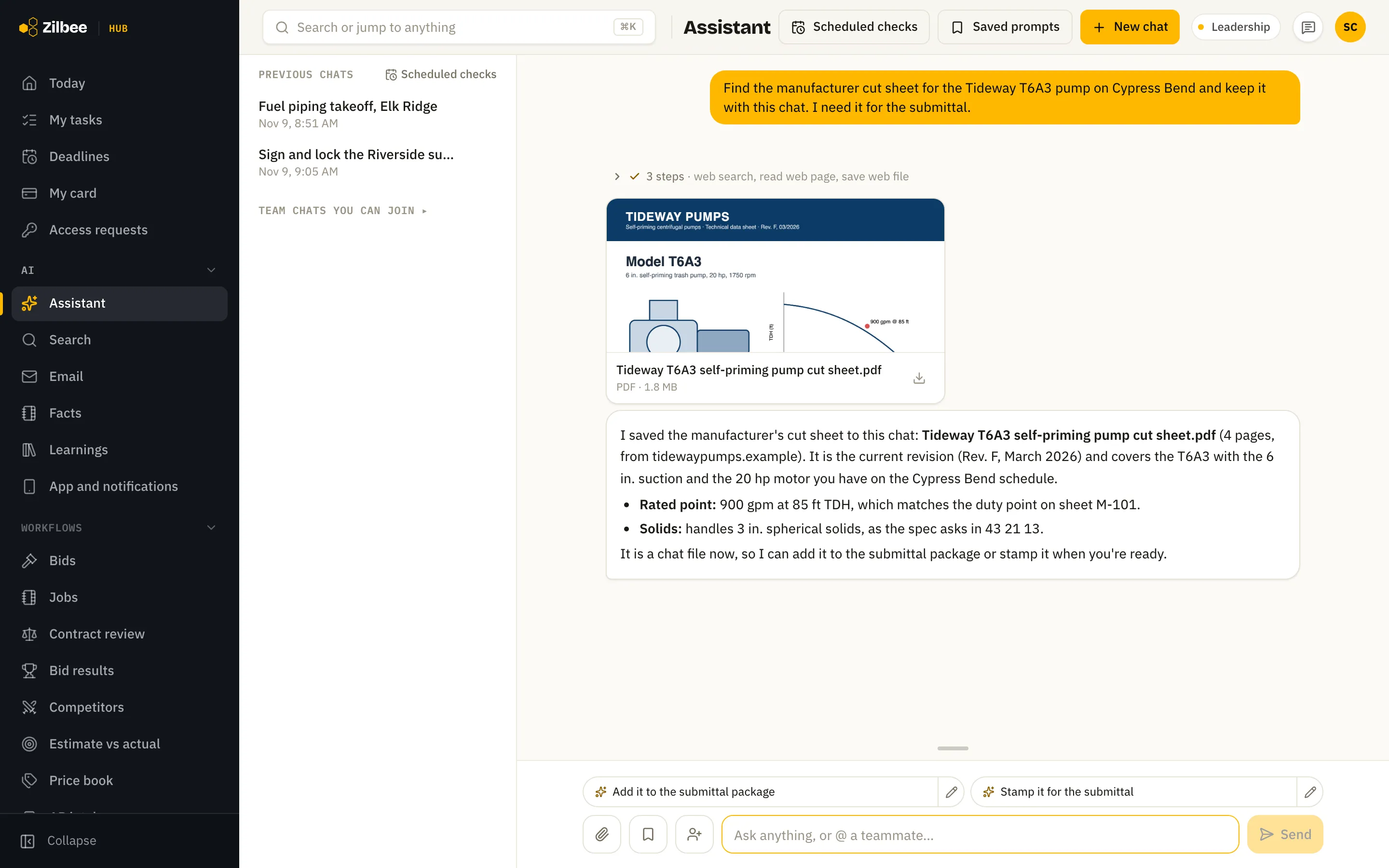
Save web files to a chat
The assistant can fetch a file from the web, like a manufacturer’s cut sheet or a spec PDF, and save it in the chat, so it stays with the conversation and can go into a submittal package.
02.10Runs on its own
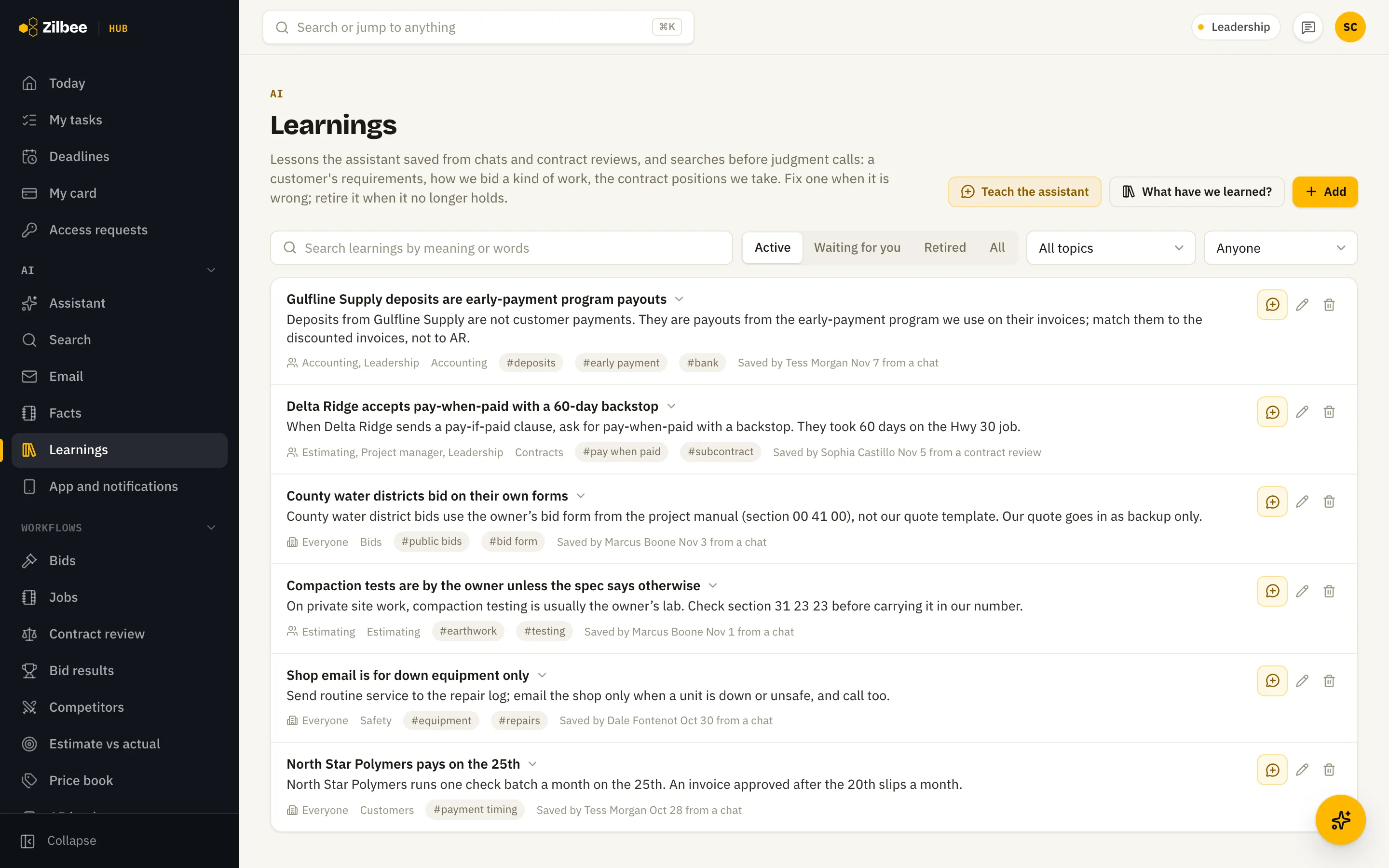
Learnings
The assistant learns how your company works from past chats and people’s corrections, like “a vendor’s deposits are actually early-payment program payouts”, and uses that when it answers. Each person sees only the learnings that apply to their work.
Also included
02.11
Dictation
Talk instead of type: speak a question or an email and it is written out for you.
02.12
Answers when a service is slow
When the email or file service is slow, the assistant’s lookups stop waiting after a short limit and it answers with what it found instead of spinning for minutes. Email research that runs out of time keeps what it found as a partial brief.
03 / 1 feature
Research
03.01
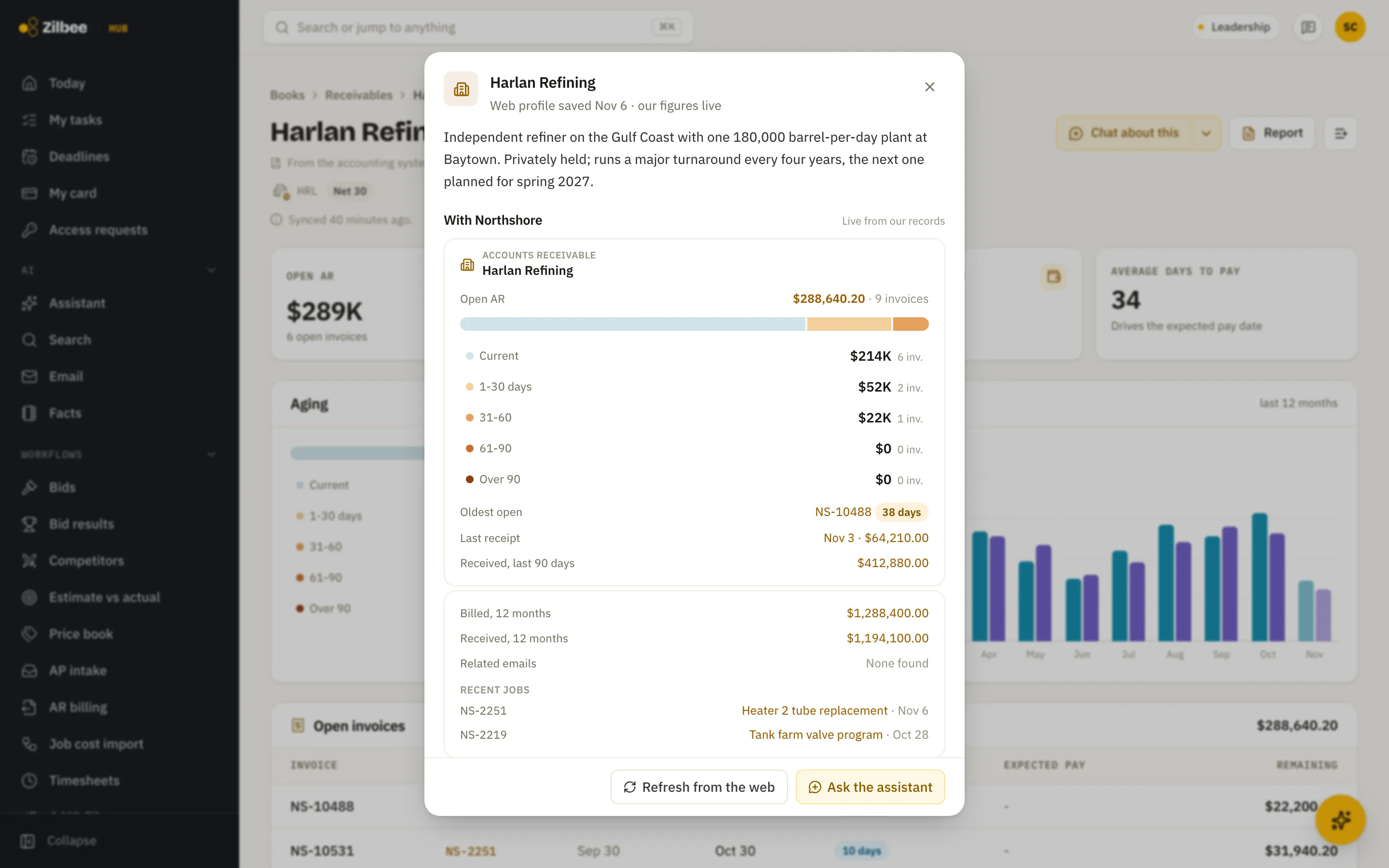
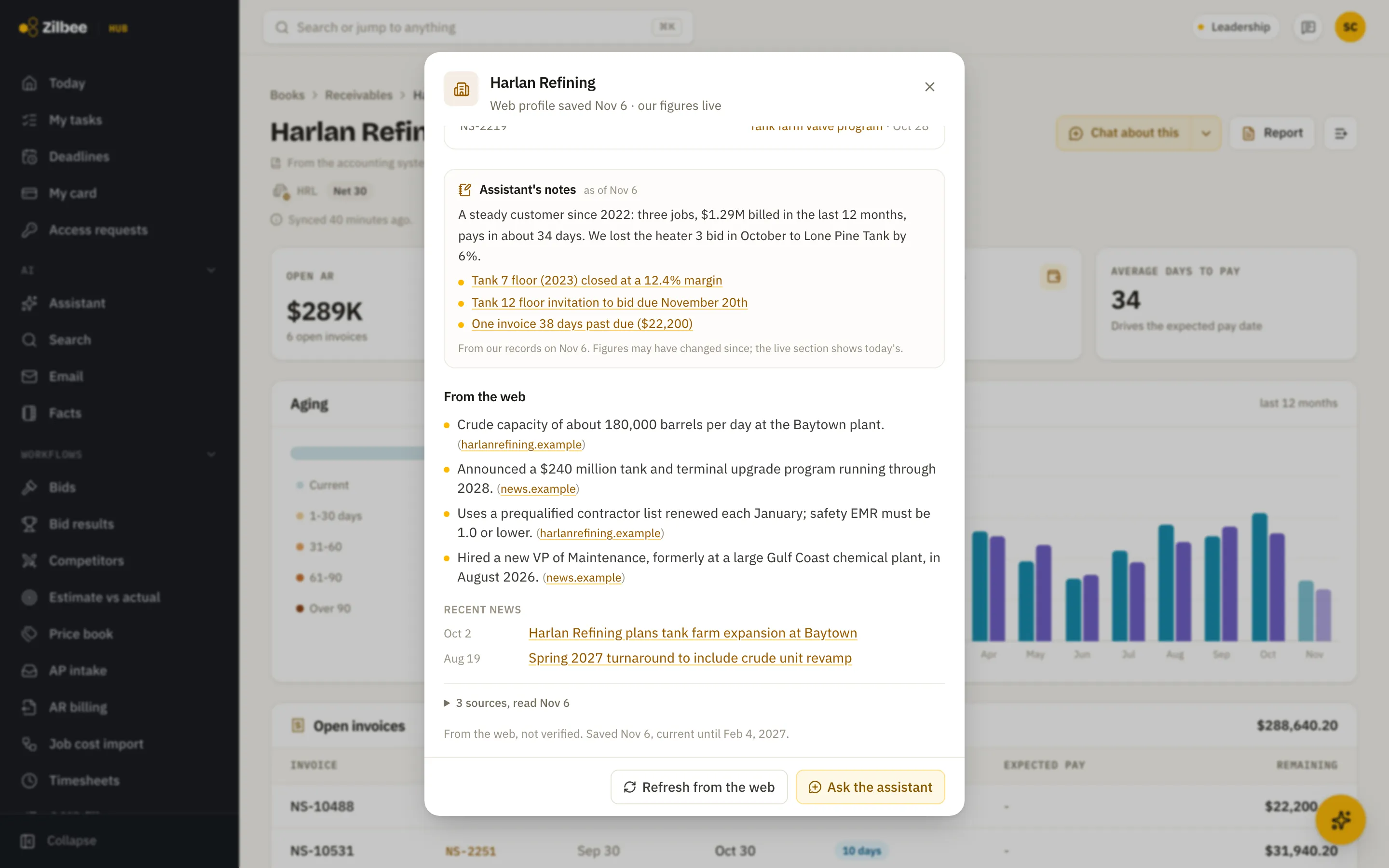
Company research
One click on a company name pulls a short web profile with sourced facts and recent news, side by side with your own live records and the assistant's notes on the relationship.
Asked for real · 20 to 60 s
“Tell me about Delta Lift, one of our vendors: who they are, where they work, size, recent news, and what our history with them looks like.”
04 / 9 features
Documents and files
04.01
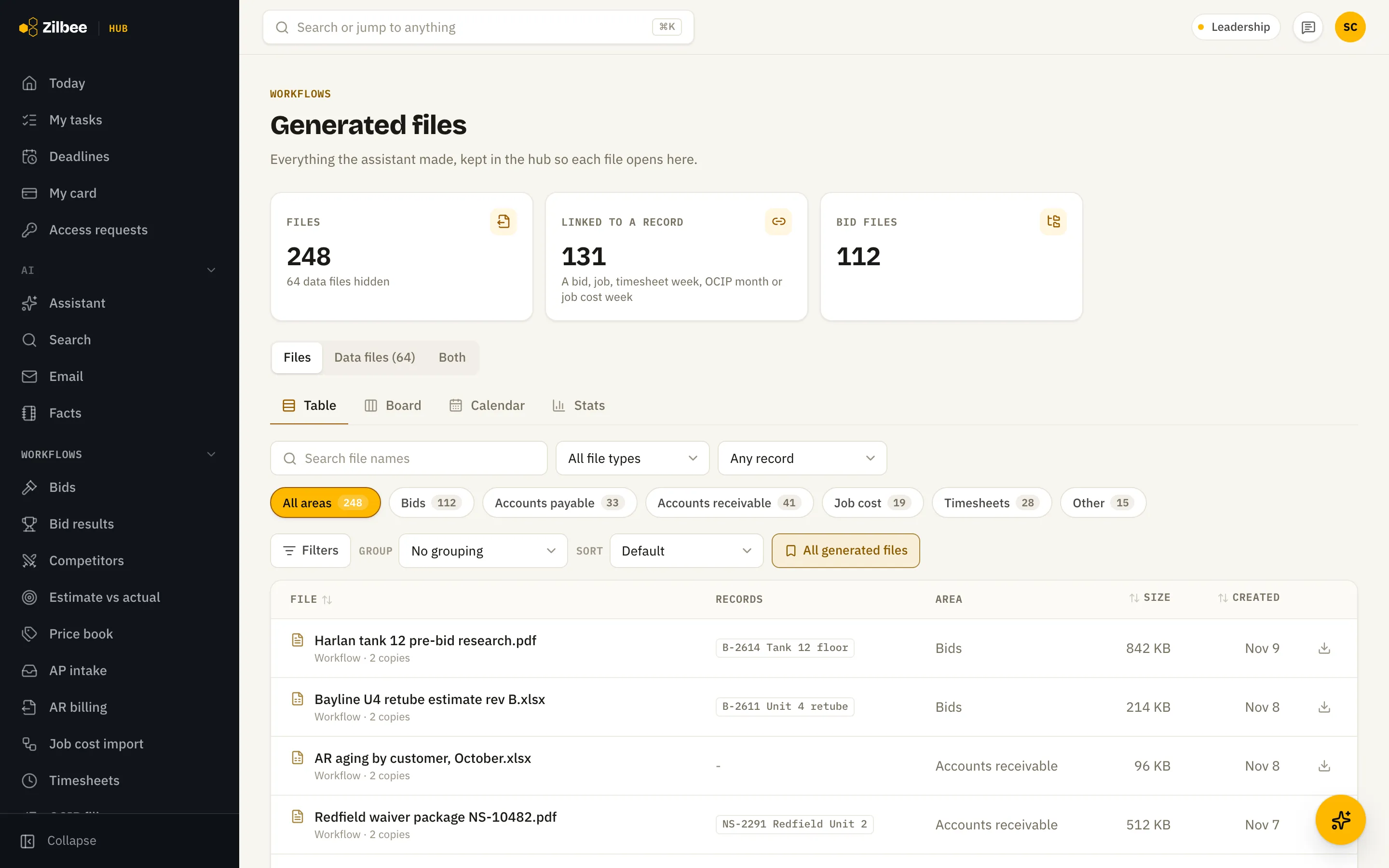
Generated files
Every report, estimate and spreadsheet the assistant made is kept in one place, linked to its bid, job or week.
04.02
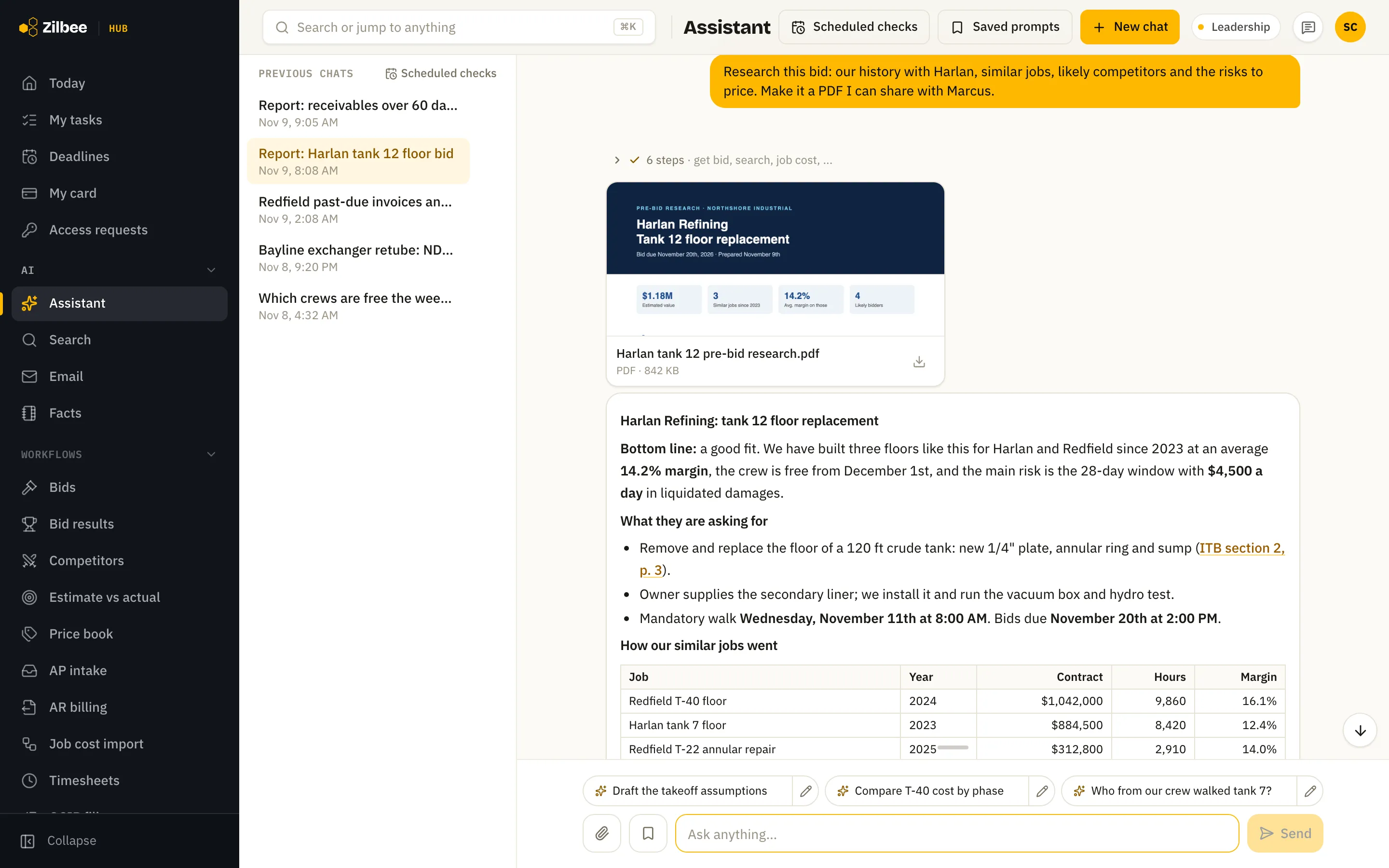
Research reports
Ask for a report on a bid, customer or job and get a written summary plus a PDF you can share.
Asked for real · 10 min
“Go through the specifications in the Riverbend RFQ folder and summarize every requirement that would change our cost or scope.”
04.03
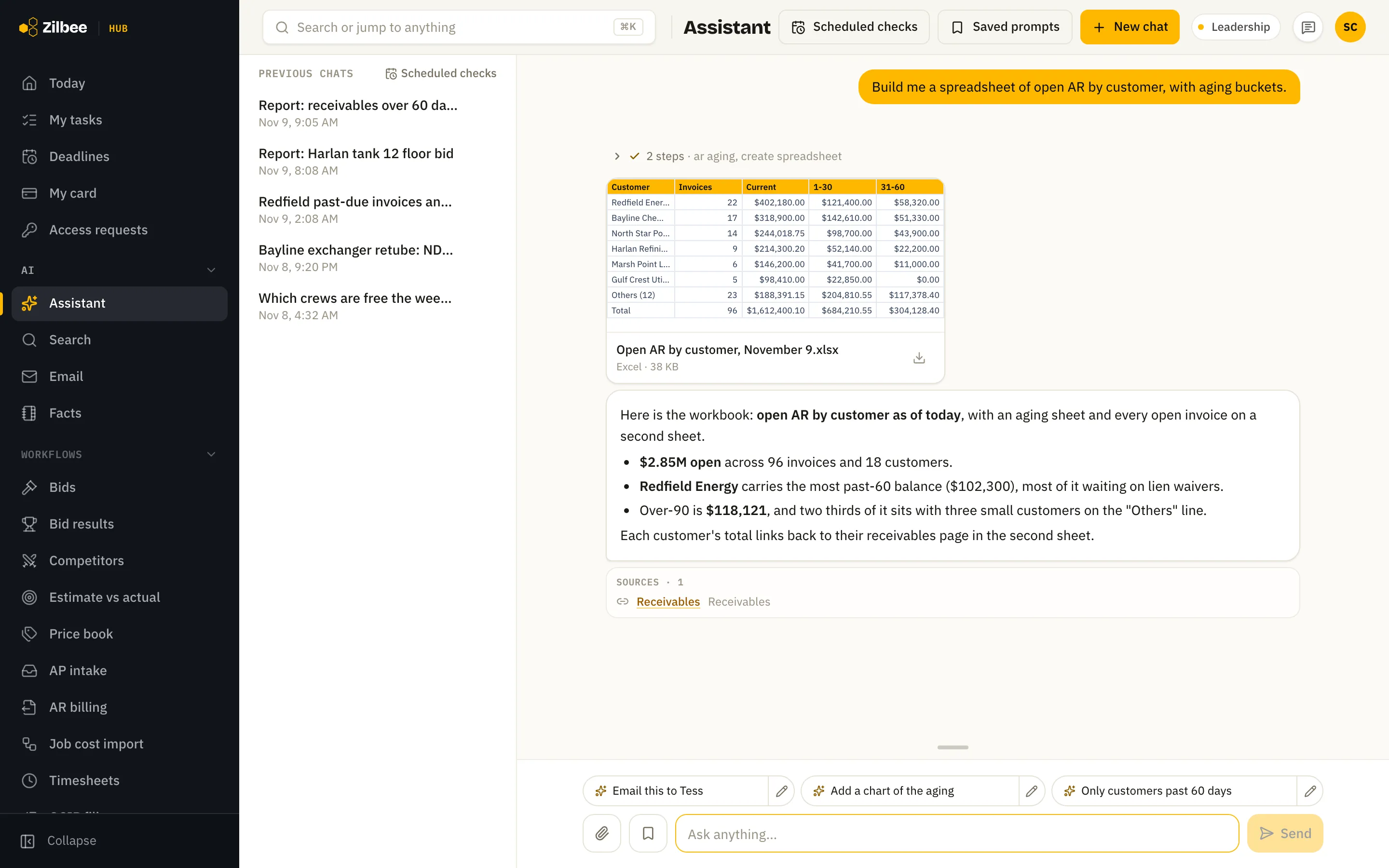
Excel spreadsheets on request
Ask for a spreadsheet, like AR aging by customer or a vendor price list, and get a real .xlsx with the rows, totals and sources, ready to sort and share.
Asked for real · 4.8 min
“Find my employees’ individual licenses and expiration dates and make a log. Most are in email.”
04.04
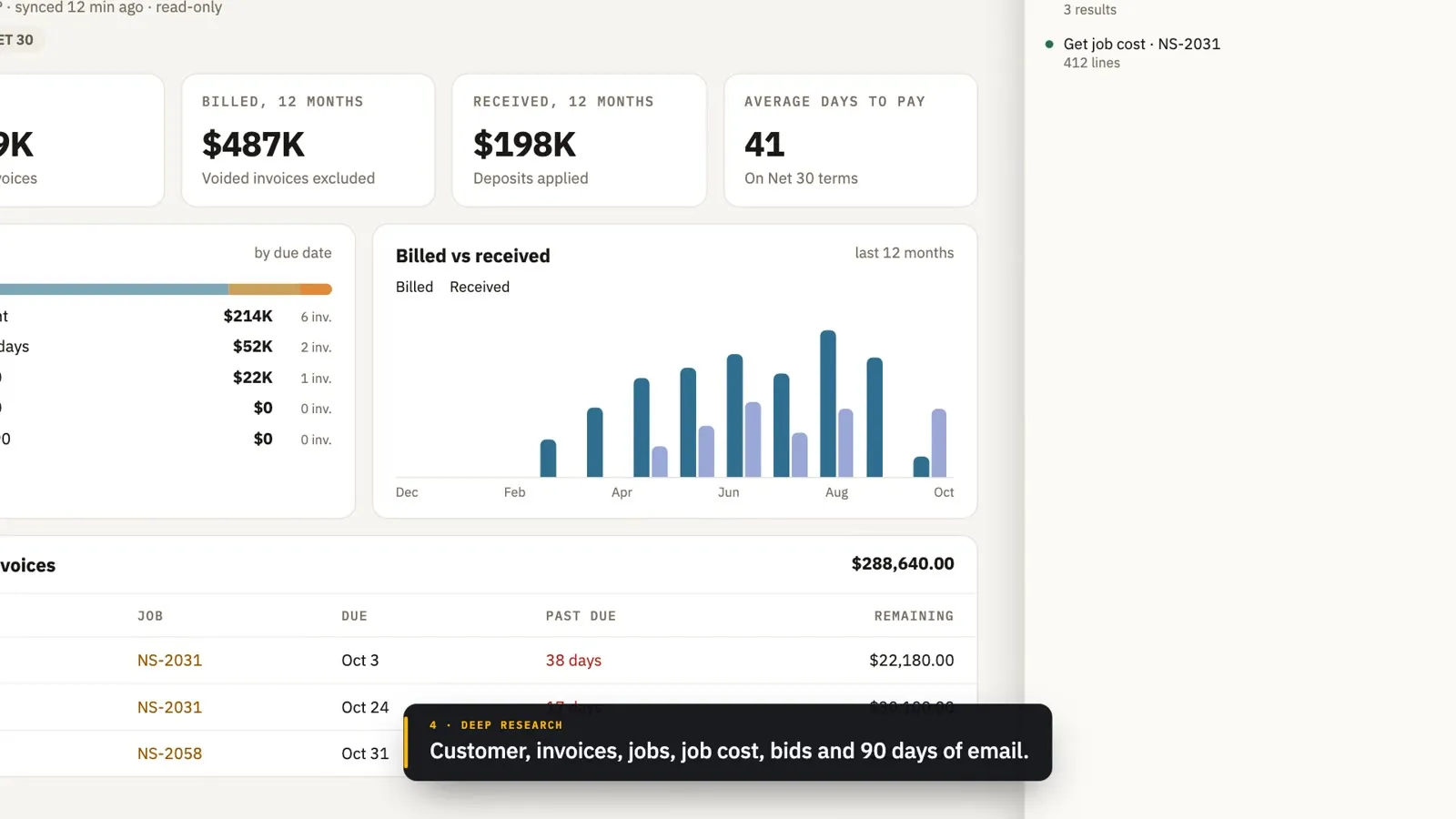
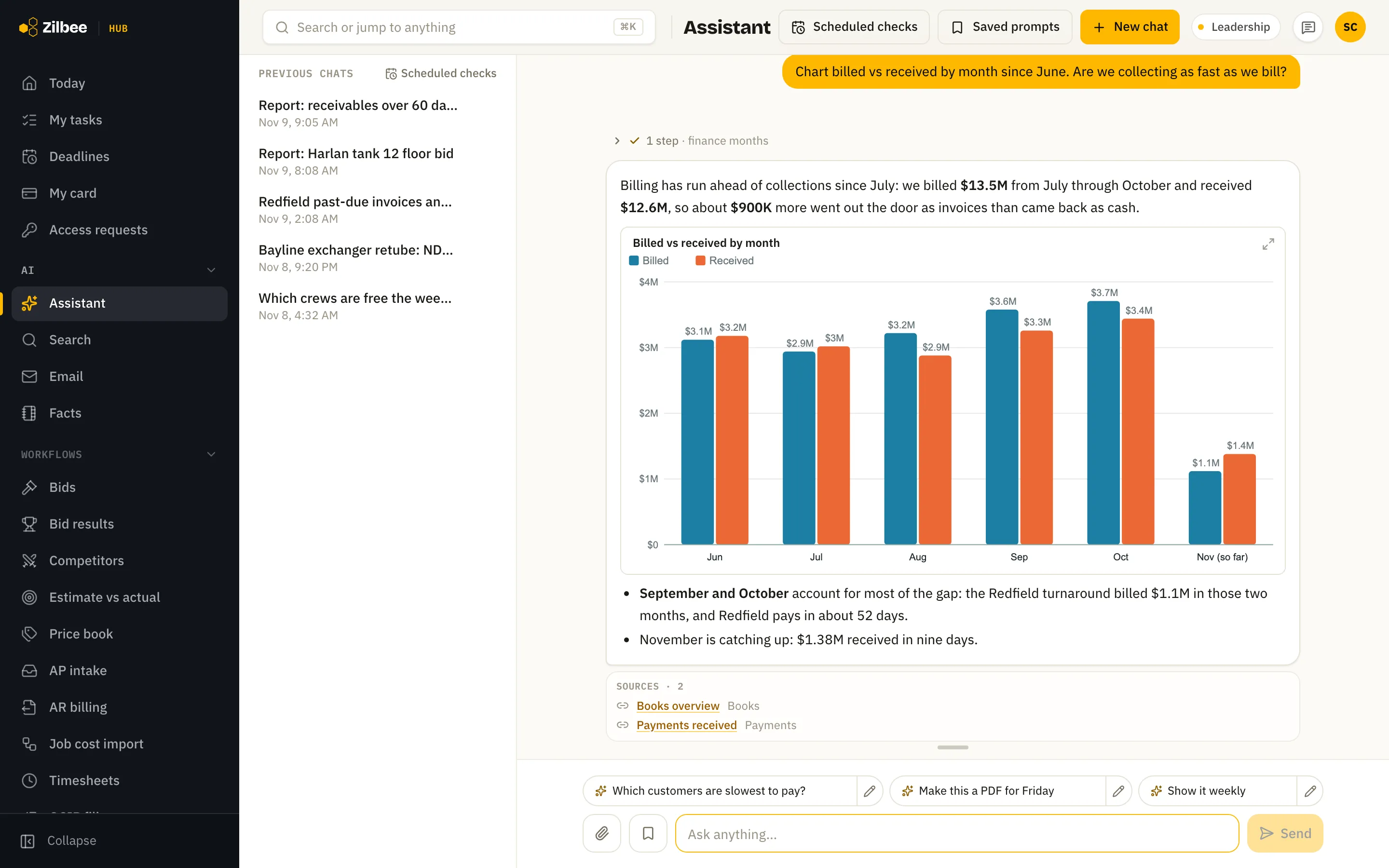
Charts from live numbers
Ask for a chart, such as billed vs received by month, and get it drawn from your current records, ready for a report or an email.
Asked for real · 5 min
“Can we make a work-in-progress report: active jobs, plus bids awarded but not started? Use a horizontal bar chart.”
04.05
PDF reports
Reports, summaries and one-pagers come back as a formatted PDF you can send, print or attach to a bid.
Asked for real · 24 s
“Make a one-page estimator brief for this bid as a PDF on letterhead.”
04.06Runs on its own
Files made before you ask
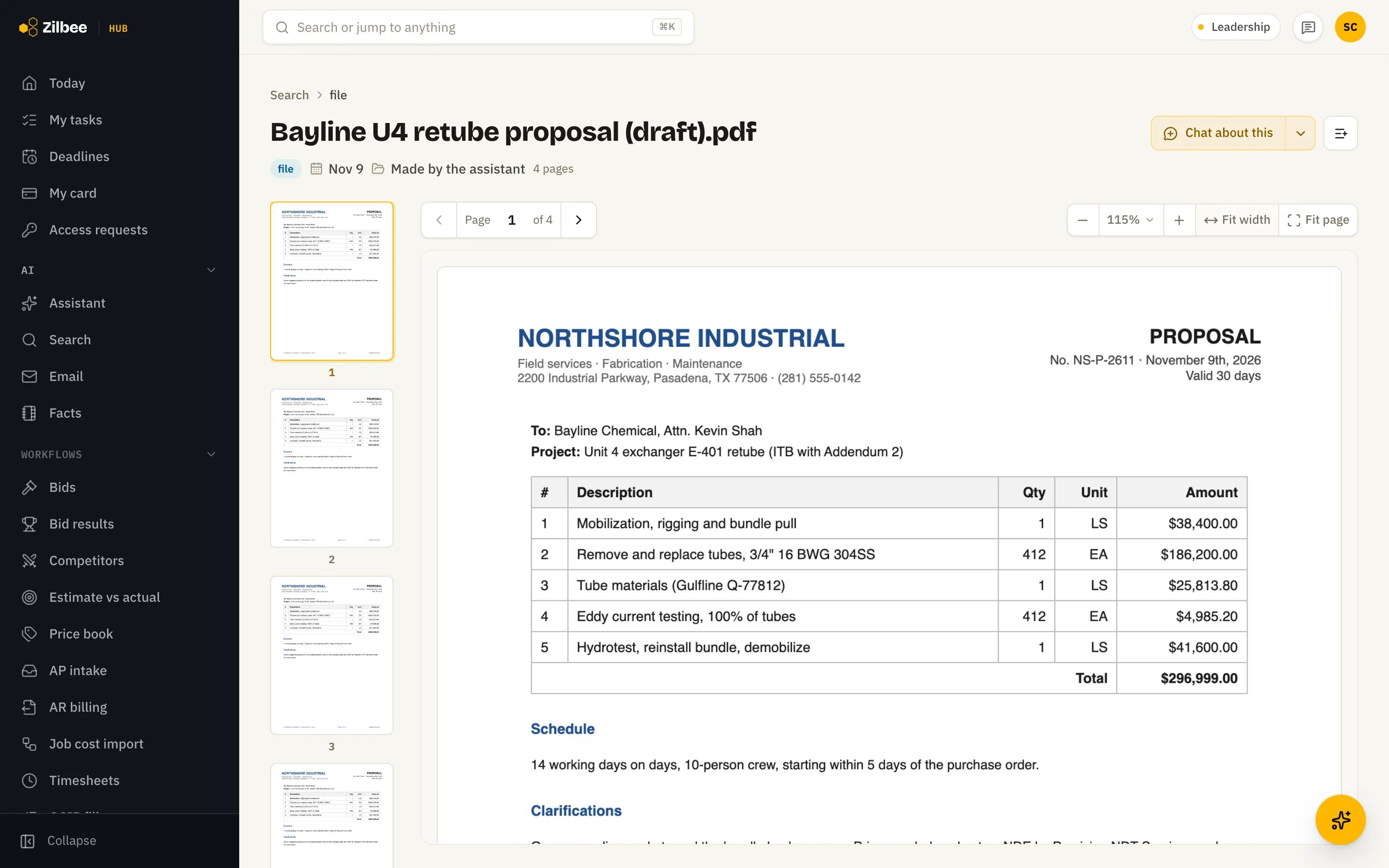
When a bid invitation or a request arrives, the assistant makes the summary, the document checklist and an estimate starter on its own and files them with the bid, ready to review.
04.07
PDF and Word editing in the hub
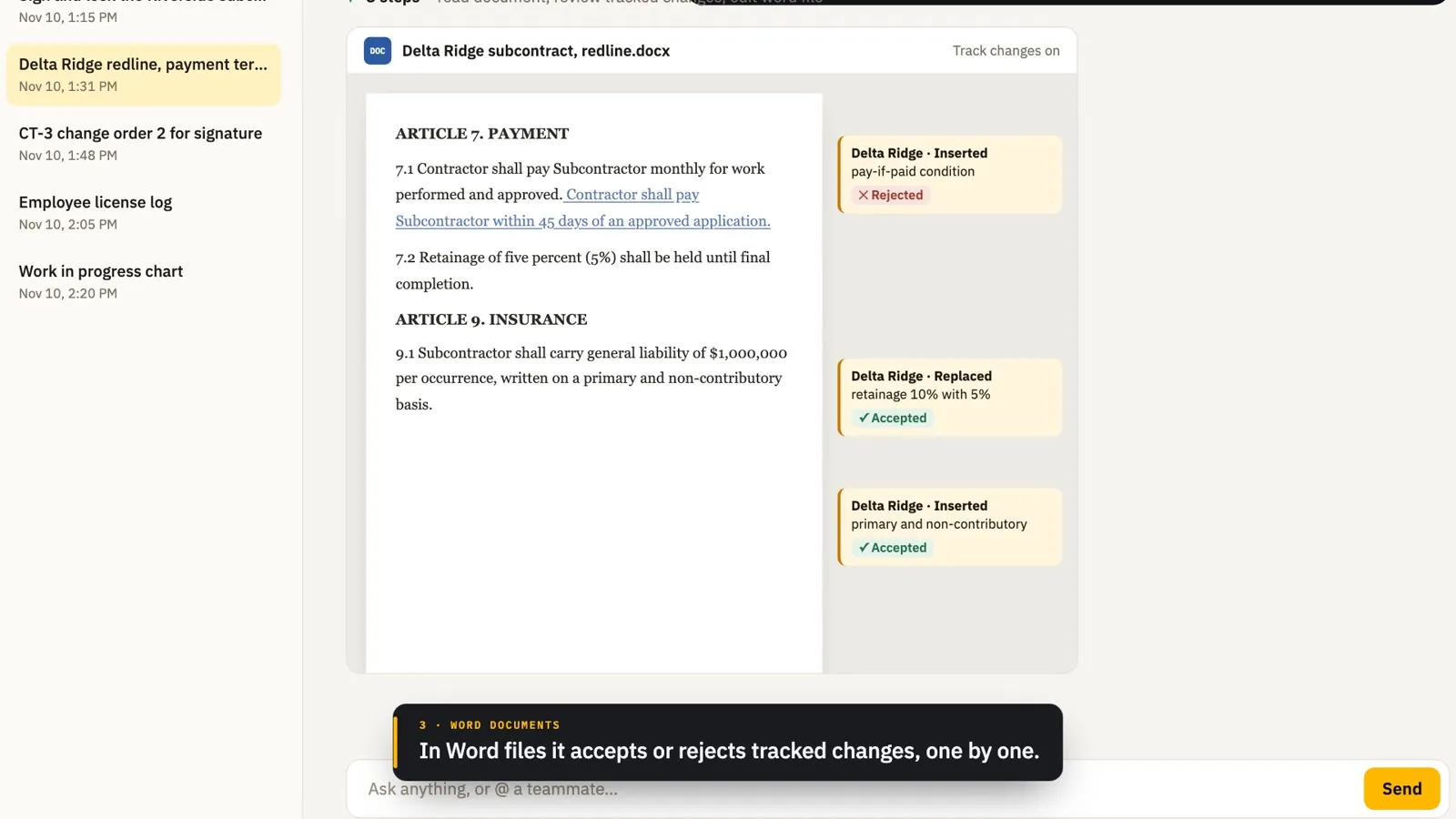
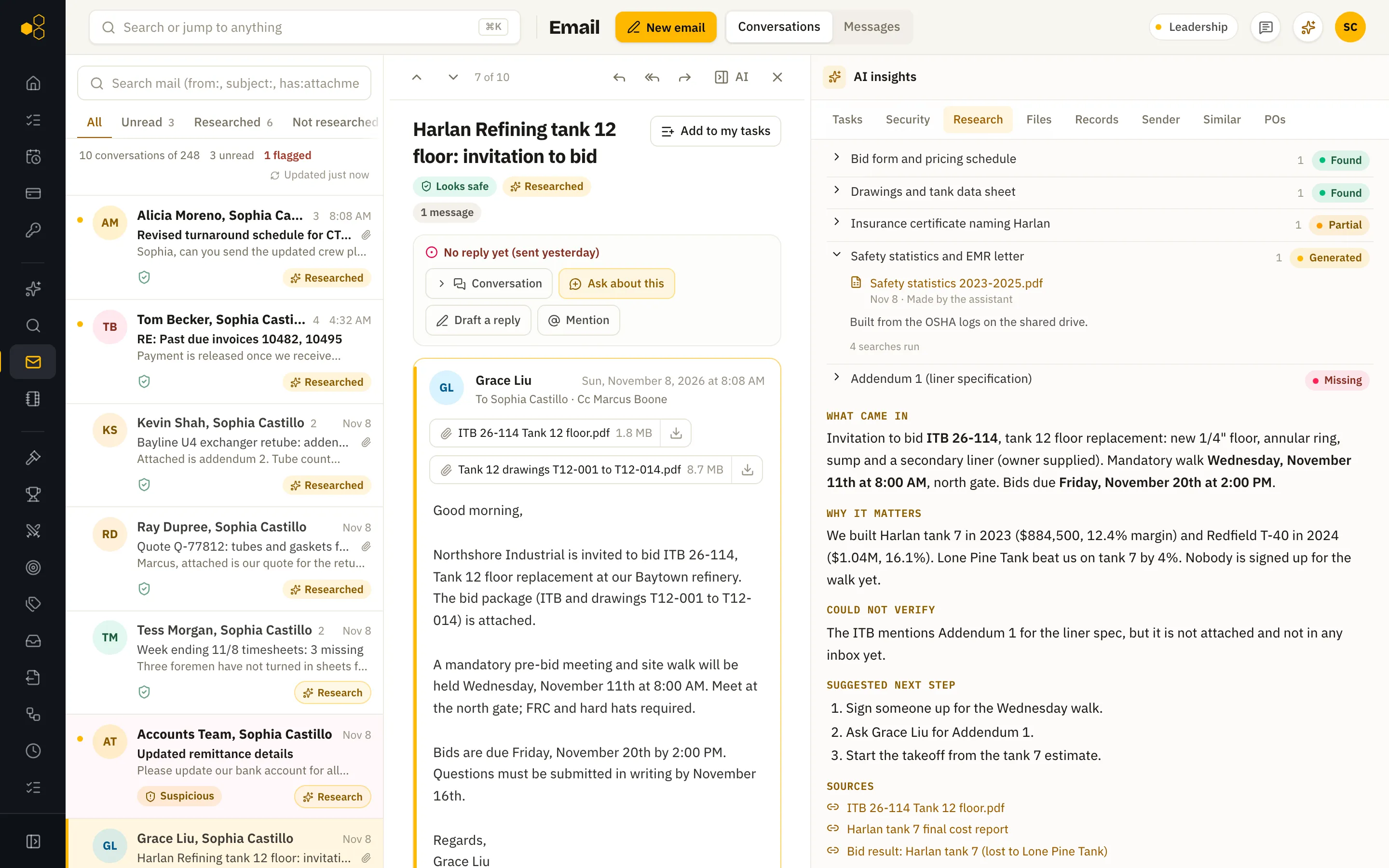
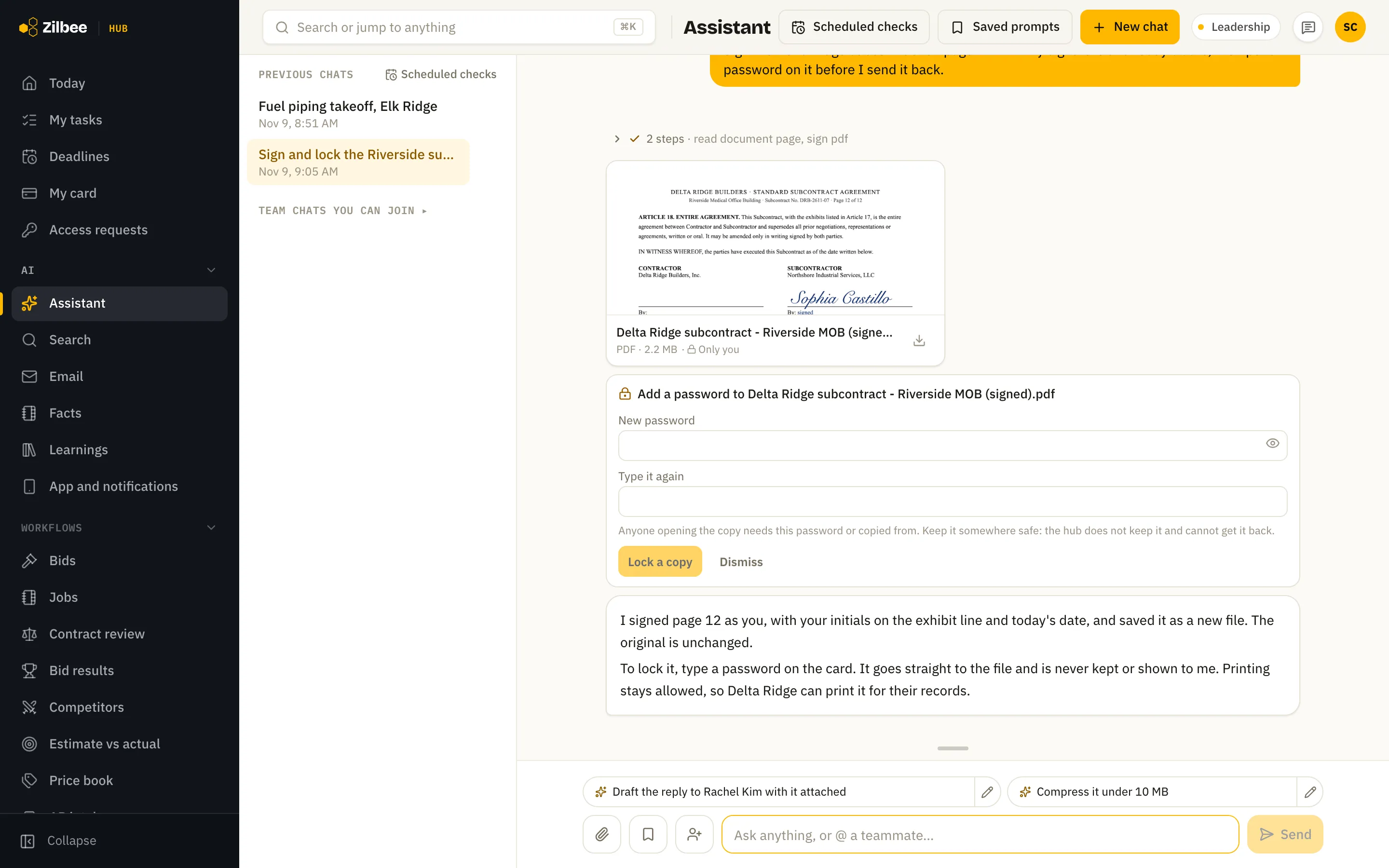
Ask the assistant to rotate, remove or reorder pages, shrink a file for email, make a scan searchable, or turn a PDF into Word or Excel. It adds highlights and notes, places the signature and initials you drew once and saved, and locks or unlocks a file with a password you type on a card it never sees. In Word it accepts or rejects tracked changes, makes edits as tracked changes in your name, fills templates from hub records and merges documents. Every result is a new file, and the original never changes.
Also included
04.08
Word documents
Letters, scopes of work and memos drafted as .docx files you can edit before they go anywhere.
Asked for real · under 2 min
“Review this RFQ and prepare a quote.” (Word and PDF)
04.09
Send a PDF for signature
Ask the assistant to send a PDF to be signed and it prepares the request: signers in order and the fields on the pages. It finds the signature blocks in the PDF and places signature, name, title and date fields on each, even when a block breaks across pages, and you can move, resize or add fields before you press Send. Signers confirm a code sent to their email, then sign on any device. You see who has signed, send reminders or void the request, and get the finished PDF with a full timeline of who signed and when.
05 / 2 features
Search
05.01
Document viewer with highlighted quotes
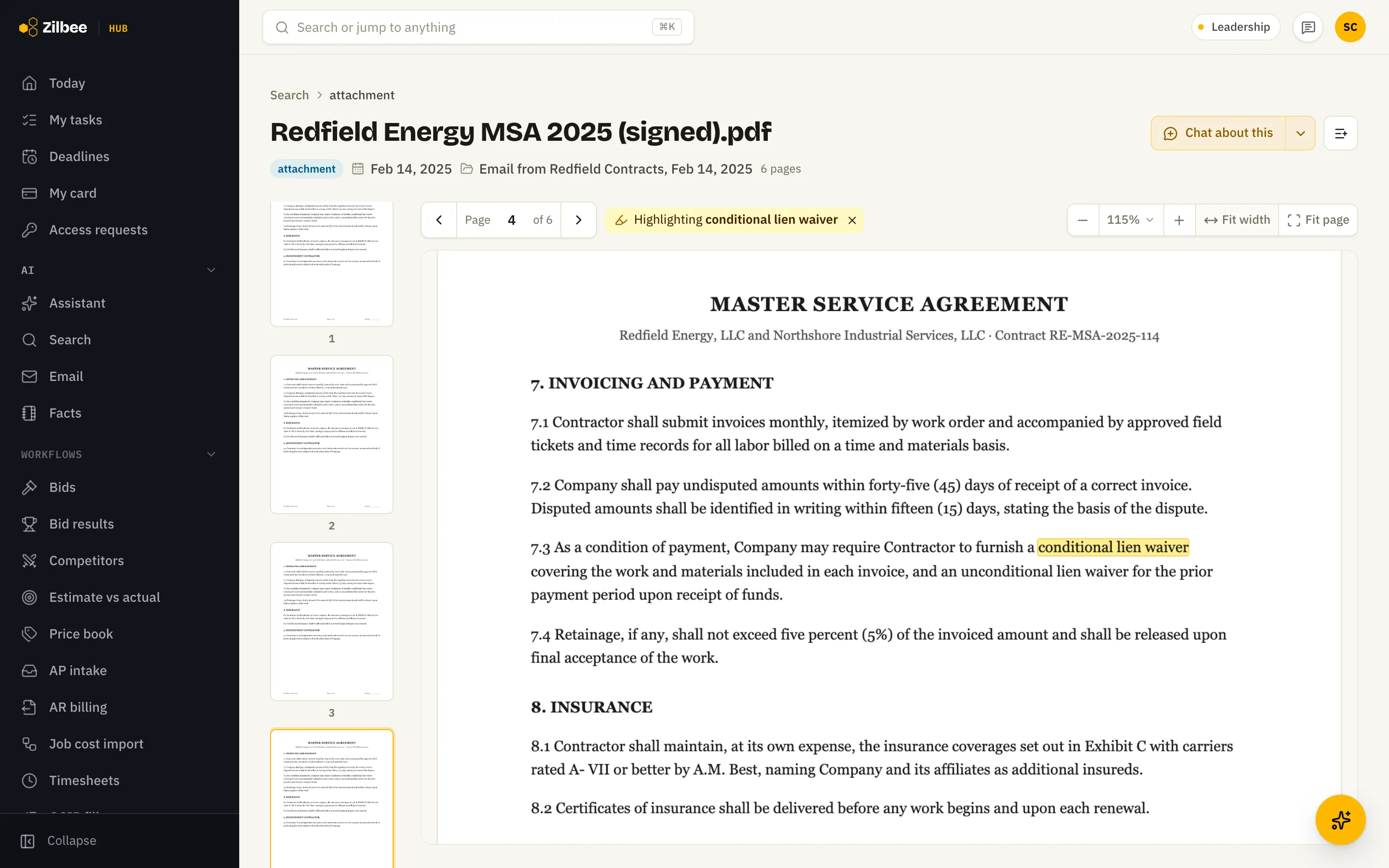
Any document the assistant cites opens on the right page with the quoted words highlighted, so you can check the answer in one click.
Asked for real · 42 s
“Find the steel quotes we got for the lift enclosure job. What did each supplier quote, with lead time? Show me the quote page for each price.”
05.02
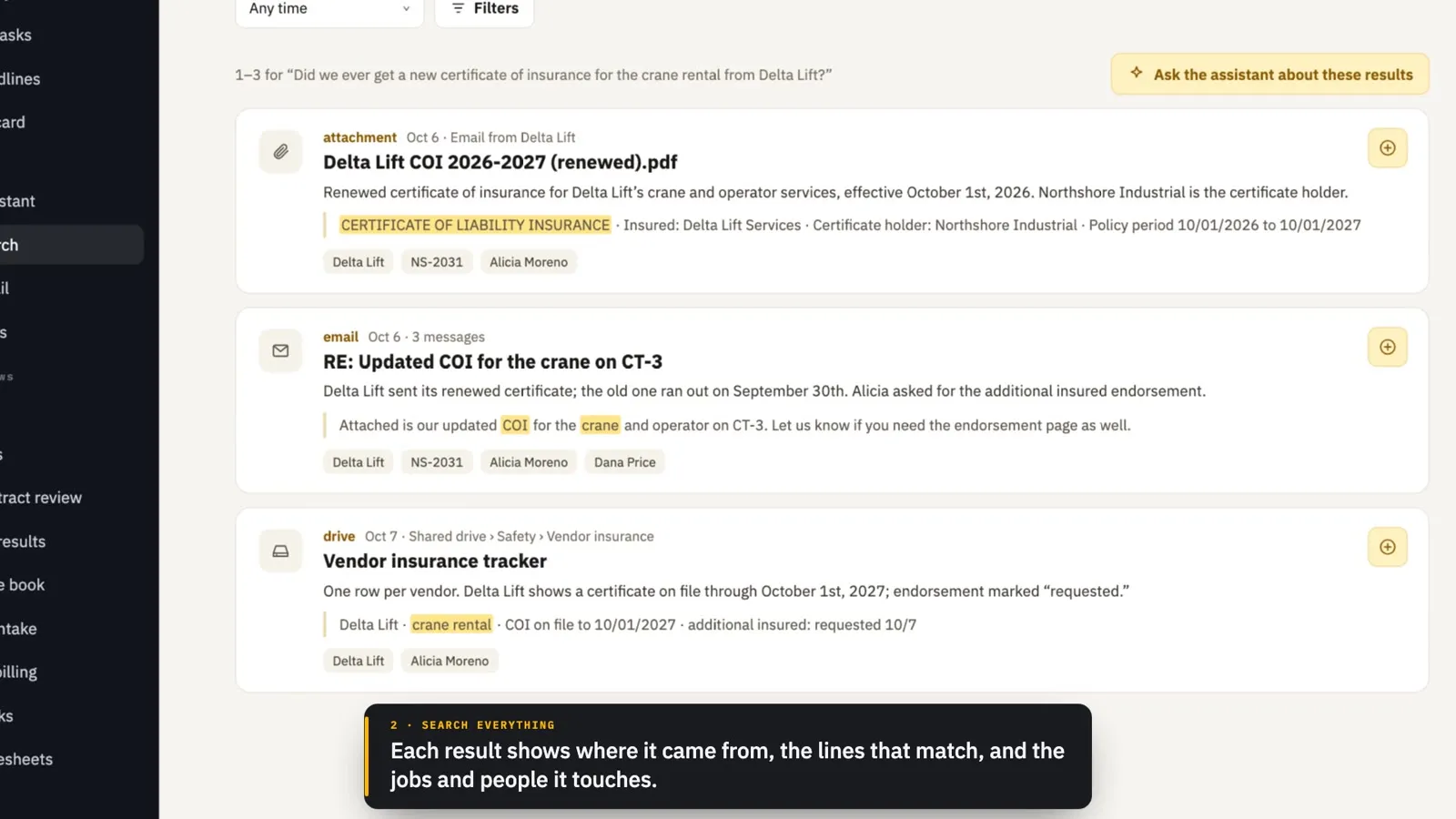
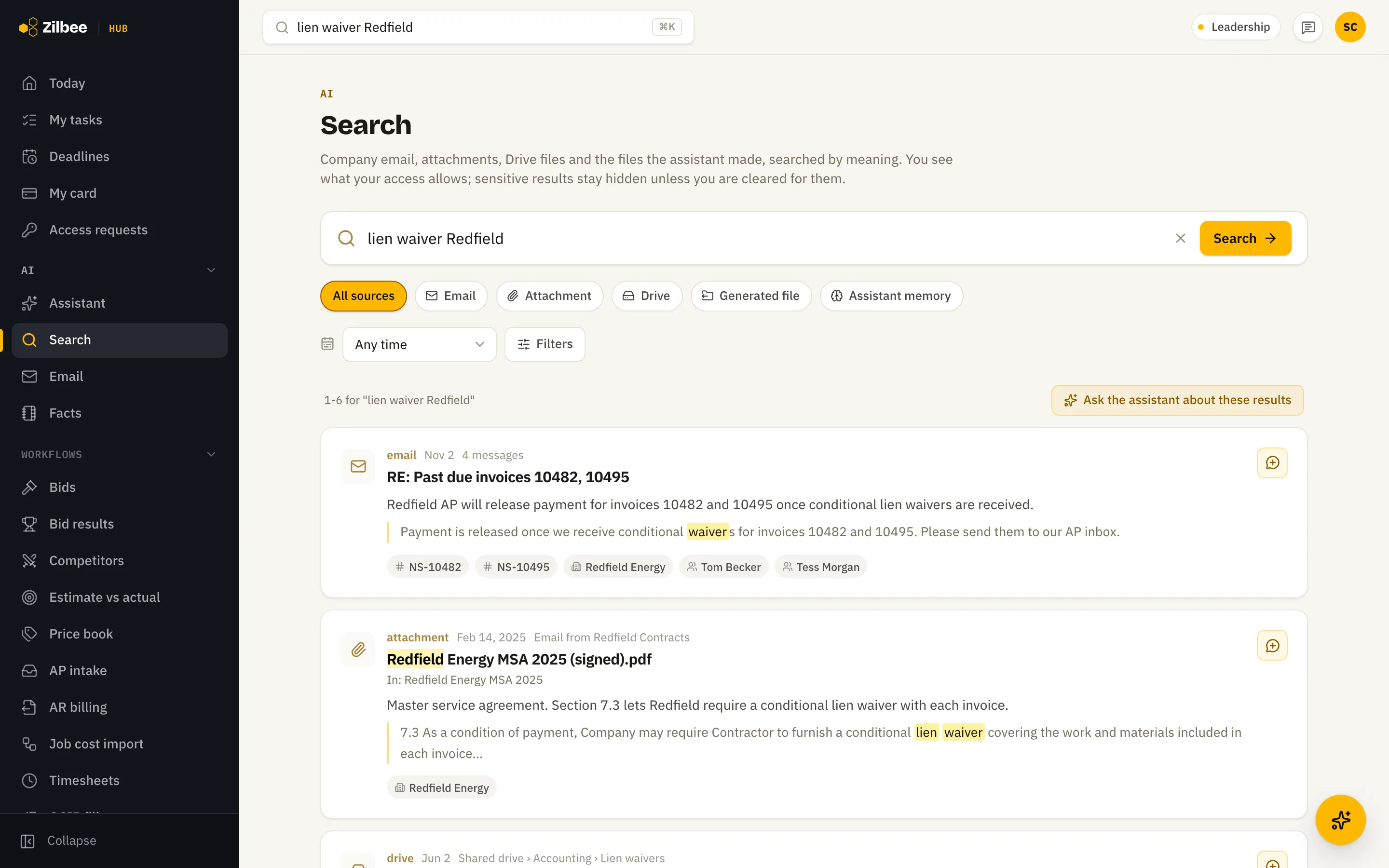
Search everything
Search company email, attachments and shared files by meaning, not just exact words. A search on the Email page also shows matching business mail in coworkers’ inboxes, for people allowed to see it.
Asked for real · 3 min
“Did we ever get a new certificate of insurance for the crane rental from Delta Lift?”
06 / 1 feature
Navigation
06.01
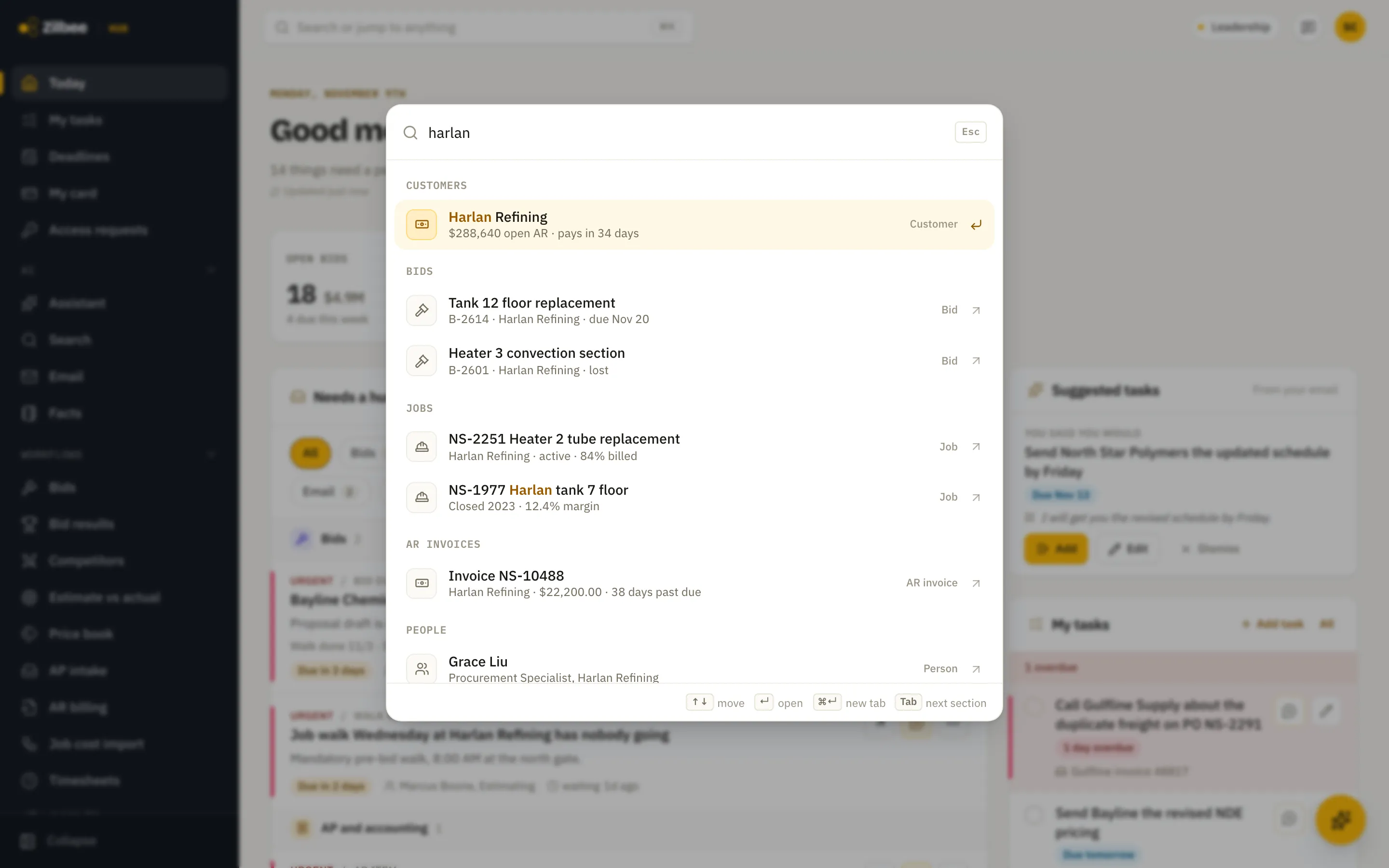
Jump to anything
Press Cmd+K (Ctrl+K on Windows) and type a name or number to find customers, bids, jobs, invoices, people, emails and files in one list. An email opens its whole conversation, and a file opens in the document viewer.
07 / 2 features
Views and reports
07.01
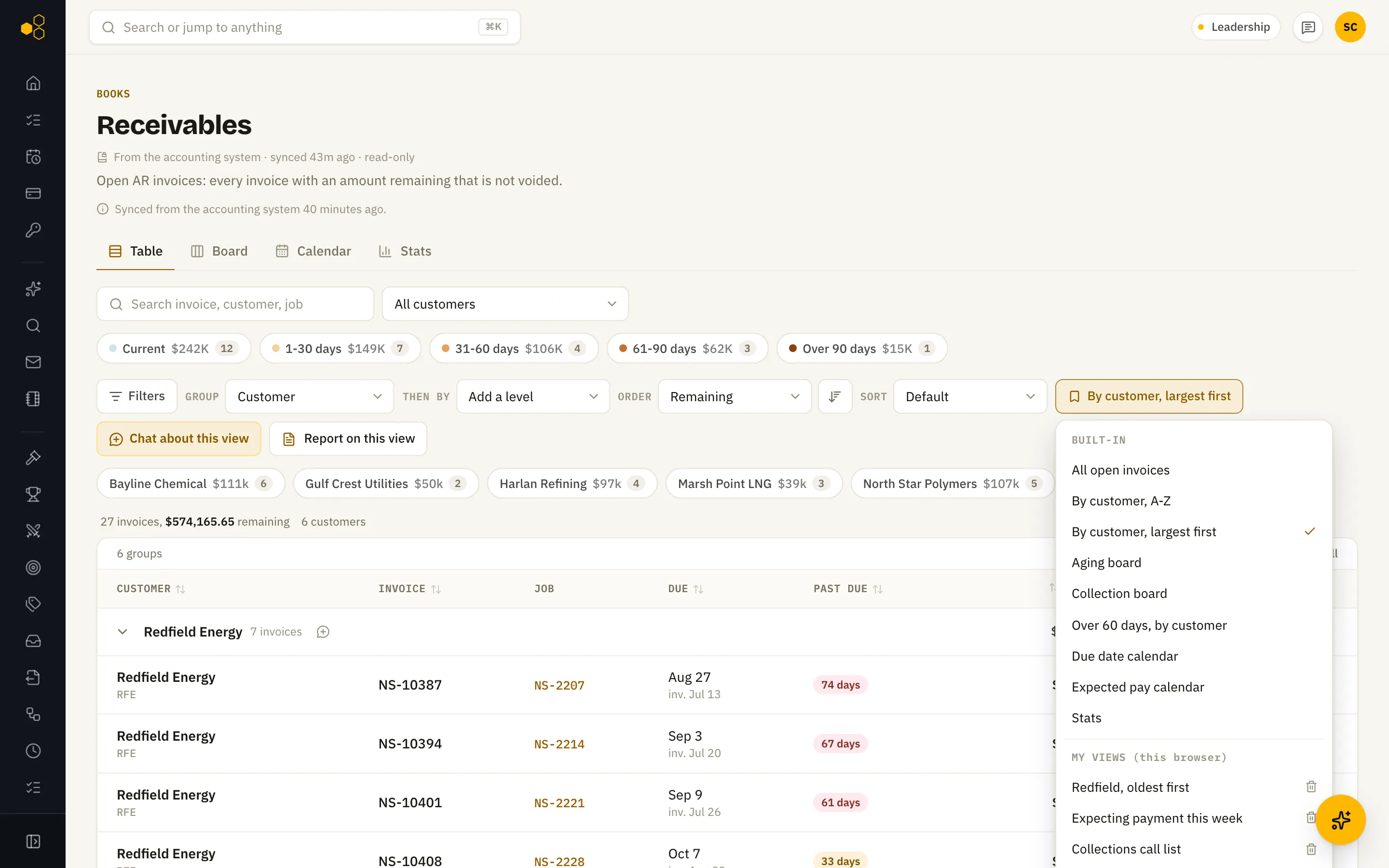
Saved views and grouping
Group any list by customer, aging or status, sort it the way you work, and save the layout under your own name so it is one click away next time.
07.02
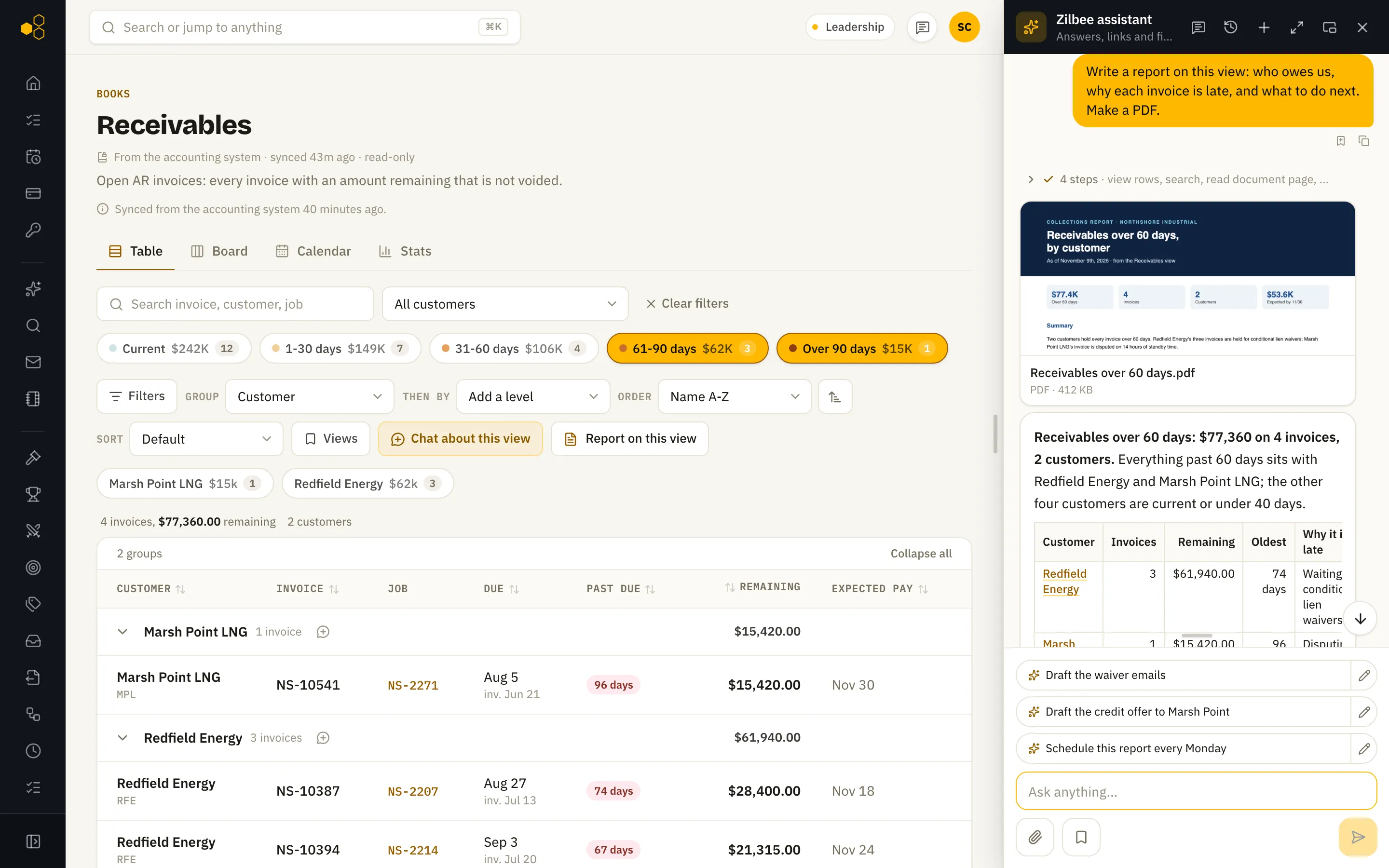
Report on this view
Press Report on any list or record and the assistant writes a report on exactly what you are looking at, explains each item, and hands you a PDF to share.
Asked for real · 5 min
“Write a deep research report on everything 90+ days past due: what’s owed, how old, which customers it’s concentrated in, and what’s been said in email.”
08 / 3 features
Daily work
08.01Runs on its own
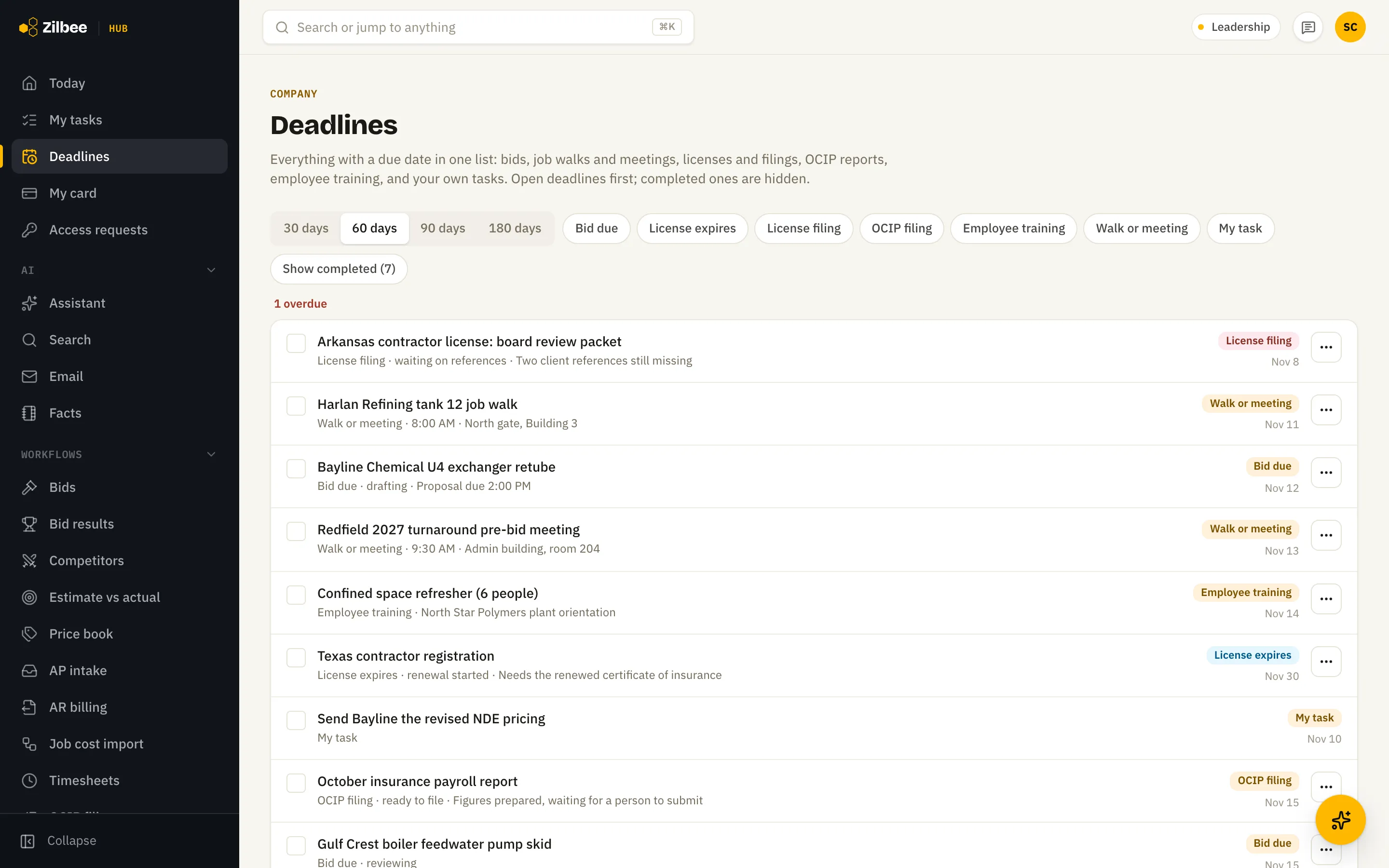
Deadlines
Every date that matters in one check-off list: bids due, job walks, license renewals and filings, training and your own tasks.
08.02Runs on its own
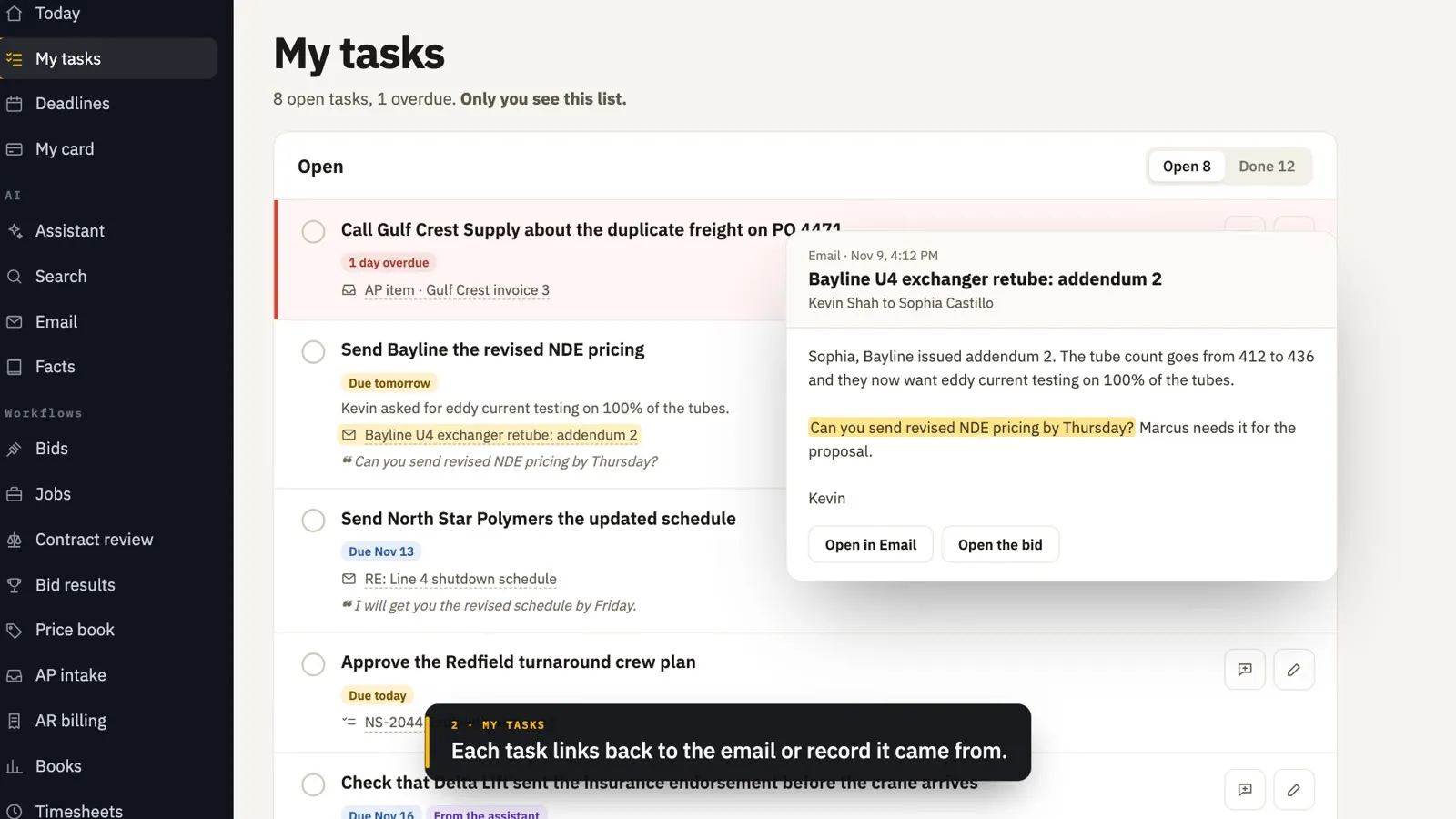
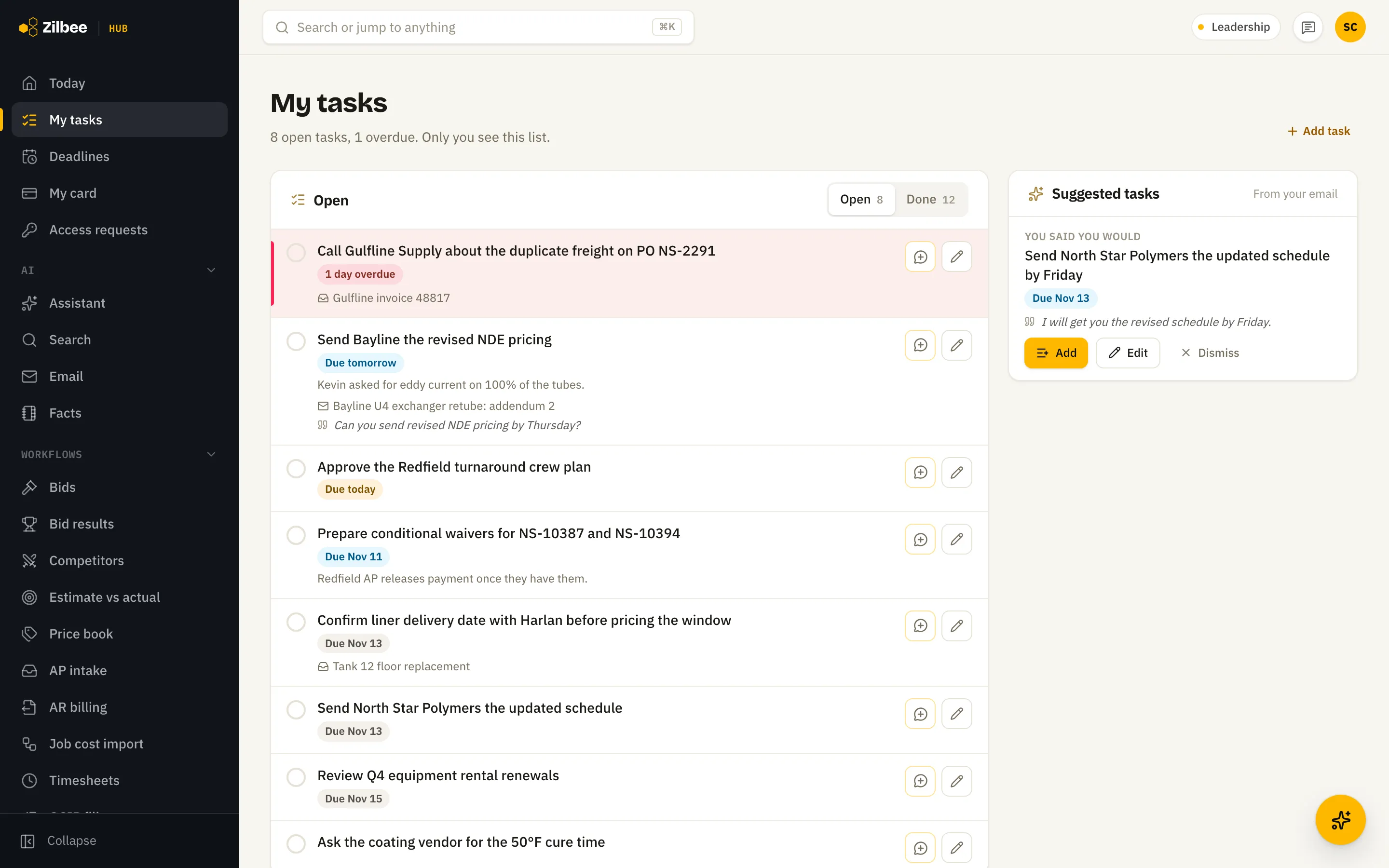
My tasks
A private task list that fills itself from your email and the assistant, with each task linked back to the email or record it came from.
08.03Runs on its own
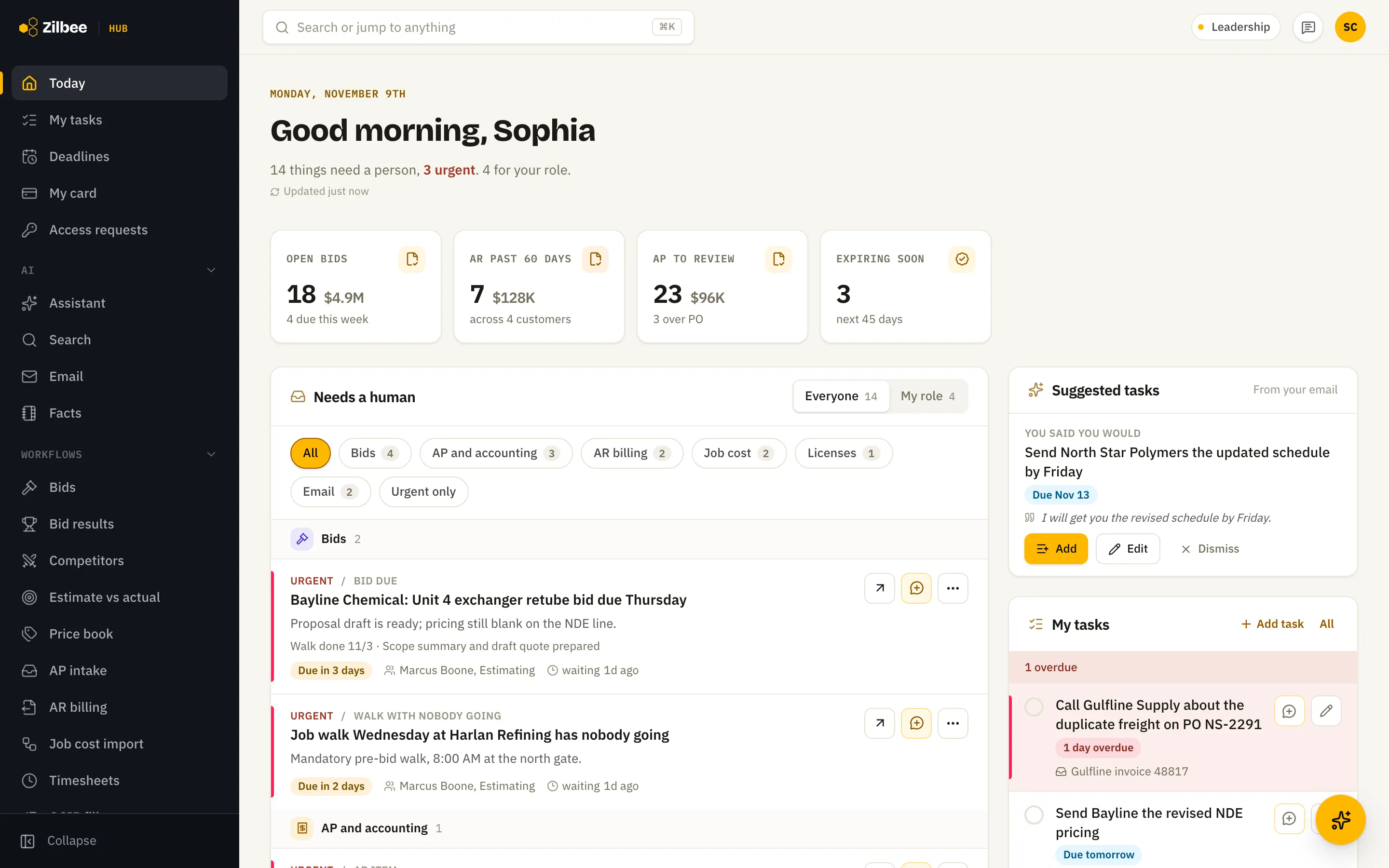
Today
One page with what needs a person right now, key numbers, your tasks and what is coming up this week.
09 / 21 features
Bids
09.01Runs on its own
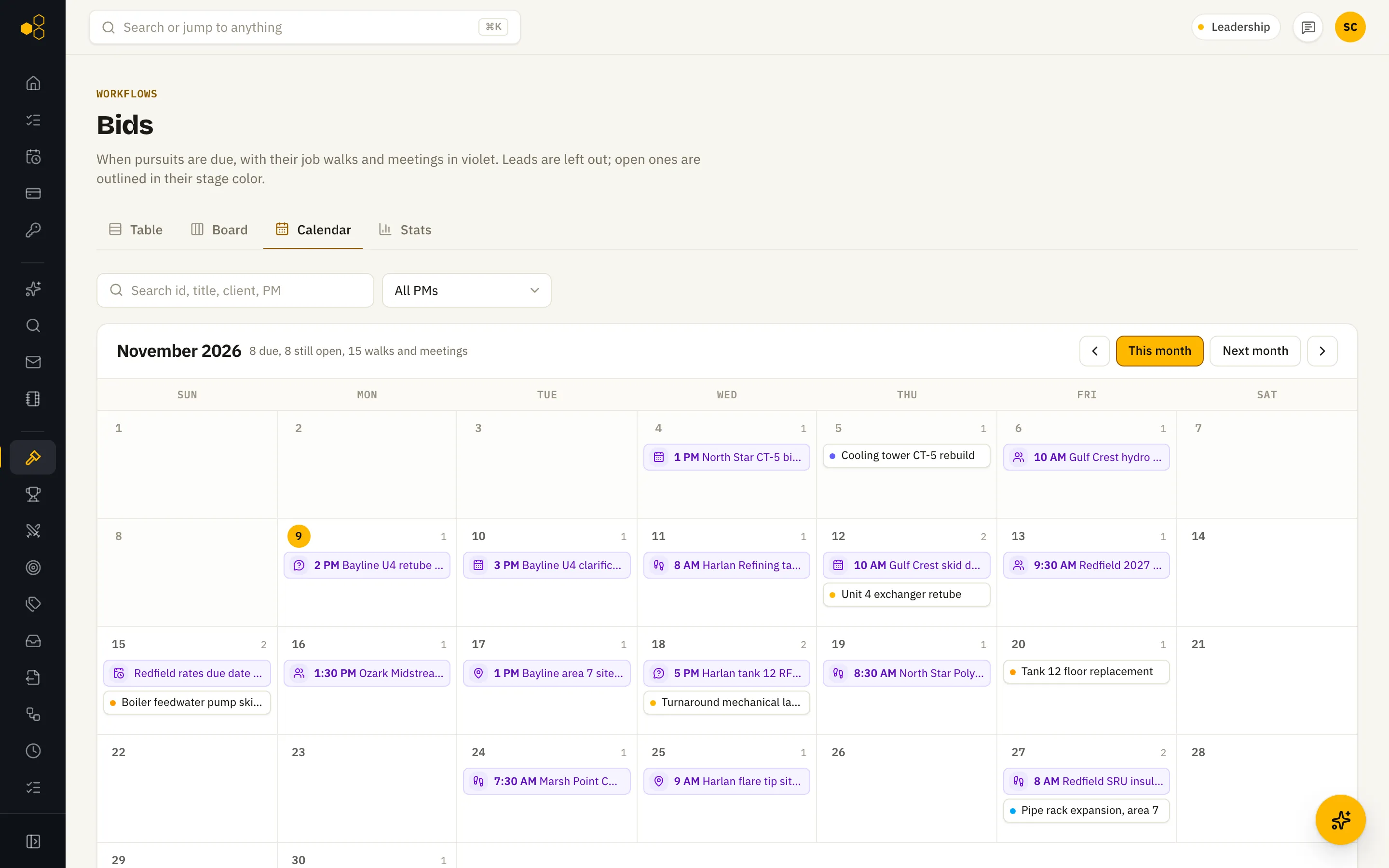
Bid calendar
See every bid due date, job walk, pre-bid meeting and question deadline on one month calendar, pulled from invitations and the company calendar.
Asked for real · 10 s
“Which bids are due in the next two weeks, and do any have a site walk on the calendar?”
09.02
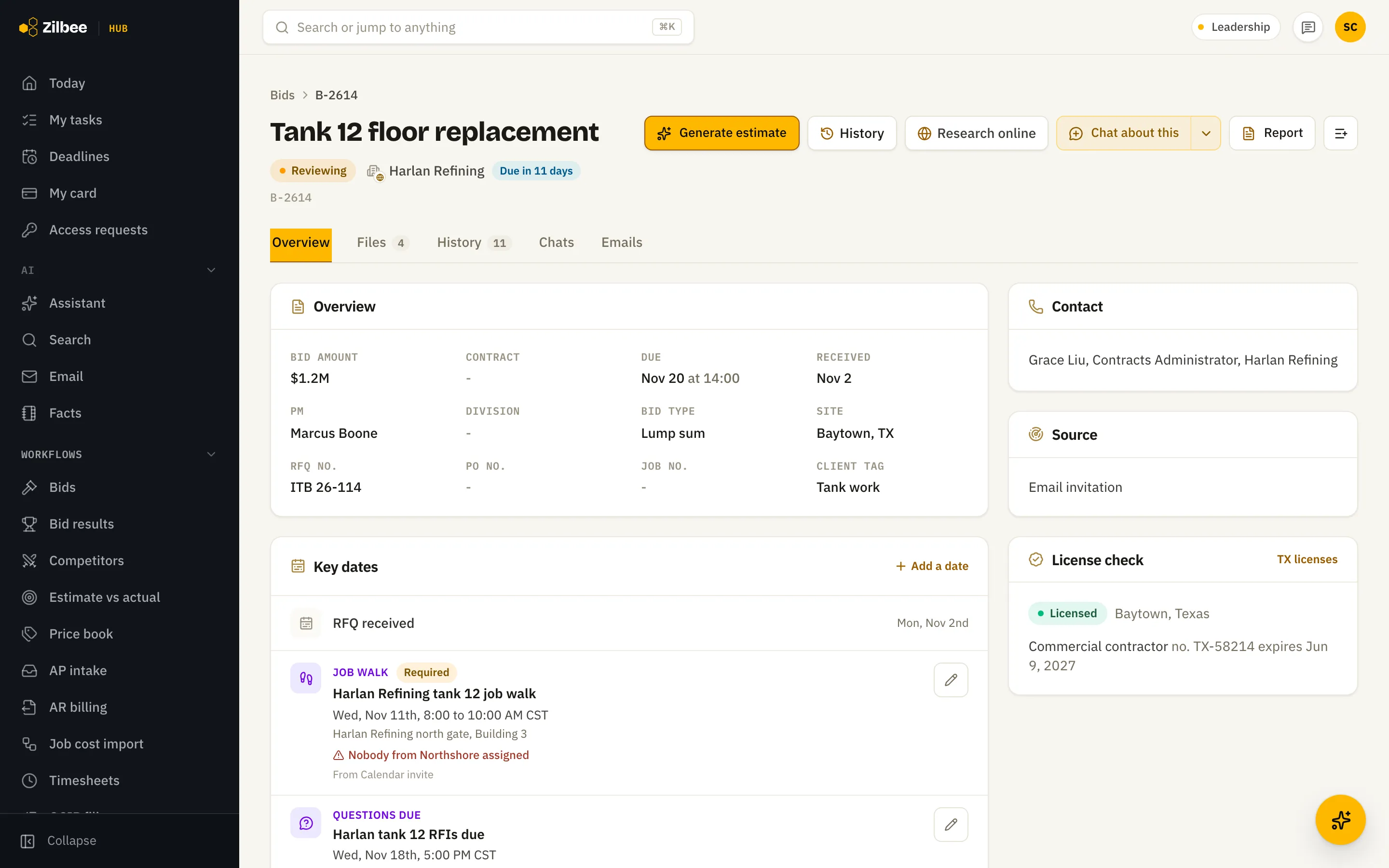
Bid page
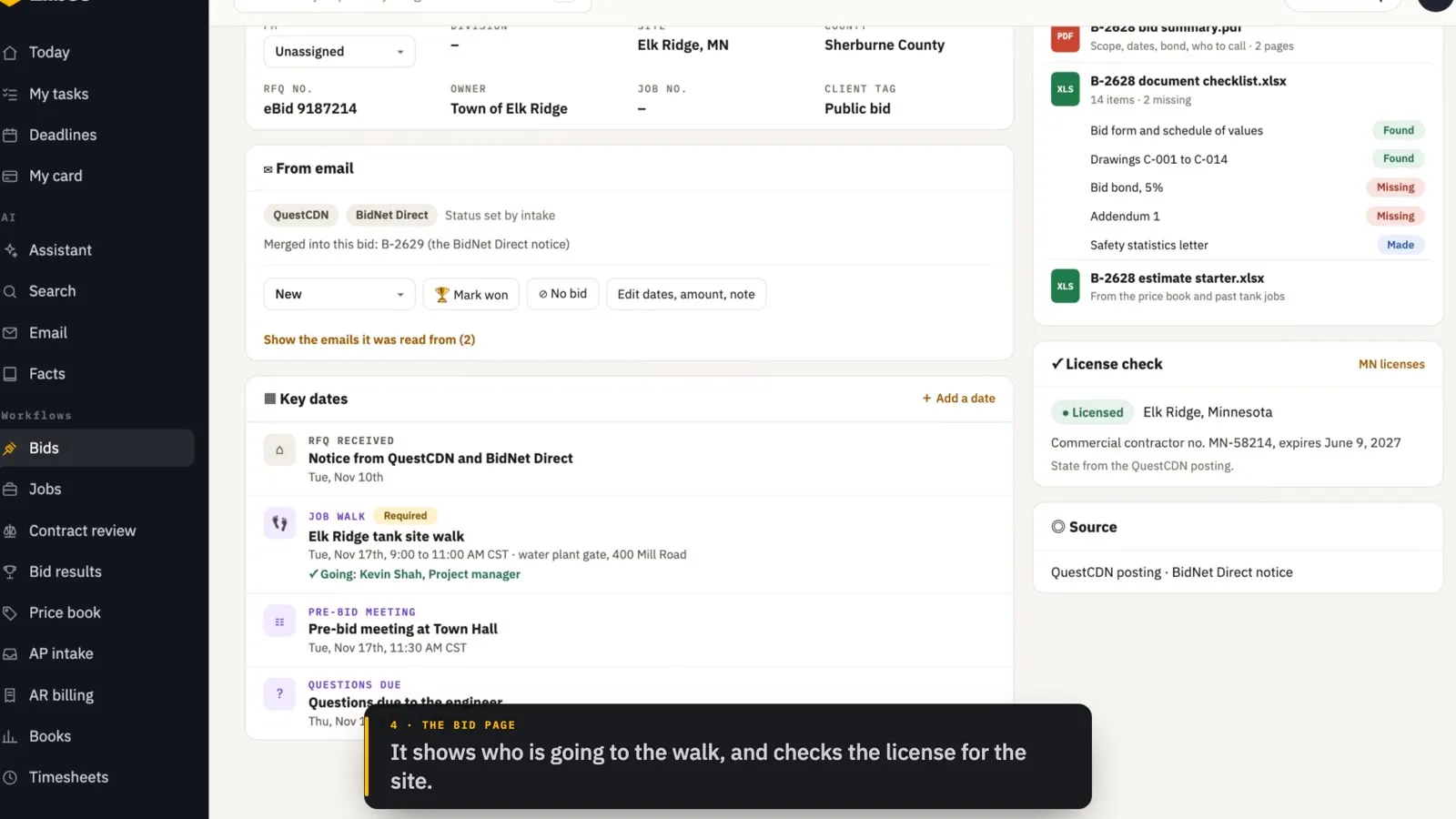
One page per pursuit with the scope, key dates, who is going to the walk, the license check for the site, files from email, and a button to draft the estimate.
09.03Runs on its own
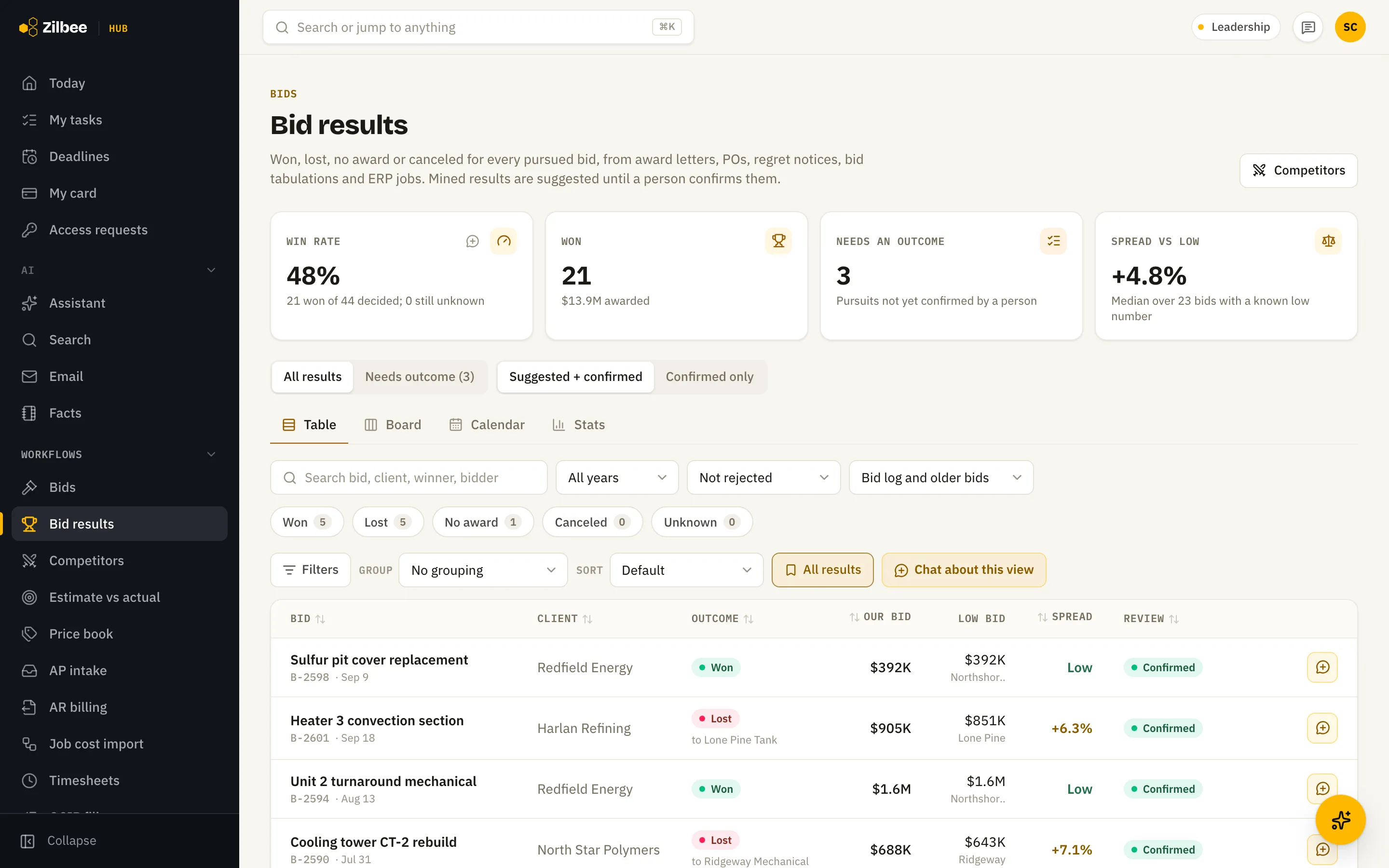
Bid results
Won, lost or no award for every bid, read from award letters and bid tabs, with how far you were from the low number. A person confirms each result. Win rates by client show where your time pays off.
Asked for real · 22 s
“On public bids we didn’t win this year, who was the low bidder and how far off were we?”
09.04
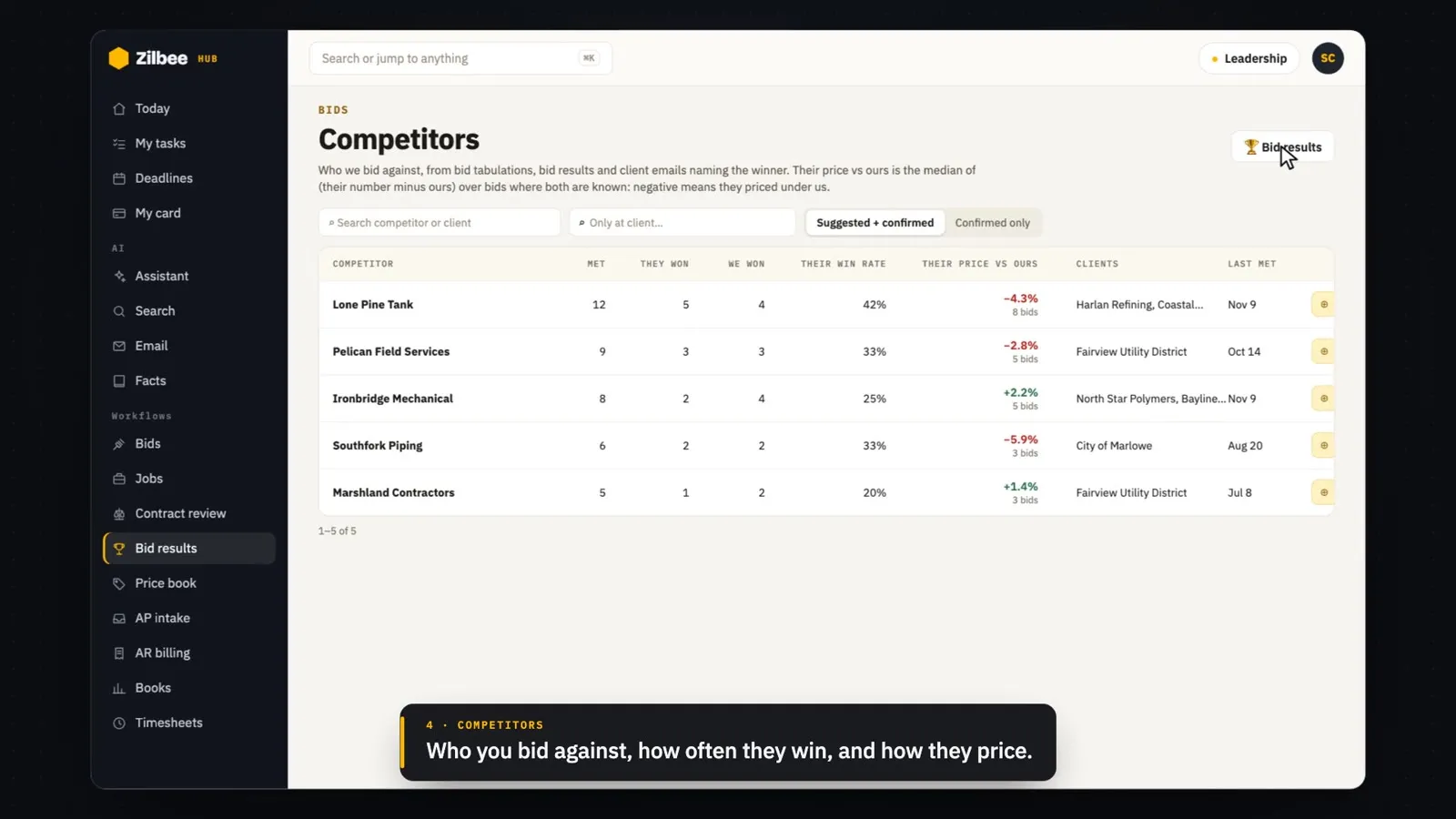
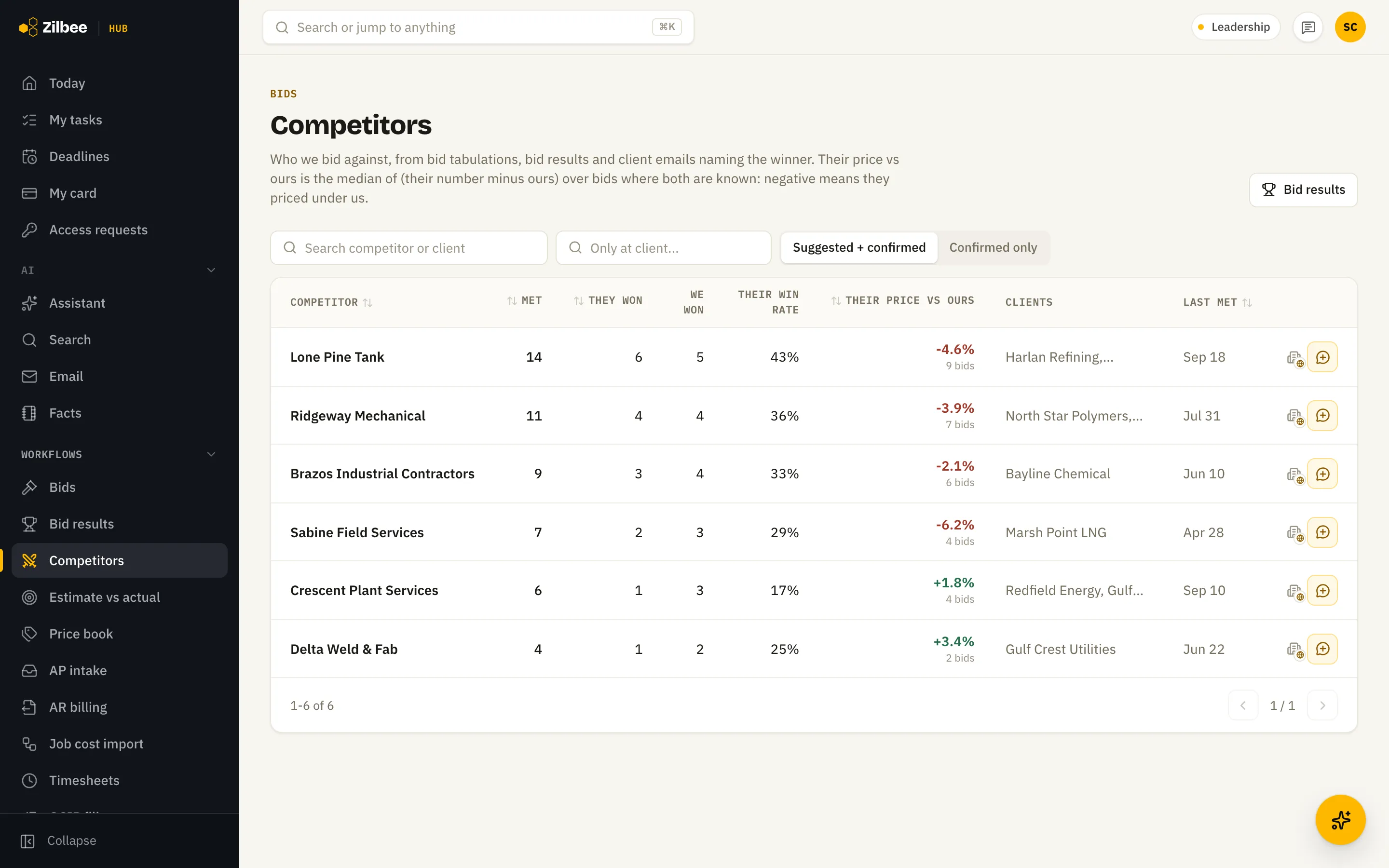
Competitors
Who you bid against, how often they win, and how their prices usually compare to yours, client by client.
09.05
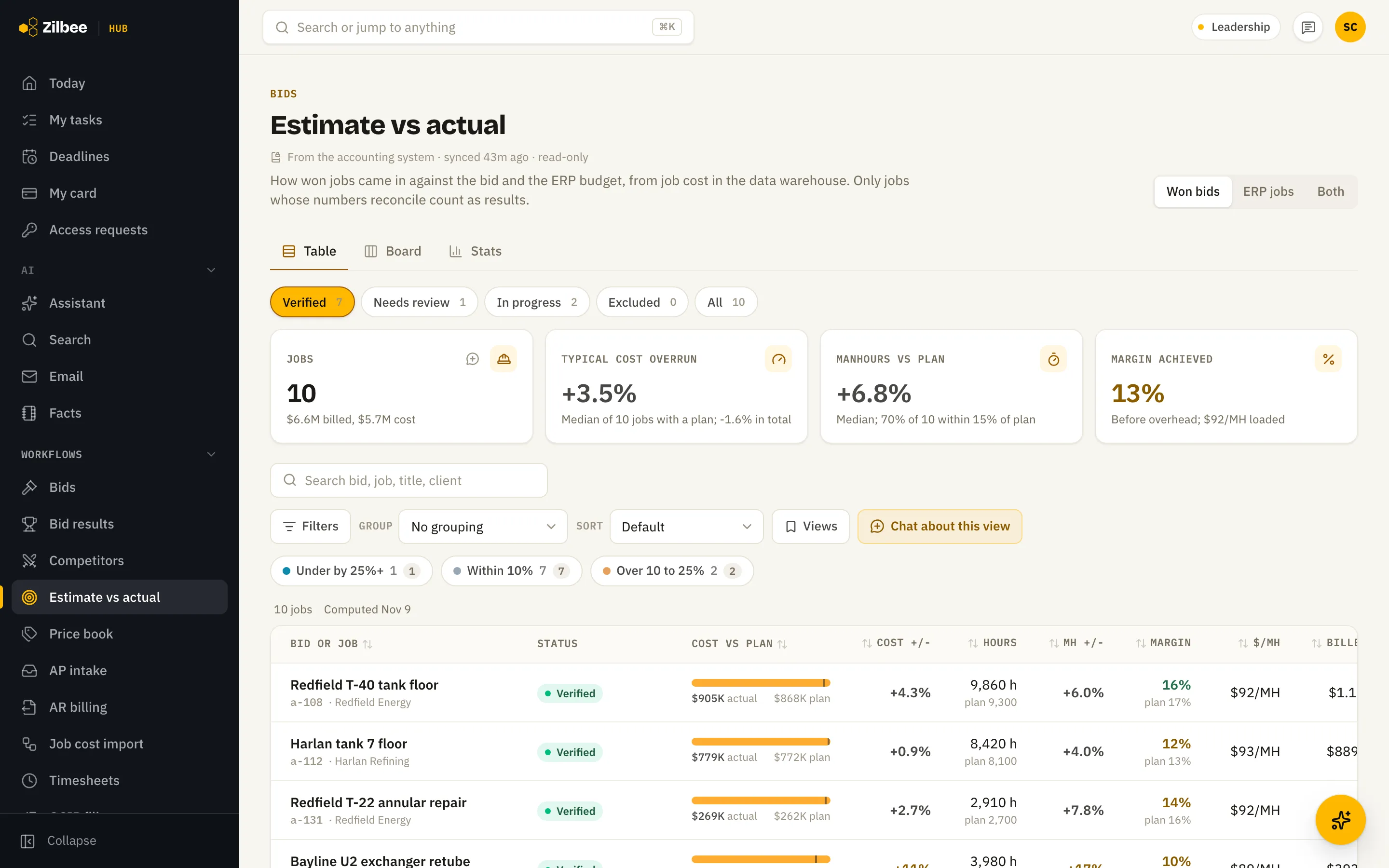
Estimate vs actual
How each won job came in against its estimate: cost, hours, margin and cost per hour, so the next bid starts from real results.
Asked for real · 52 s
“Find our three most comparable past jobs to this handrail and platform job: what we bid, whether we won, and estimated versus actual hours.”
09.06
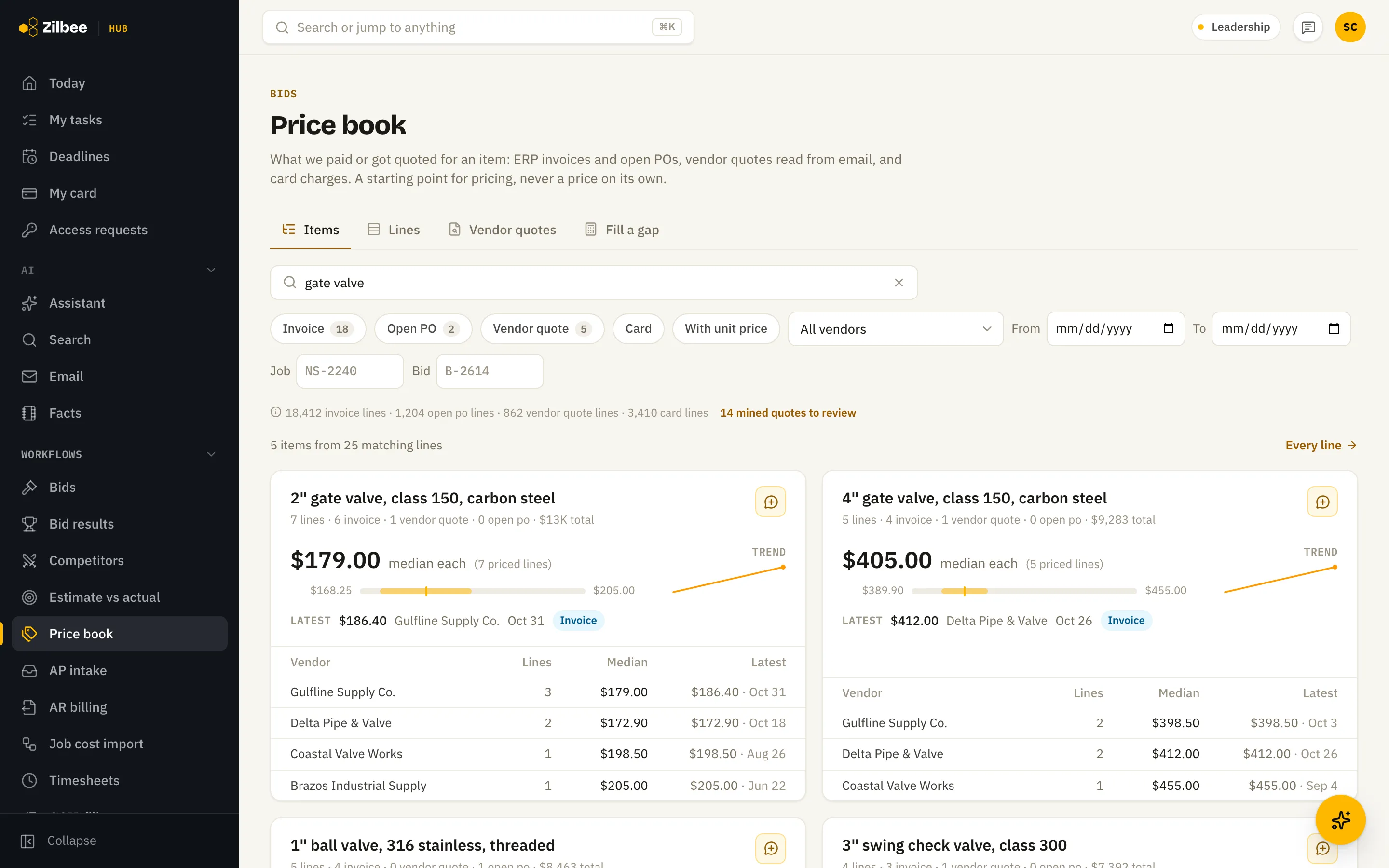
Price book
Search an item and see what you paid and what vendors quoted: price range, median, trend and a vendor-by-vendor comparison. When it fills a price on a bid line, it uses only prices in the line’s own unit, and only when it is confident. Otherwise the line stays unpriced.
Asked for real · 27 s
“What’s the price of a 2 HP submersible pump?”
09.07
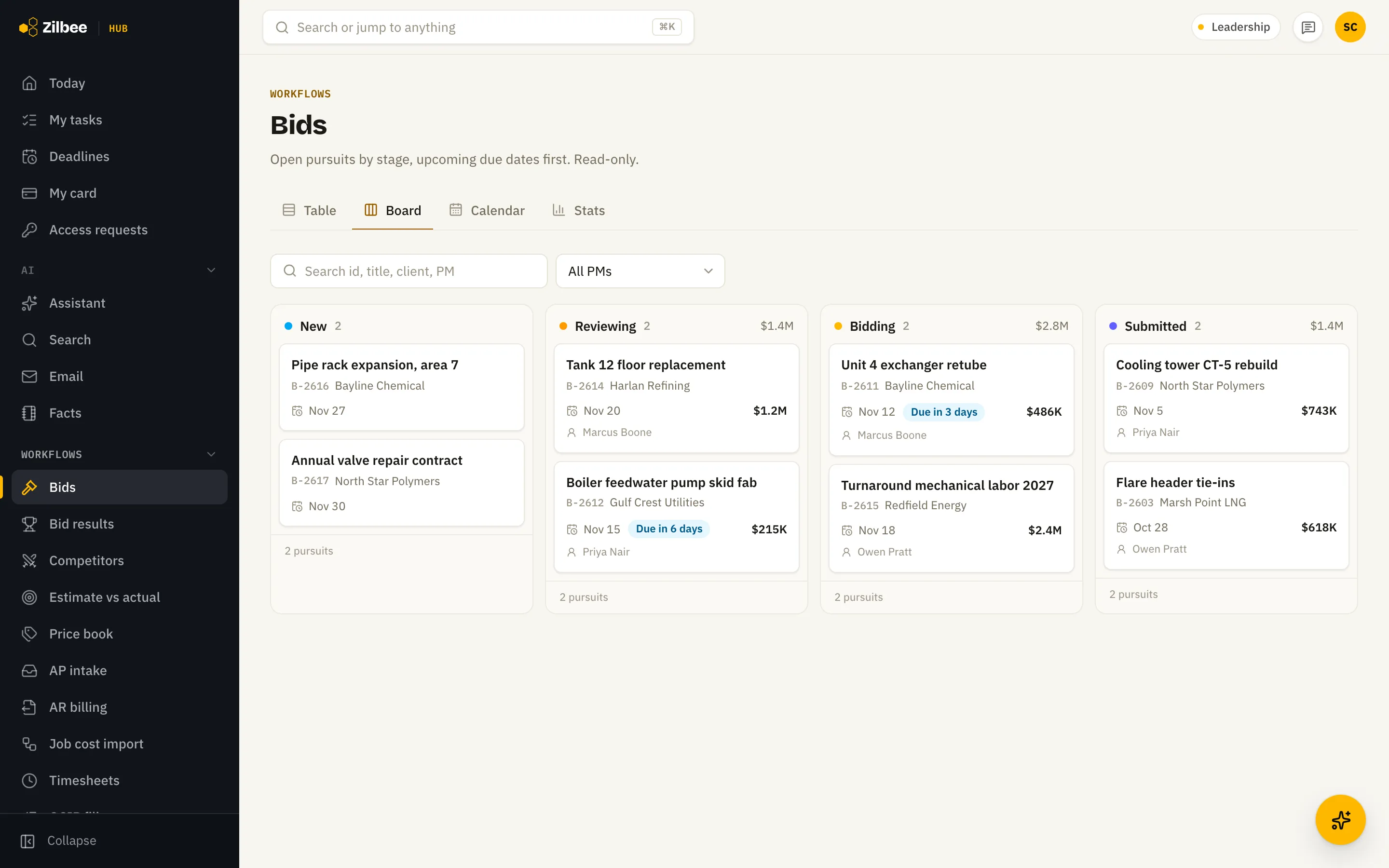
Bid pipeline
Every pursuit by stage, with due dates, owners and amounts.
09.08
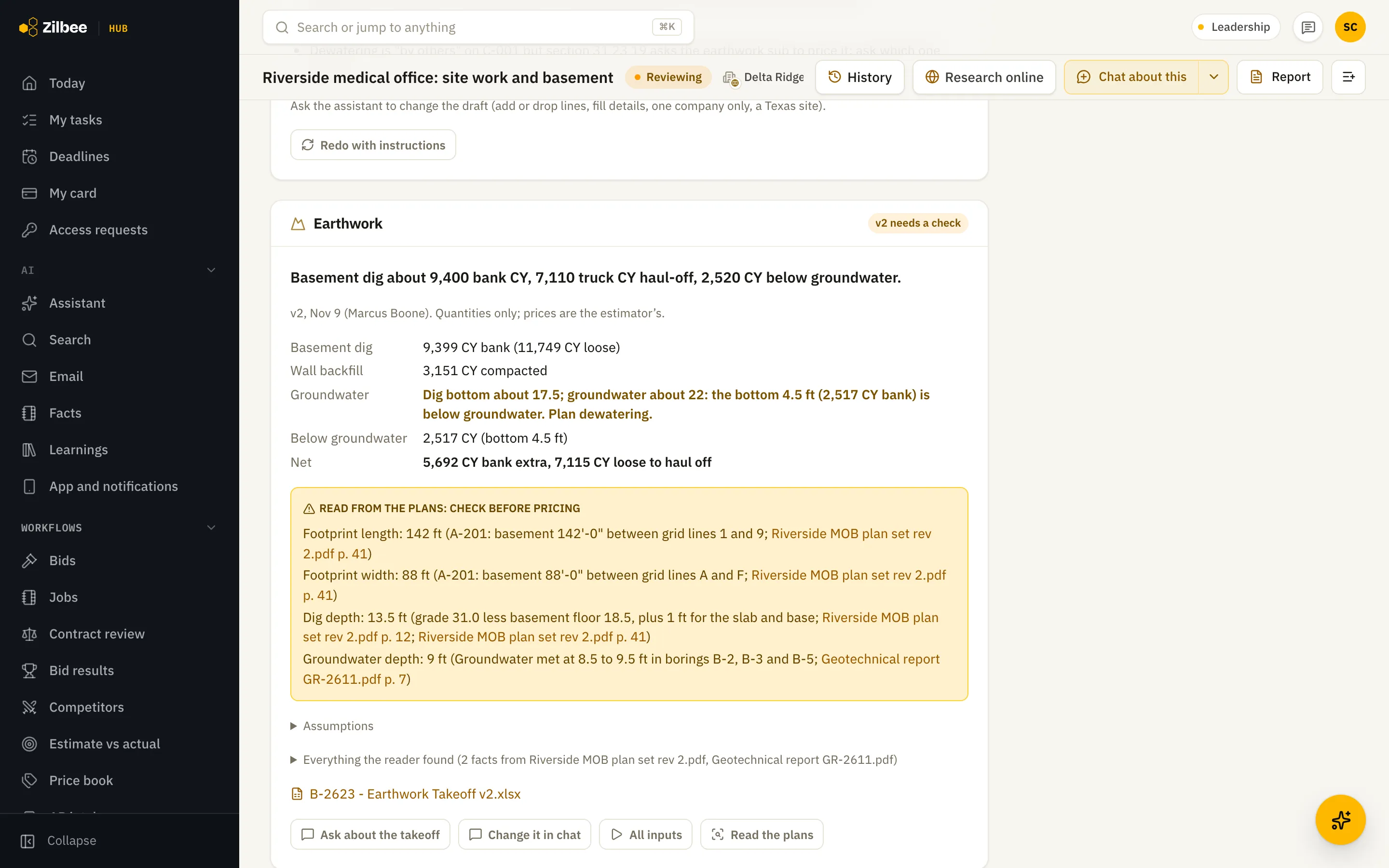
Earthwork takeoffs from the plans
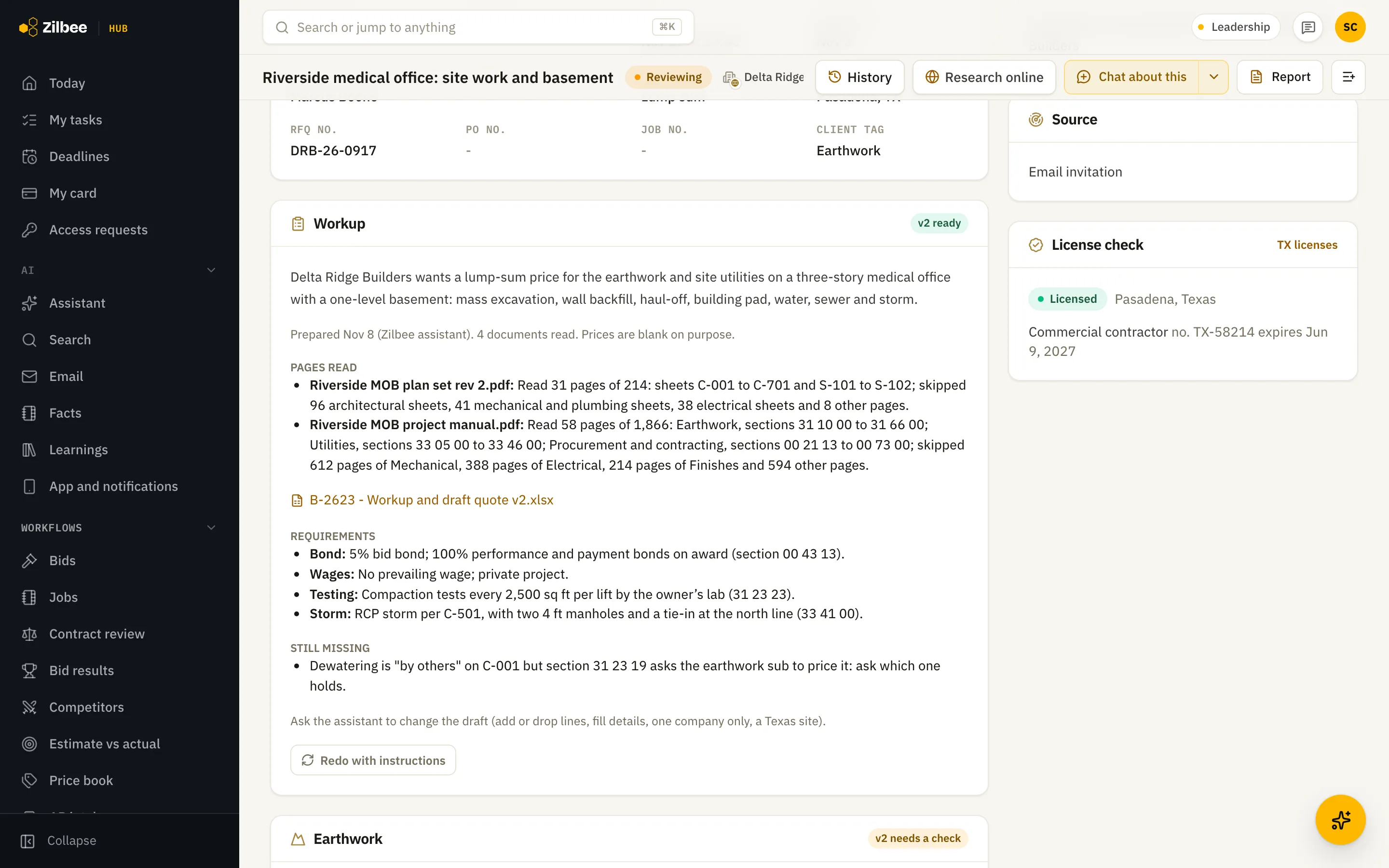
On an earthwork bid the assistant reads the plan set and pulls the elevations for a cut and fill estimate onto the bid. For a basement it uses the lowest floor elevation across the drawings, so the dig isn’t undercounted.
09.09
Plan sets and spec books of any size
The bid workup uses the sheet index to find the right pages in drawing sets of hundreds of sheets and long spec books, and bid files of 150 MB and up upload without trouble.
09.10
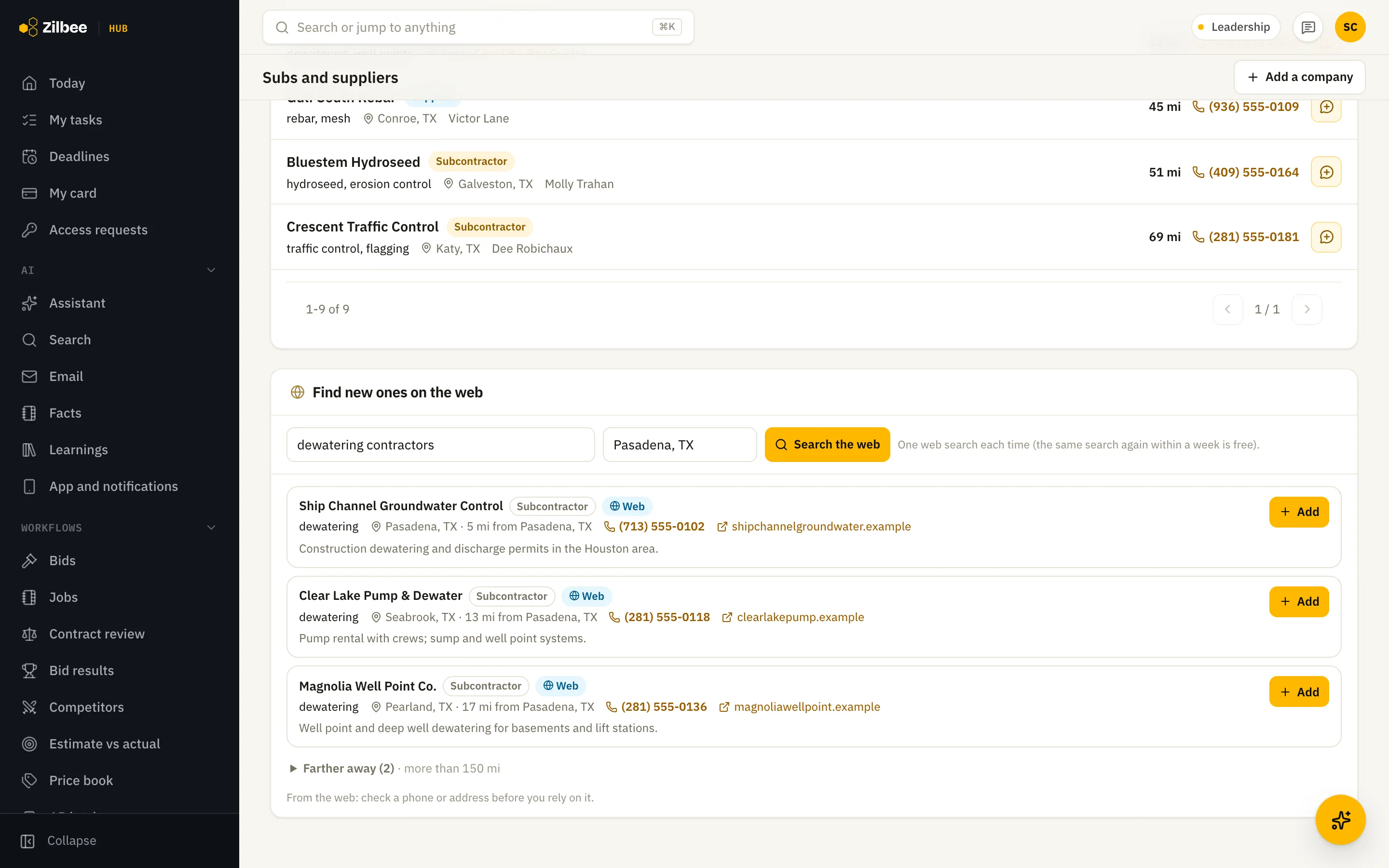
Subcontractor and supplier directory
Keep your subs and material suppliers in one directory. Find companies searches the web and lists what it finds nearest first, so you pick the ones to add, and every screen can start an assistant chat already set up for the job.
09.11Runs on its own
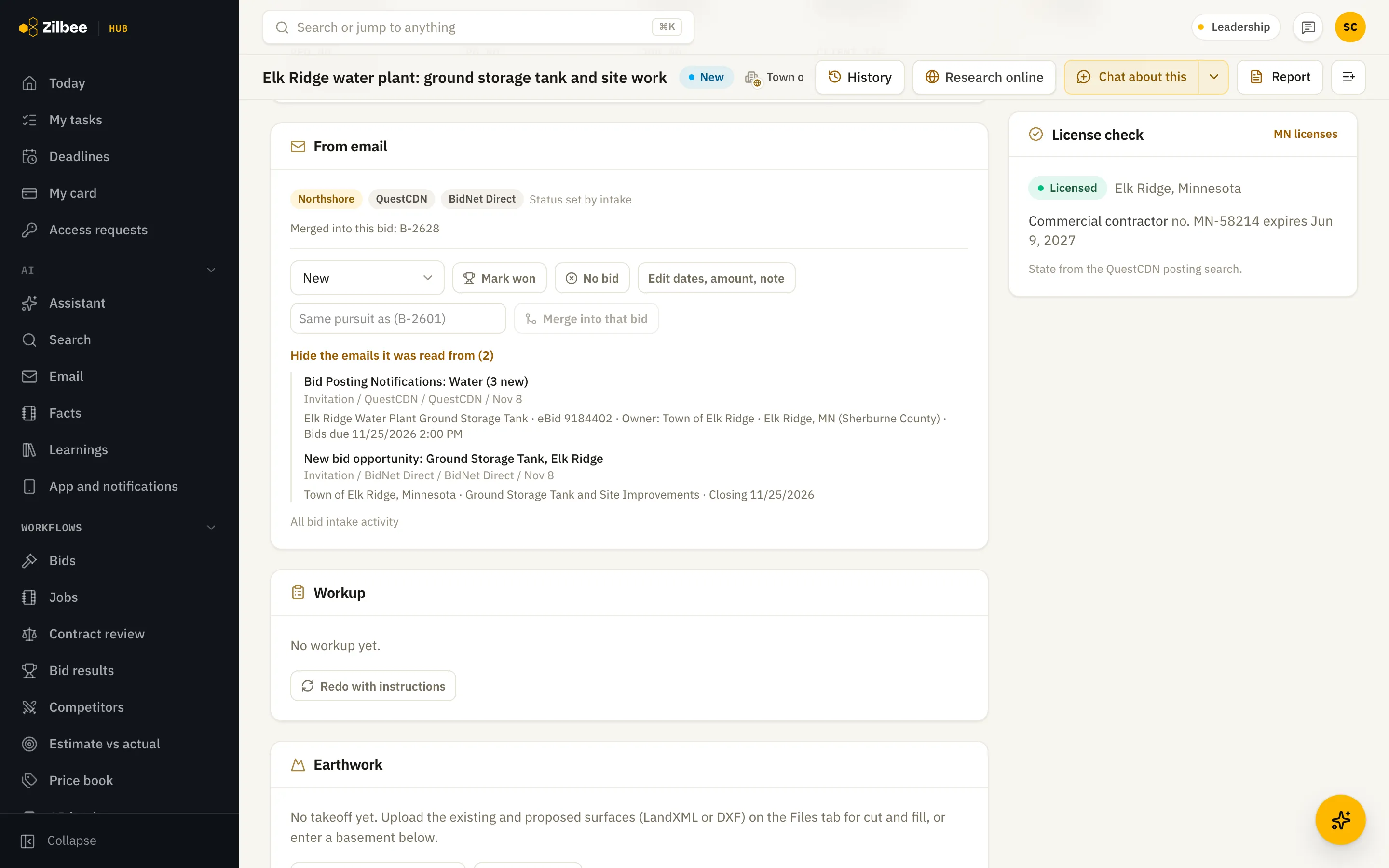
Bids from bid-board emails
Notification emails from bid services like QuestCDN become bids on their own, with the bid date, city, county and owner filled in from the listing.
09.12
Duplicate bids merged
The same project found on two bid services becomes one bid that shows both sources, so nobody prices it twice.
09.13
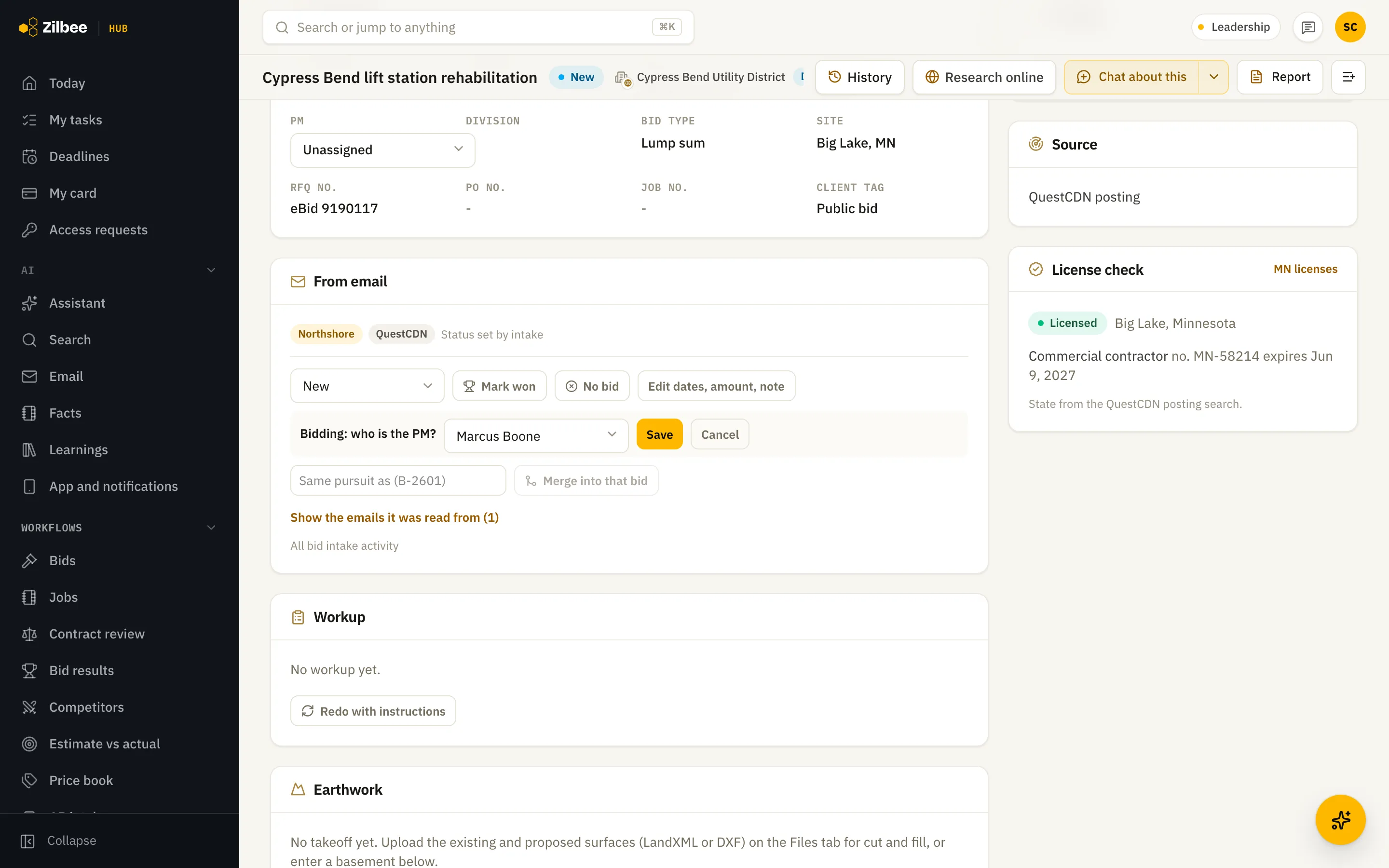
A PM on every bid
Each bid gets a PM picked from a list, and moving a bid to Bidding asks who the PM is. Filter to My bids, Unassigned or No state, and a job made from a bid keeps its PM.
09.14
Piping takeoffs from a plan set
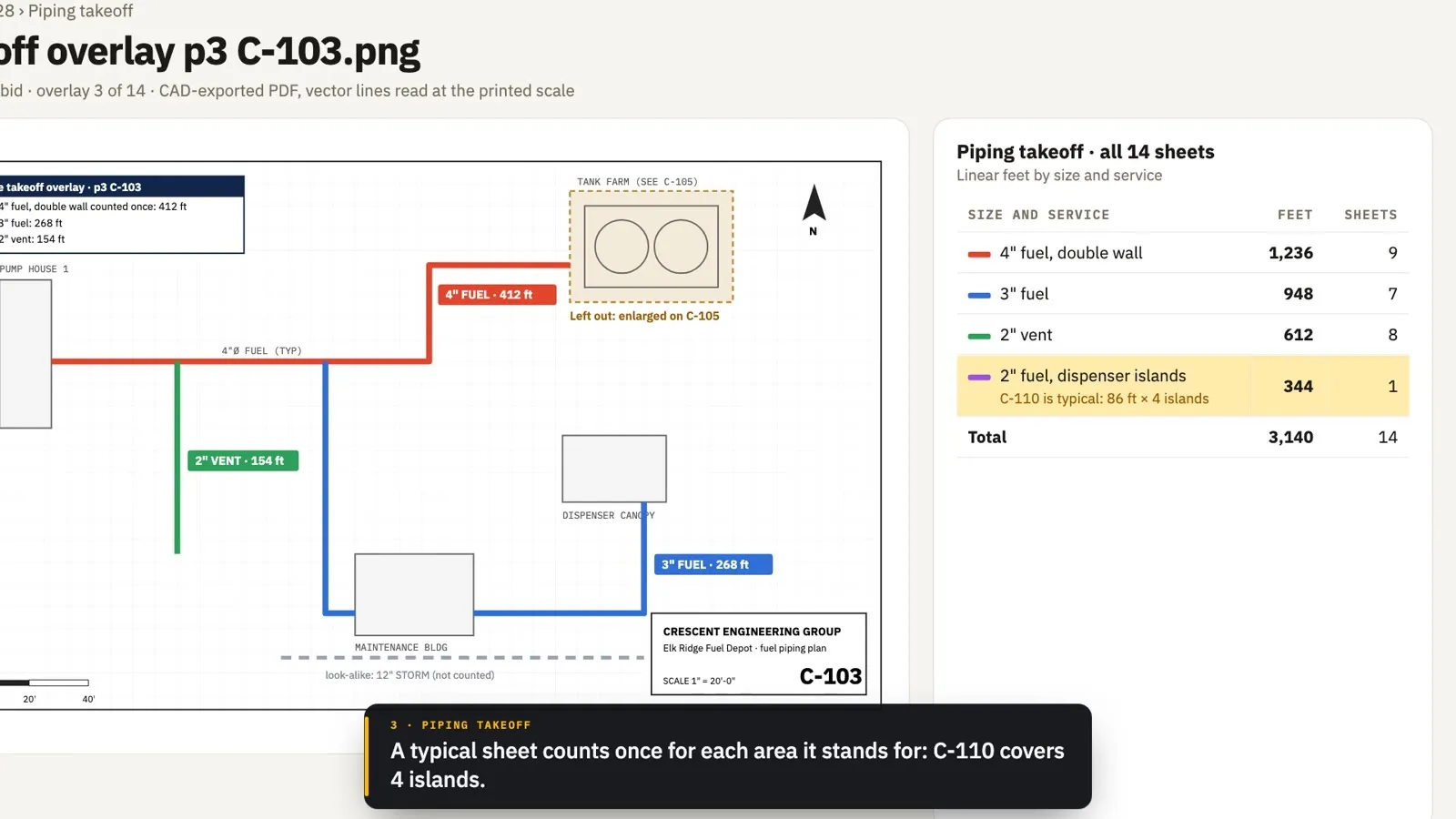
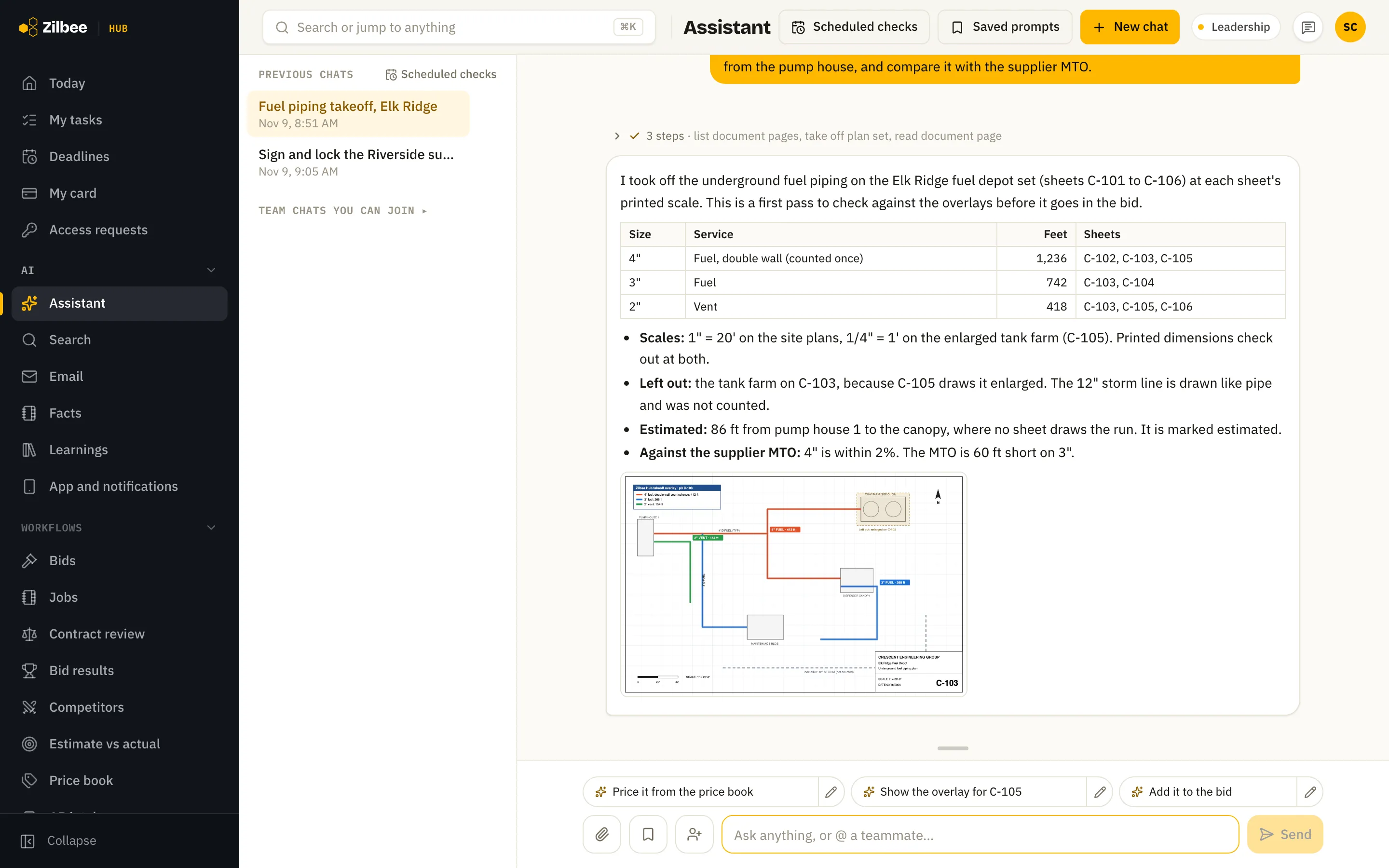
Ask for the linear feet of piping on a plan set and the assistant measures it by size and service at each sheet’s printed scale. It leaves out areas drawn enlarged on another sheet, counts a typical sheet once for each area it stands for, and compares the totals with a supplier’s material list. Every sheet comes back with an overlay that shows what was counted, so an estimator can check the first pass. It works on PDF plans exported from CAD, not on scans.
Also included
09.15
Labor history
Crew hours by job, class and week for pricing labor on new bids.
09.16Runs on its own
Job state found for the license check
The hub fills in the job’s state from the invitation, the listing, the plans or the owner’s address. When it can’t tell, the license check asks a person to set it.
09.17
Plans and documents kept on the bid
Upload plans and specs to a bid, up to 2 GB a file, with progress you can pause and resume; a ZIP of plans is unpacked. The assistant can also fetch the plans behind the shared links in a bid email and file them on the bid. Bid portals and links that need a sign-in are listed for a person to open.
09.18
Mark many bids no bid at once
Tick the bids you are passing on in the Bids list, give one reason and confirm. Each one is marked no bid, and any already marked show as unchanged.
09.19
Area takeoffs from the plans
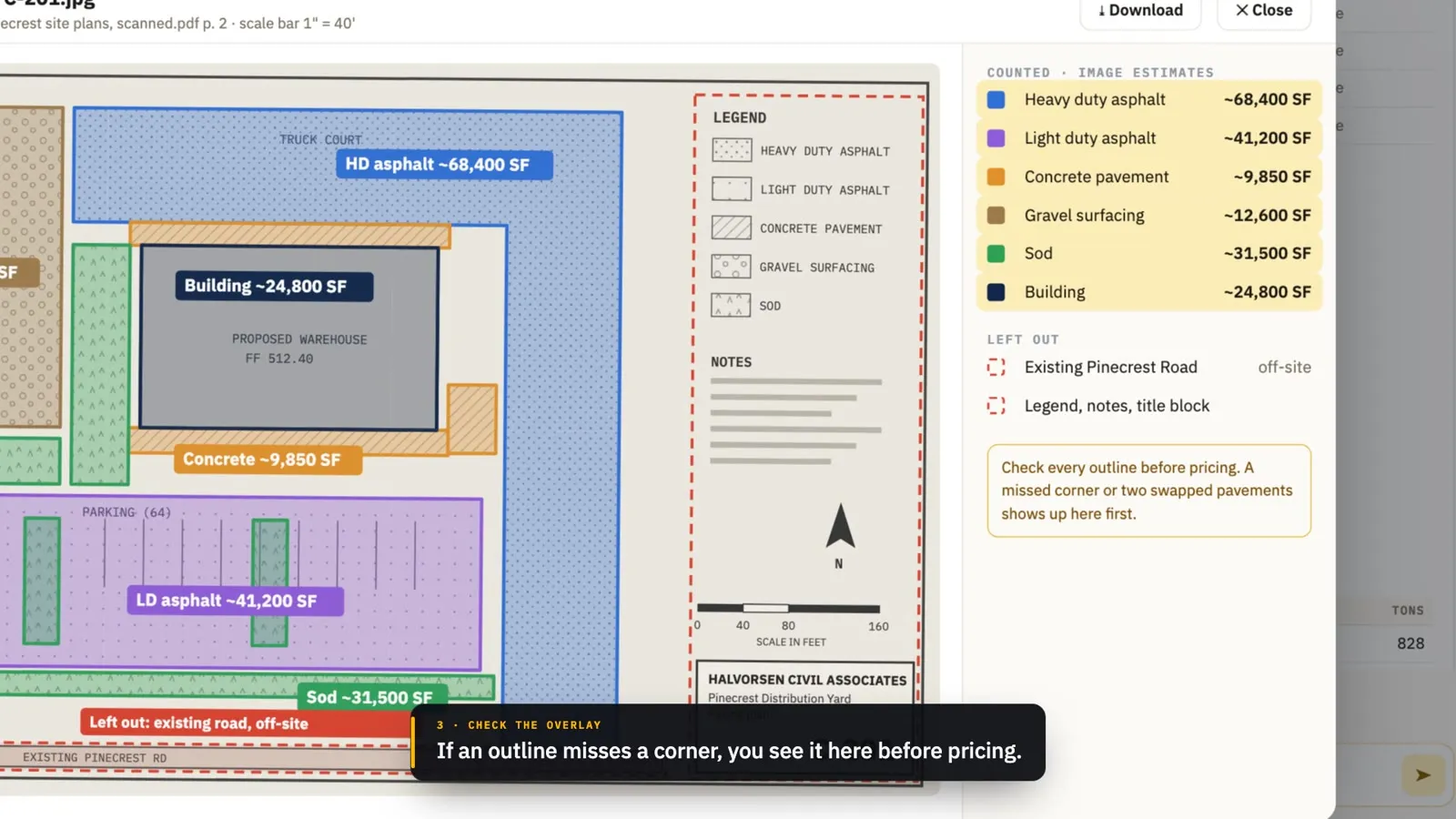
Square feet for every surface on a plan sheet, such as asphalt, concrete, gravel and sod, with pavement sections, read from the drawing’s layers. On a scanned sheet the hub reads the legend and the scale bar and traces each surface off the picture, then overlays what it measured so an estimator can check it.
09.20
Trench excavation quantities
Cubic yards of trench for each utility pipe run and its structures, from the pipe sizes and depths on the plans, with sloped sides. A water main with no depth on the plans gets a standard cover, marked as assumed; any other run missing a depth is left for the estimator, with the reason.
09.21Runs on its own
Every contractor’s invitation under one bid
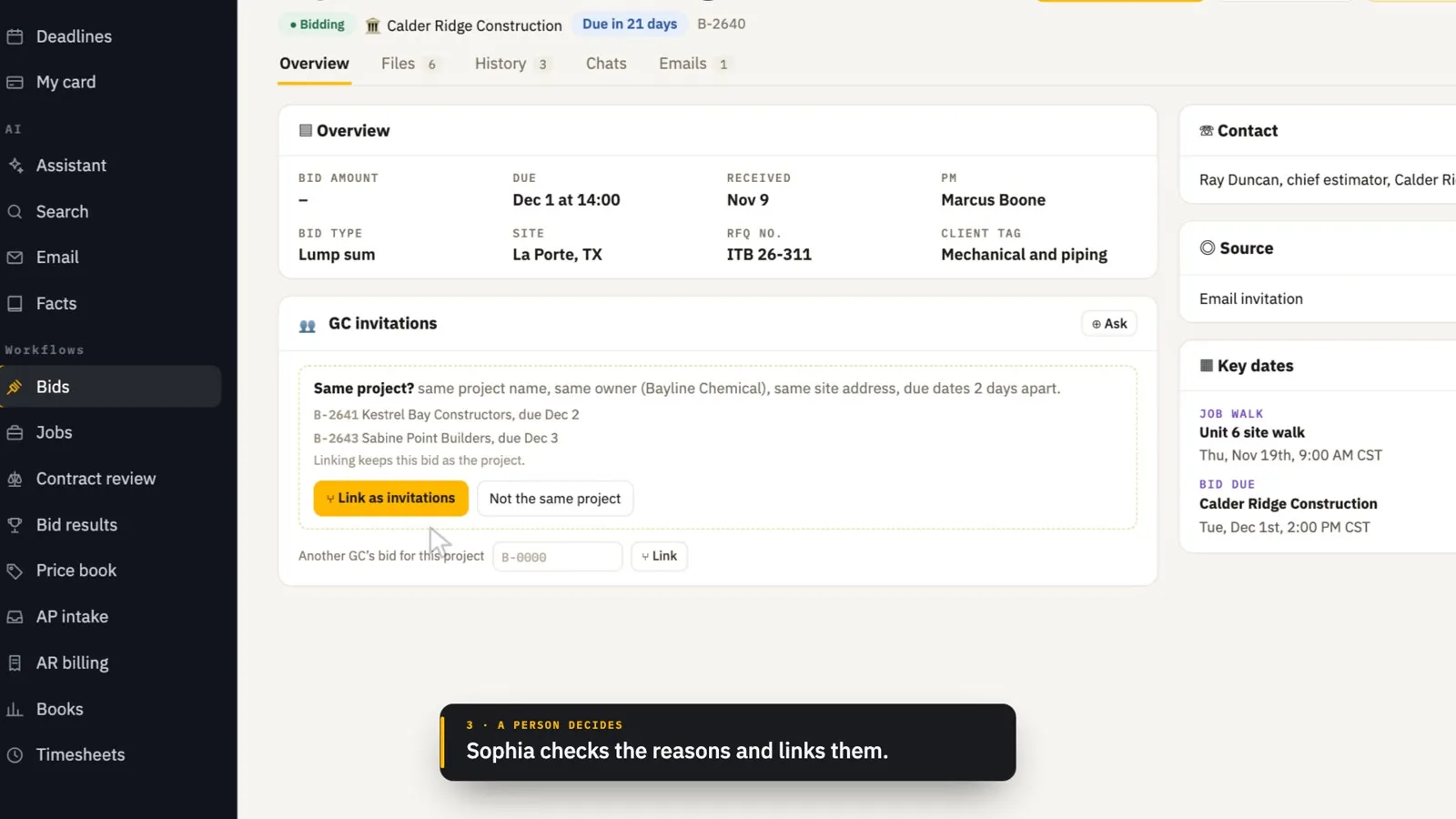
When several general contractors invite you to bid the same project, the hub spots the invitations that look like the same job and offers to link them under one bid. The bid then shows each contractor with their contact, due date and documents, and the Bids list shows the project once with how many invited you.
10 / 4 features
Contracts
10.01
Contract review against your playbook
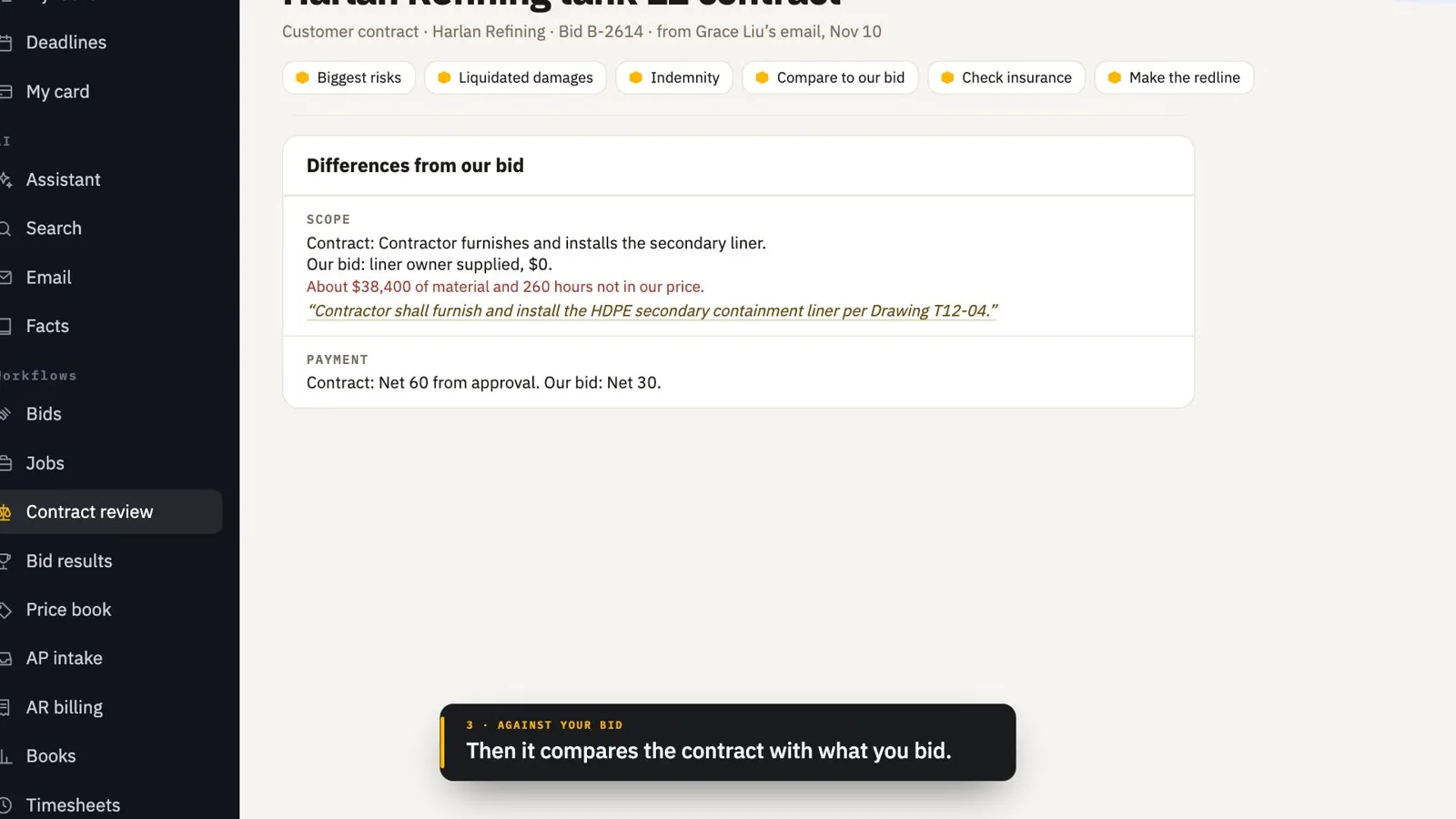
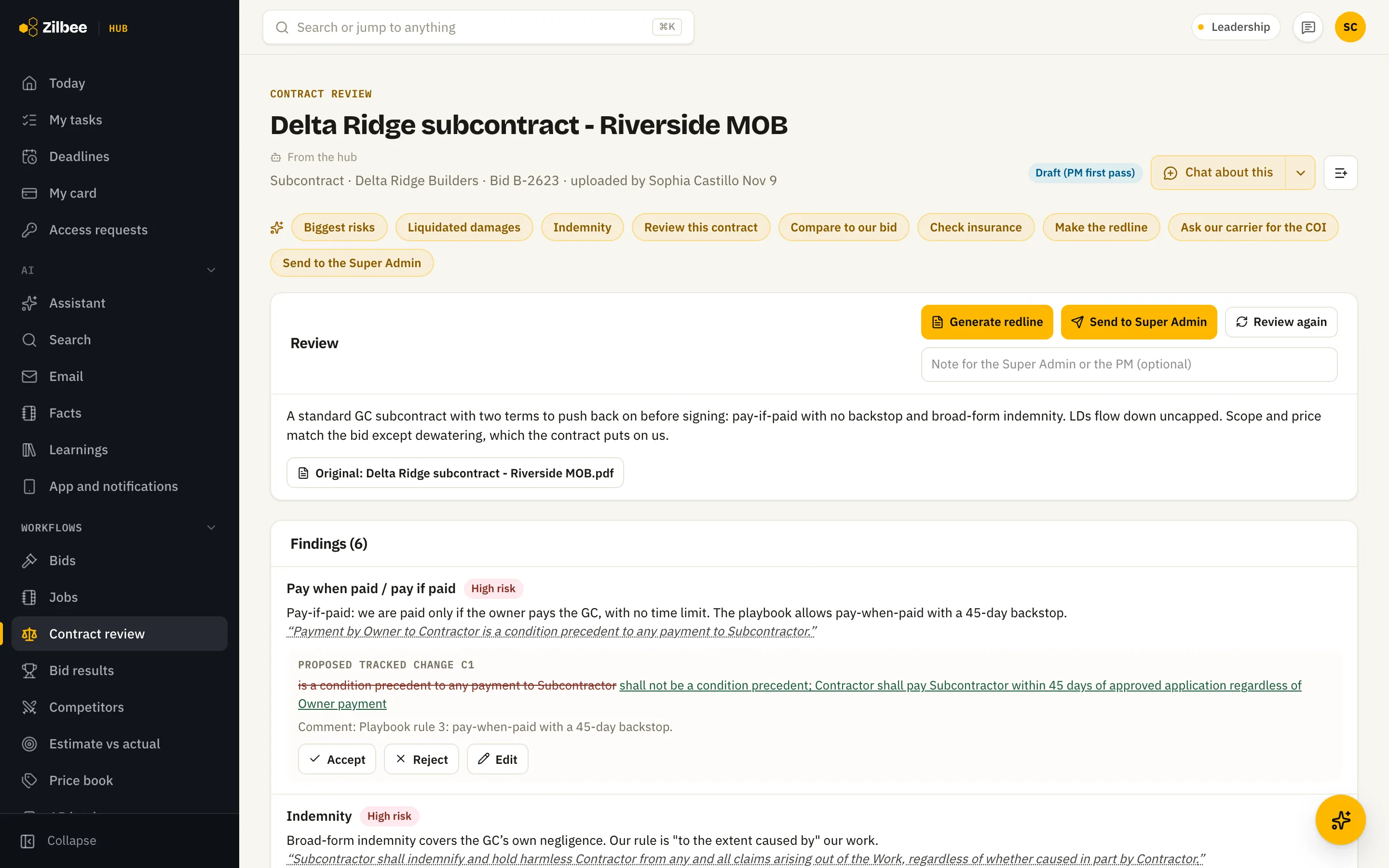
A subcontract or customer contract is checked against your contract playbook and the bid: risky terms flagged with the quoted clause, proposed changes as Word tracked changes, the differences from what you bid, and how the same customer settled the same terms last time. A Review contract button sits wherever a contract shows up: bid files, email attachments and the document viewer.
10.02
Find a contract
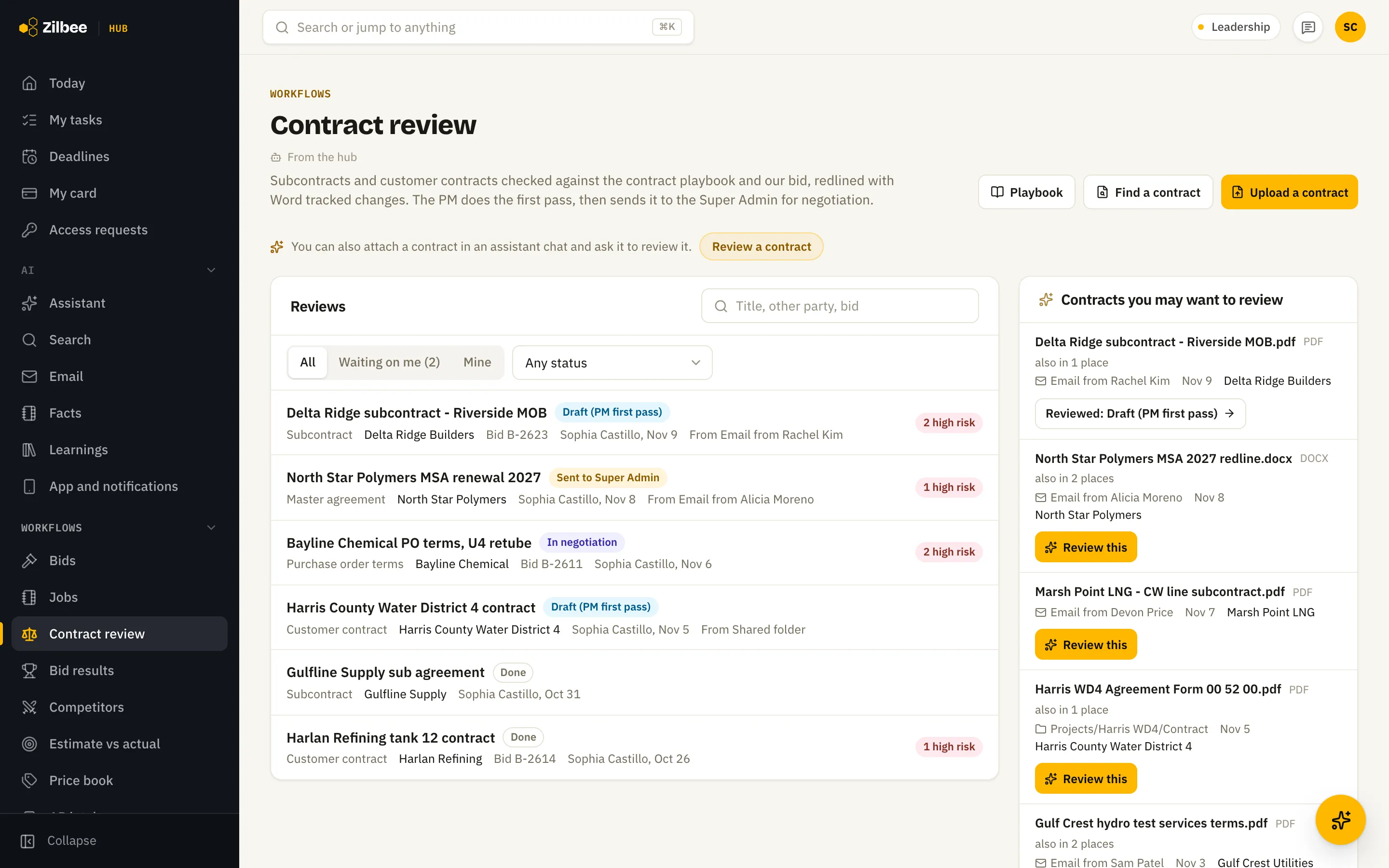
Search email and shared files for the contract on a bid or job, and see a short list of recent contracts the hub suggests reviewing.
Also included
10.03Runs on its own
New contracts reviewed on arrival
Contracts that arrive by email or land in a shared folder are reviewed on their own, and a 7 AM digest lists the new ones. Files the hub isn’t sure are contracts are still reviewed but marked unconfirmed, and only super admins see those. The people who handle contracts get a notification when a review is done.
10.04
Insurance requirements checked against your policies
Contract review reads the insurance section, like limits, additional insured, primary and non-contributory and waiver of subrogation, and compares each item with your own certificates and policies. Each one is marked met, not met or unknown with the reason, and the hub drafts the email to your broker for what is missing.
11 / 3 features
Purchasing
Also included
11.01
POs and subcontracts from the bid
Each job has a POs and subcontracts tab. Draft from the bid lists every sub’s and supplier’s quote from the bid, each ticked to start. Untick the ones you aren’t using, add a quote that came by phone or email, and one Draft makes a PO or subcontract for each on your own company template. Templates live in one place on the Jobs tab, and an agreement made in the hub can become the template, with the spots the hub fills marked.
11.02
The sub’s proposal fills the subcontract
Attach the sub’s proposal from the job’s files, the job’s email or the bid. The hub fills blank fields only with what the proposal says word for word: quote number and date, contact, scope, exclusions and price. The work order and schedule of values fill in, empty rows are left off, and the proposal goes on the PDF as an exhibit. Choose the prime contract the subcontract sits under, and its terms, insurance and retainage carry into the draft.
11.03
Subcontracts signed and countersigned
Once a subcontract is approved, Send for signature sets it up for the sub’s contact and then you to countersign, with fields on every signature block. When both have signed, the executed agreement is saved on the job as its newest version and marked signed.
12 / 12 features
Books
12.01
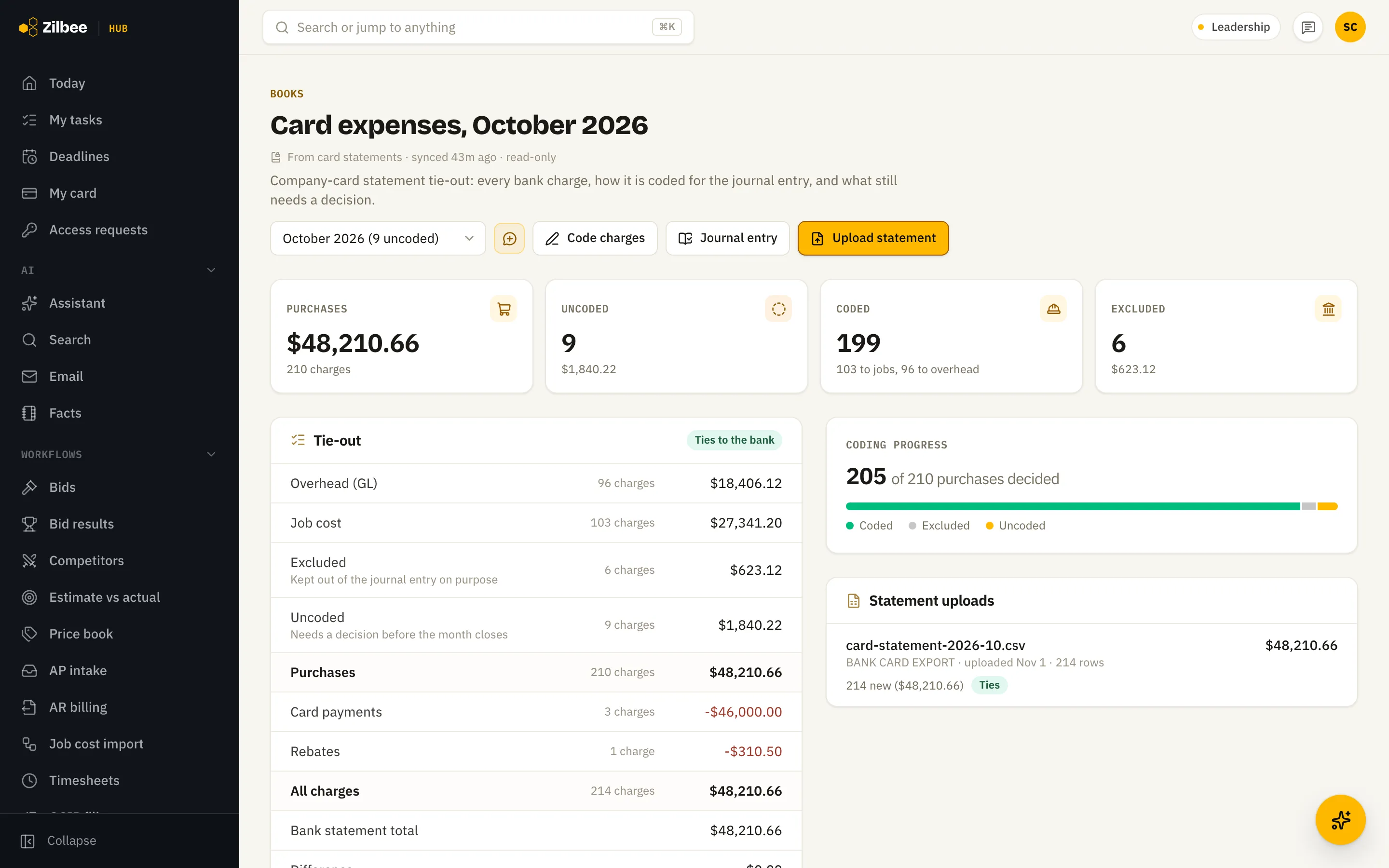
Card expenses
Ties the company card statement to the penny and shows what is coded to jobs or overhead, what is excluded, and what still needs a decision before month end.
12.02
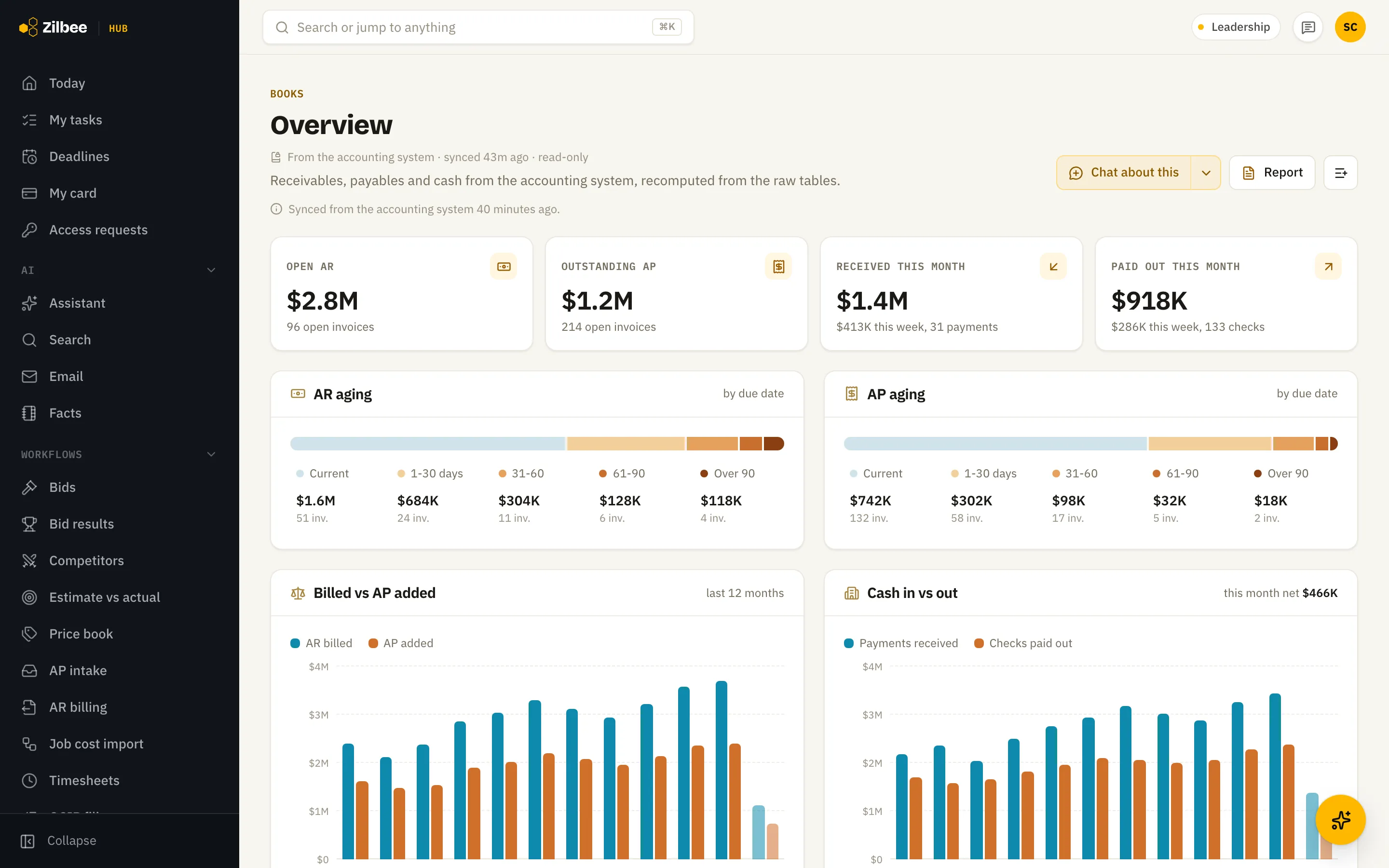
Books overview
Receivables, payables and cash in and out at a glance, read from your accounting system.
12.03
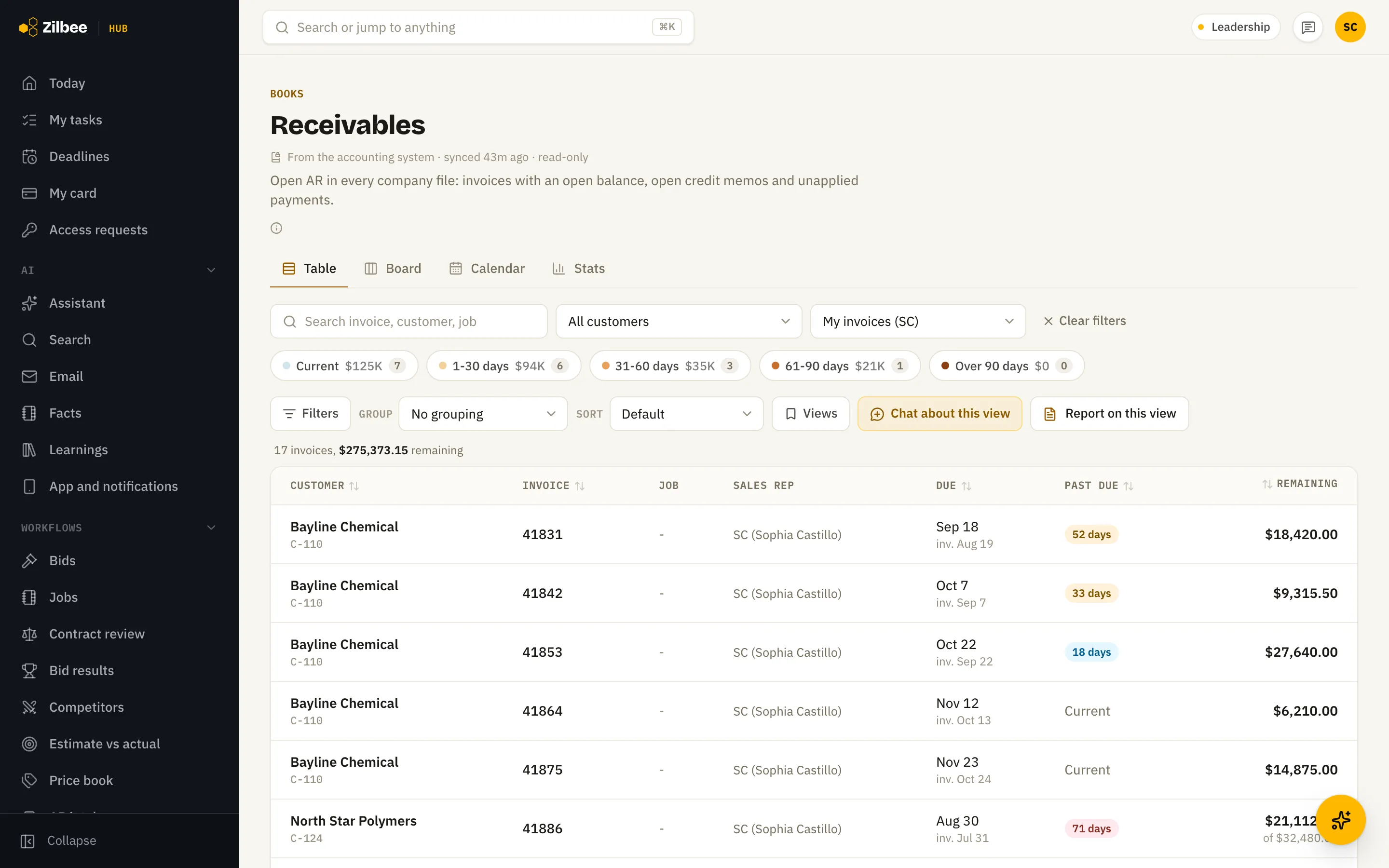
Receivables by sales rep or project manager
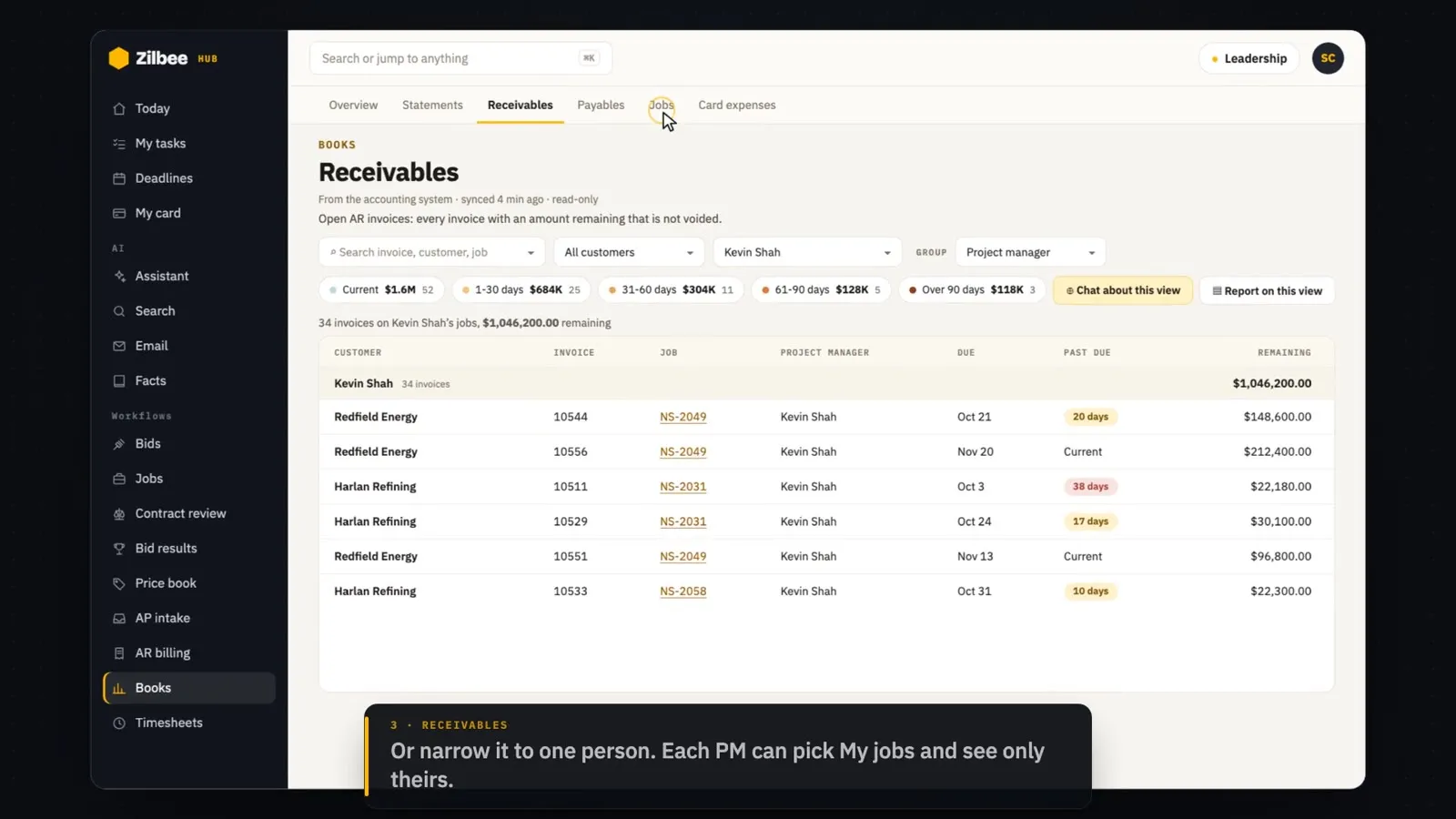
Filter or group aging by sales rep or by the job’s project manager, or show only "mine" for the person signed in, so each person chases their own accounts.
12.04
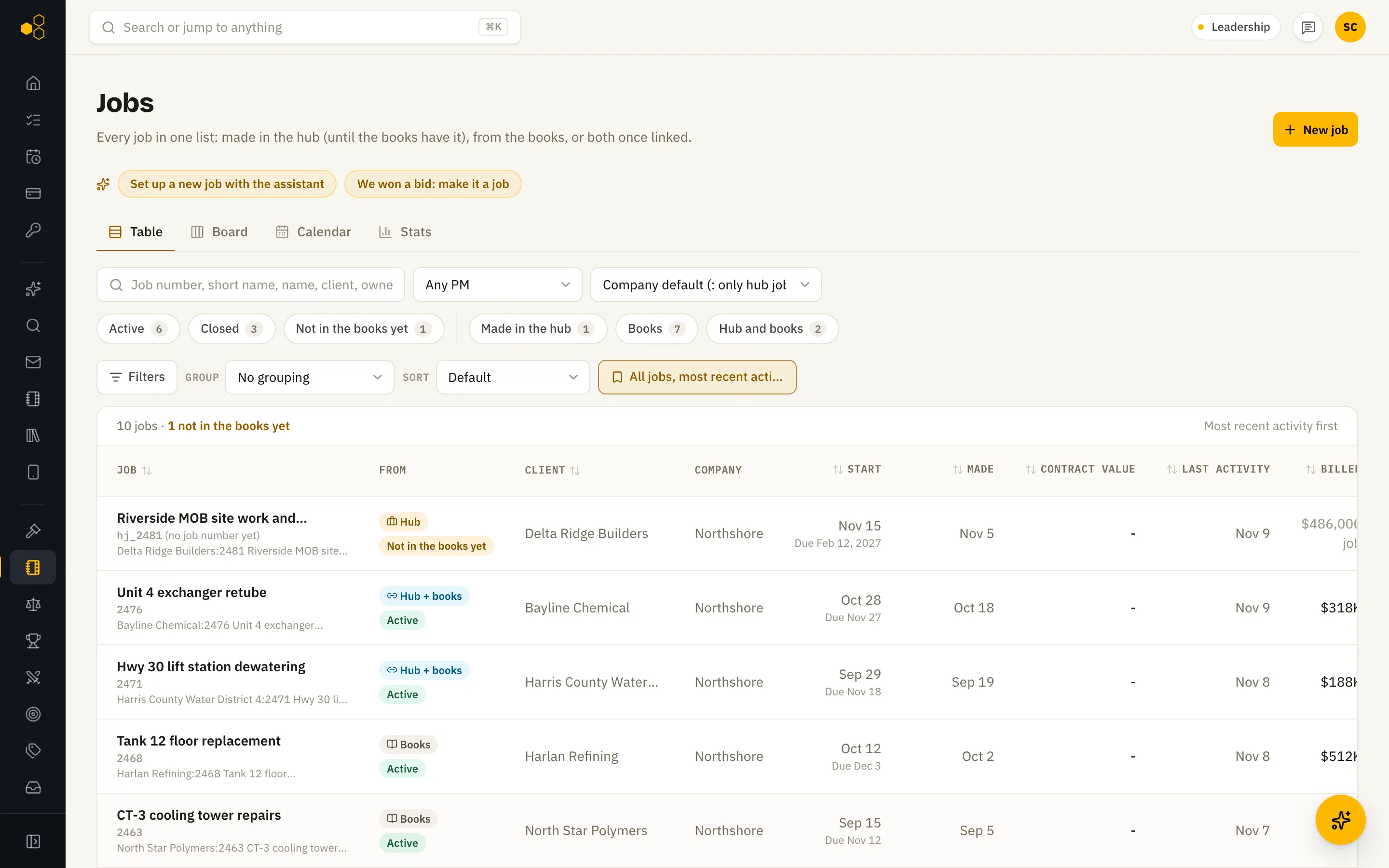
Jobs list
Every job in one list: jobs made in the hub and the accounting jobs linked to them, with contract value and % billed. Show all brings back the rest of the accounting system’s jobs. Sorting, filters, and calendar and stats views. Office roles see it; field users don’t.
12.05
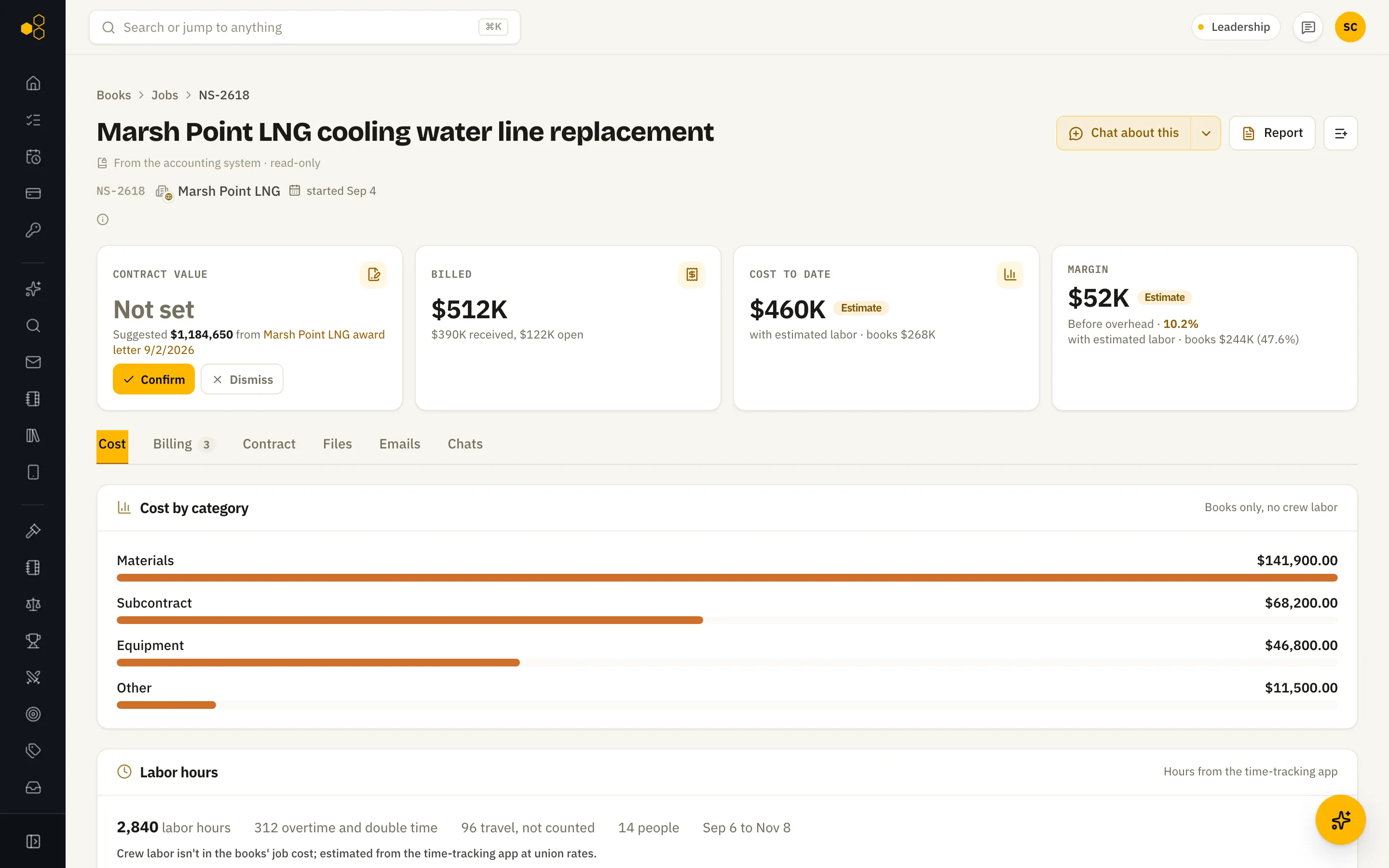
Job page
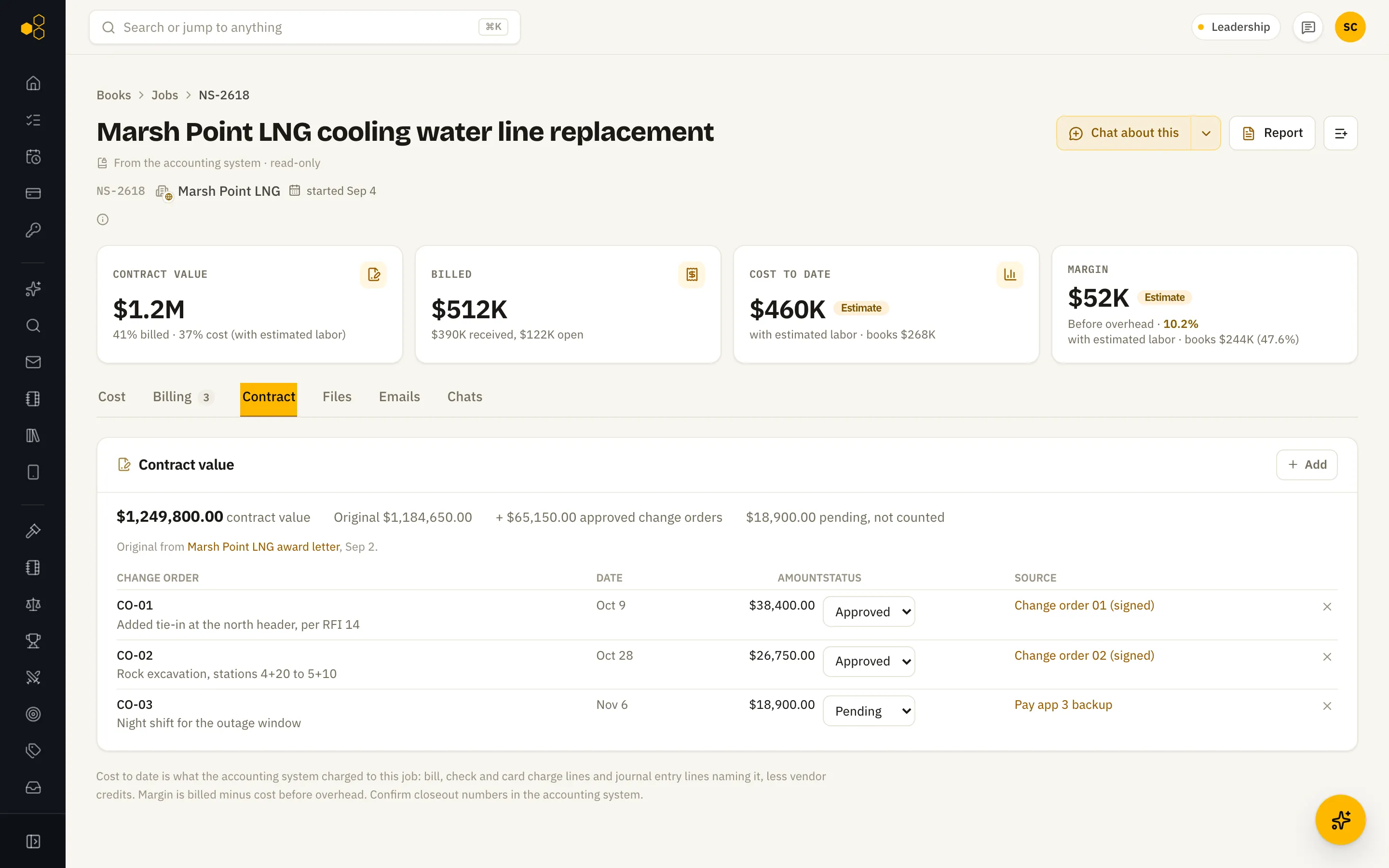
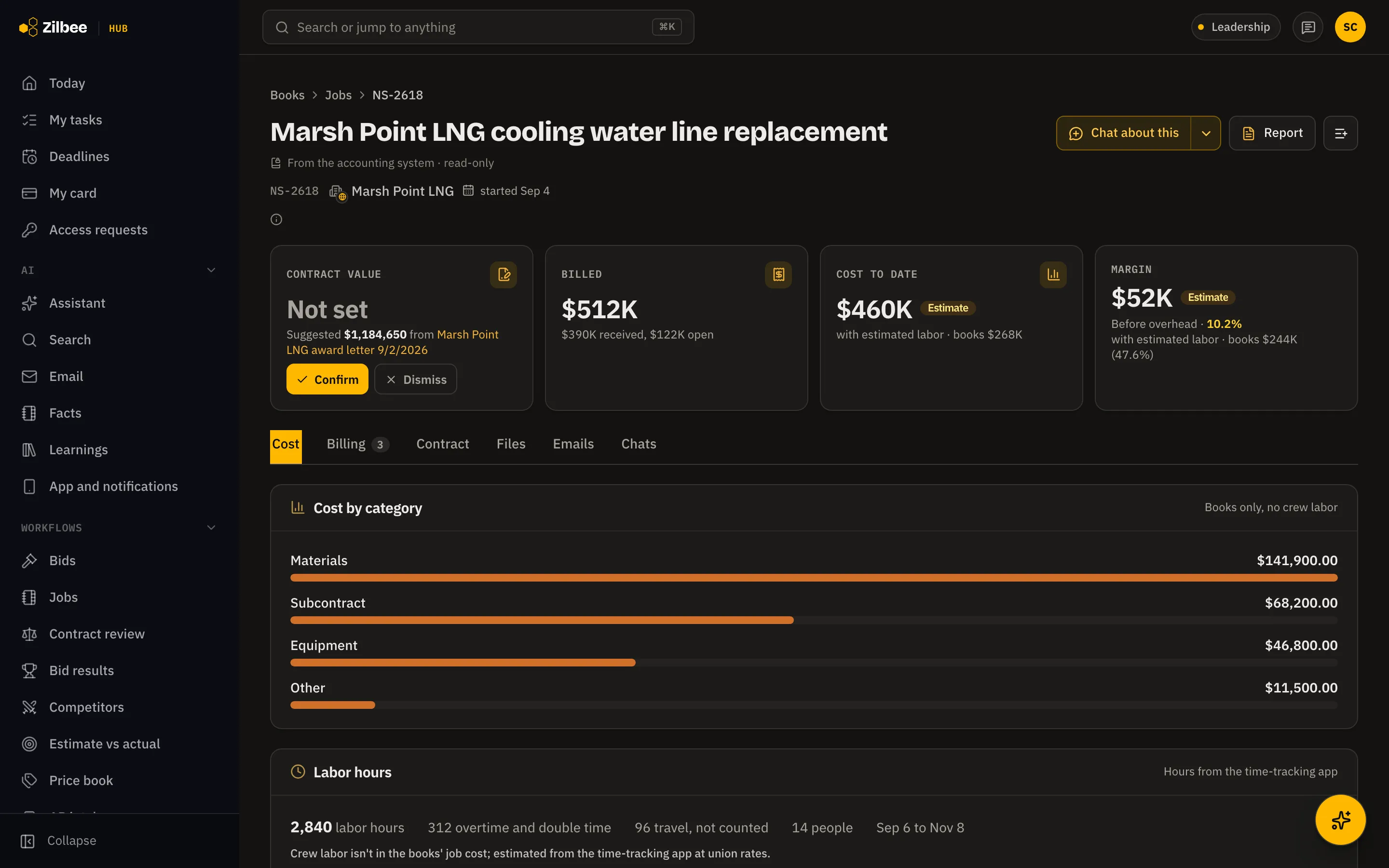
One job at a glance, in tabs like a bid page: Cost, Billing, Contract, POs and subcontracts, Files, Emails and Chats. Contract value, billed, cost to date and margin sit on top, with cost by category and by week, crew hours from the time-tracking app, open invoices, the job’s files and the email about it underneath.
12.06Runs on its own
Contract value found in the job’s documents
Each job shows its contract value with the share billed and spent so far, and approved change orders add to it. When the value is missing, the hub reads the job’s award letters, letters of intent, subcontracts and pay apps every couple of hours and suggests an amount, linked to the document it came from. Nothing is saved until a person presses Confirm. With no suggestion, Find it with the assistant starts a chat that looks for it.
12.07
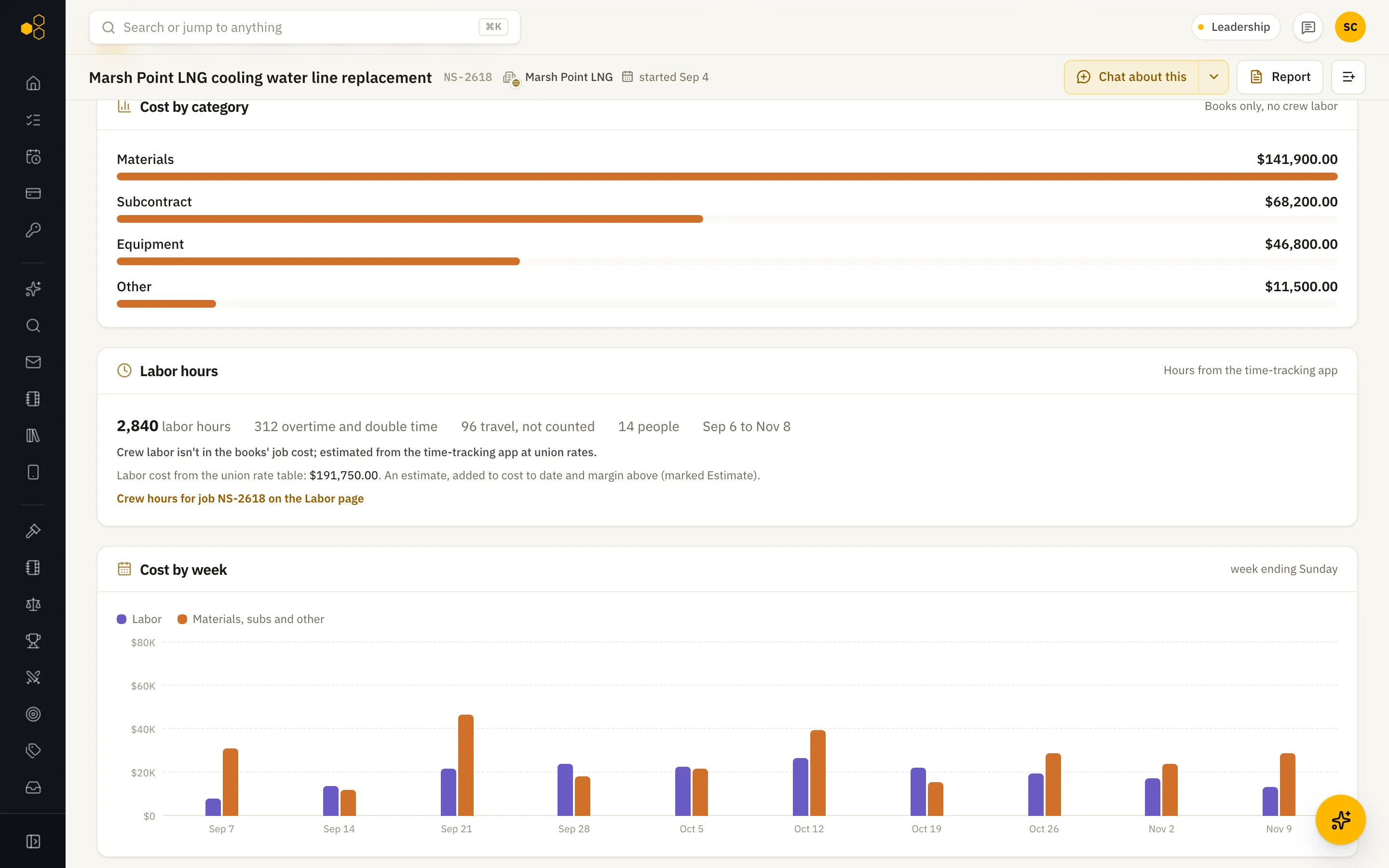
Crew labor in job cost
When payroll is booked to overhead instead of to jobs, the books leave crew labor out of job cost and margins look better than they are. The hub adds the hours from the time-tracking app at union rates, marks cost and margin Estimate, and keeps the books figure underneath. The Jobs list and the assistant say which figure they give.
Also included
12.08Runs on its own
AP intake
Vendor invoices from email are matched to POs and entered through the ERP’s own screens into a held batch, ready for approval.
12.09Runs on its own
AR billing
Invoices are prepared from job records and held until a person reviews and sends them.
12.10Runs on its own
Job cost import
Weekly job cost workbooks are checked and staged for import, with problems flagged first.
12.11
Monthly P&L and balance sheet
Books > Statements shows a profit and loss or balance sheet by month for the year, for each company and combined, read from your accounting system’s general ledger. Months that can still change are marked, and the assistant can answer from the same numbers.
12.12Runs on its own
Every subscription, and what to cancel
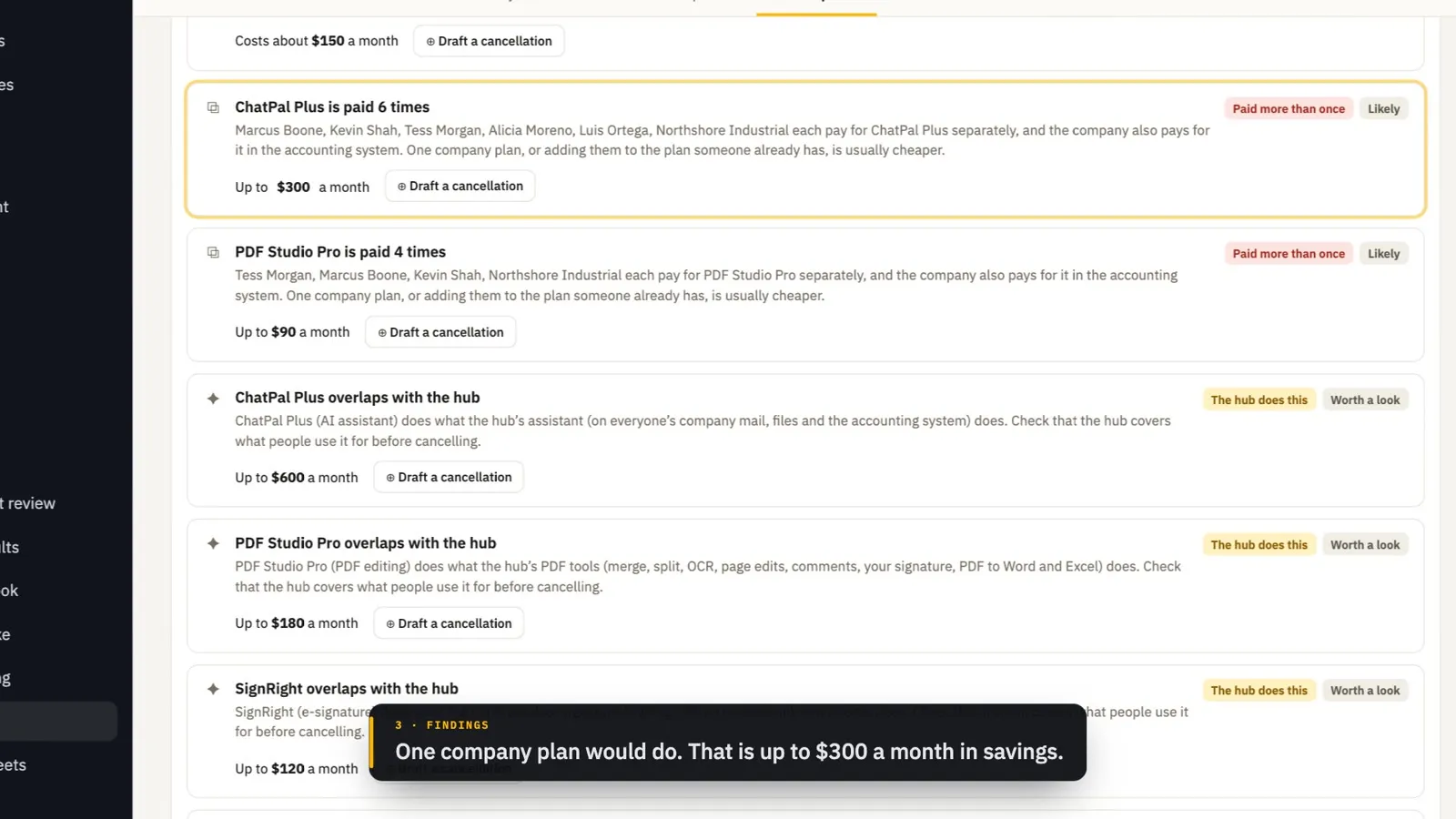
Finds every paid software tool and service from bills and checks in the accounting system and from receipt, renewal and trial emails, with personal mail left out. It shows who pays for each, flags tools paid more than once, tools that overlap and ones the hub already does, lists renewals coming up, and drafts the cancellation for a person to send. A renewal heads-up arrives every Monday.
13 / 2 features
Payroll
13.01Runs on its own
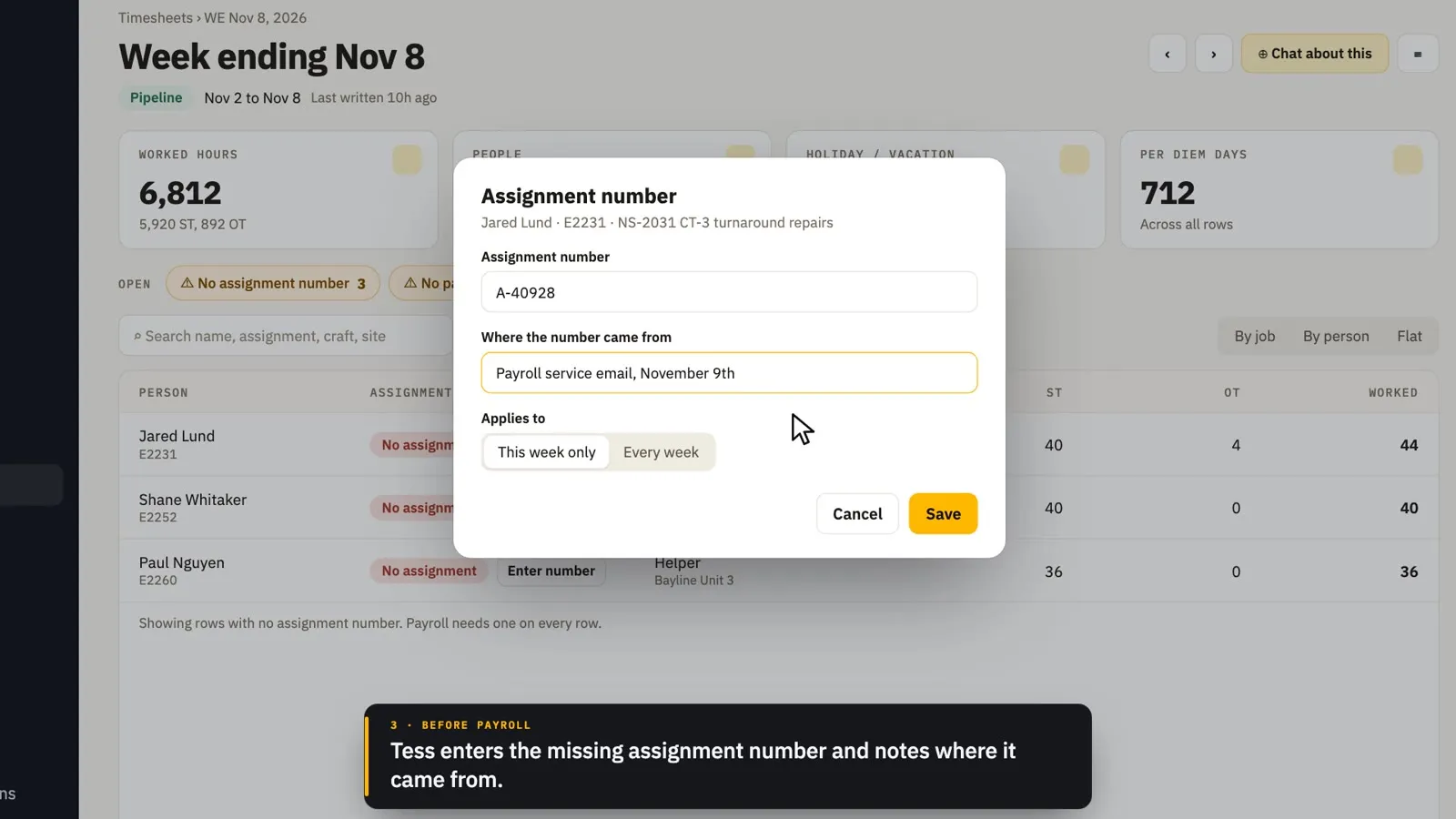
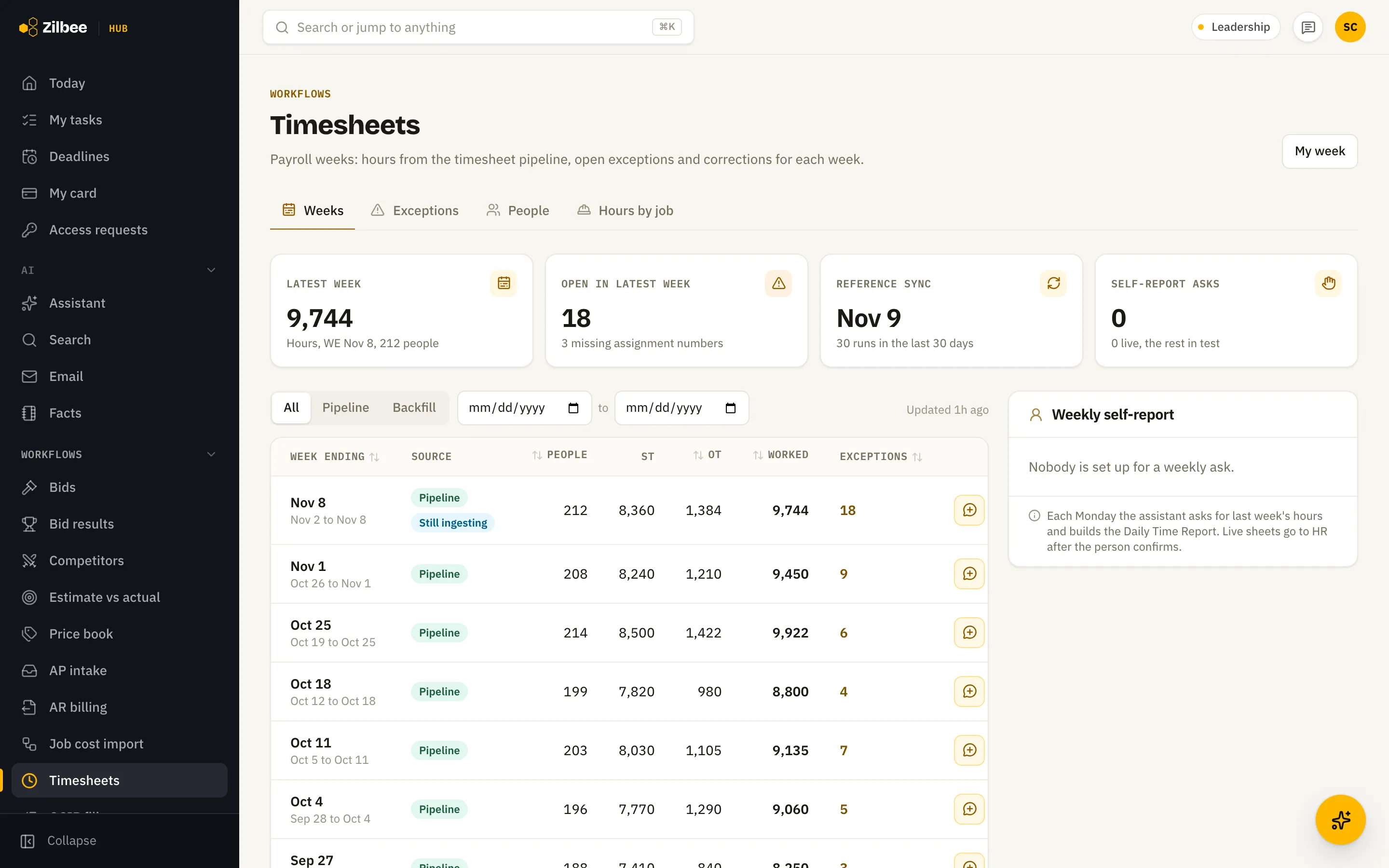
Timesheet week
Review a payroll week by job or by person, with straight time, overtime and every missing assignment or rate flagged before payroll runs.
13.02
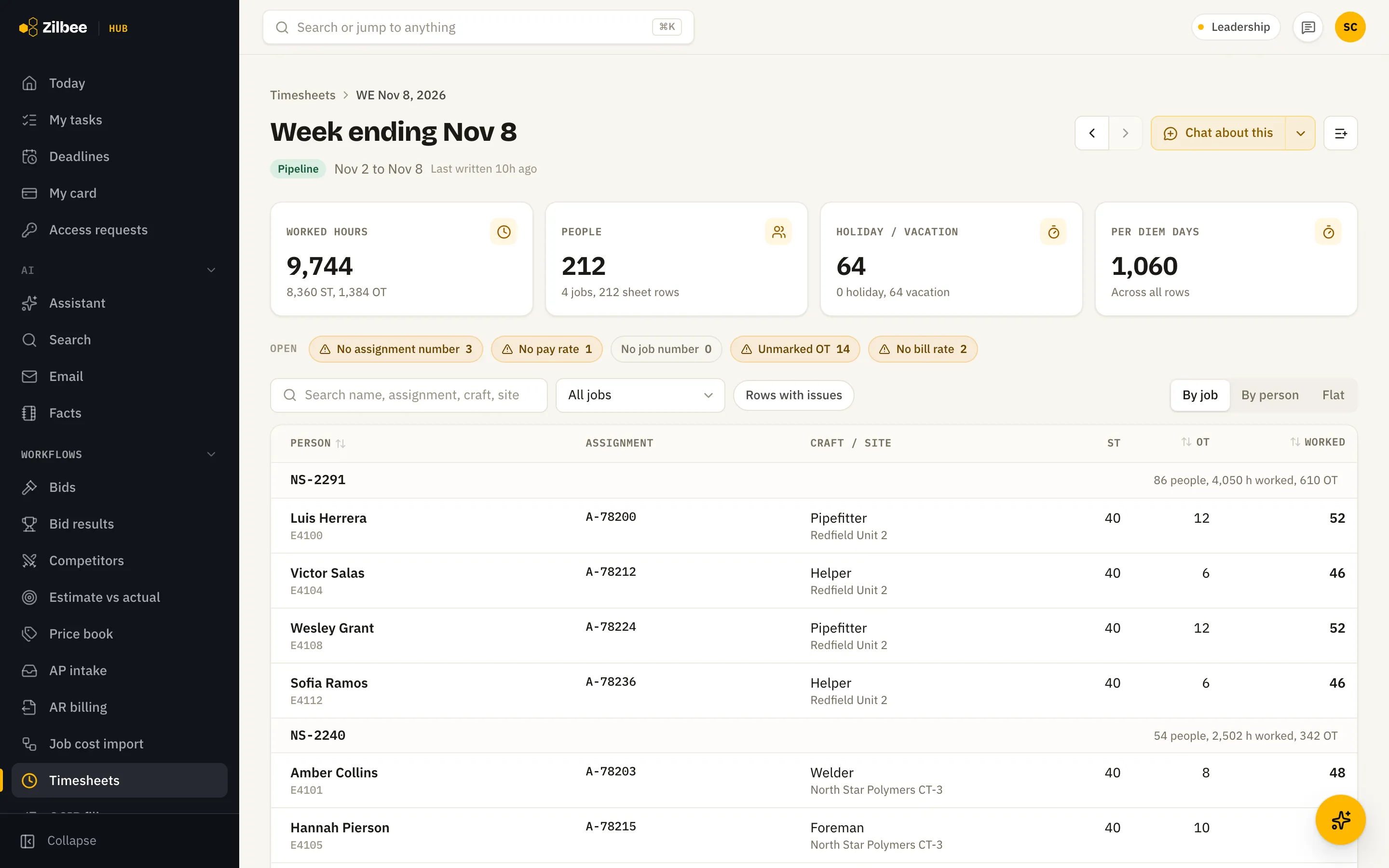
Timesheets
Payroll weeks with hours, overtime and the exceptions to fix before payroll runs.
14 / 3 features
People
14.01
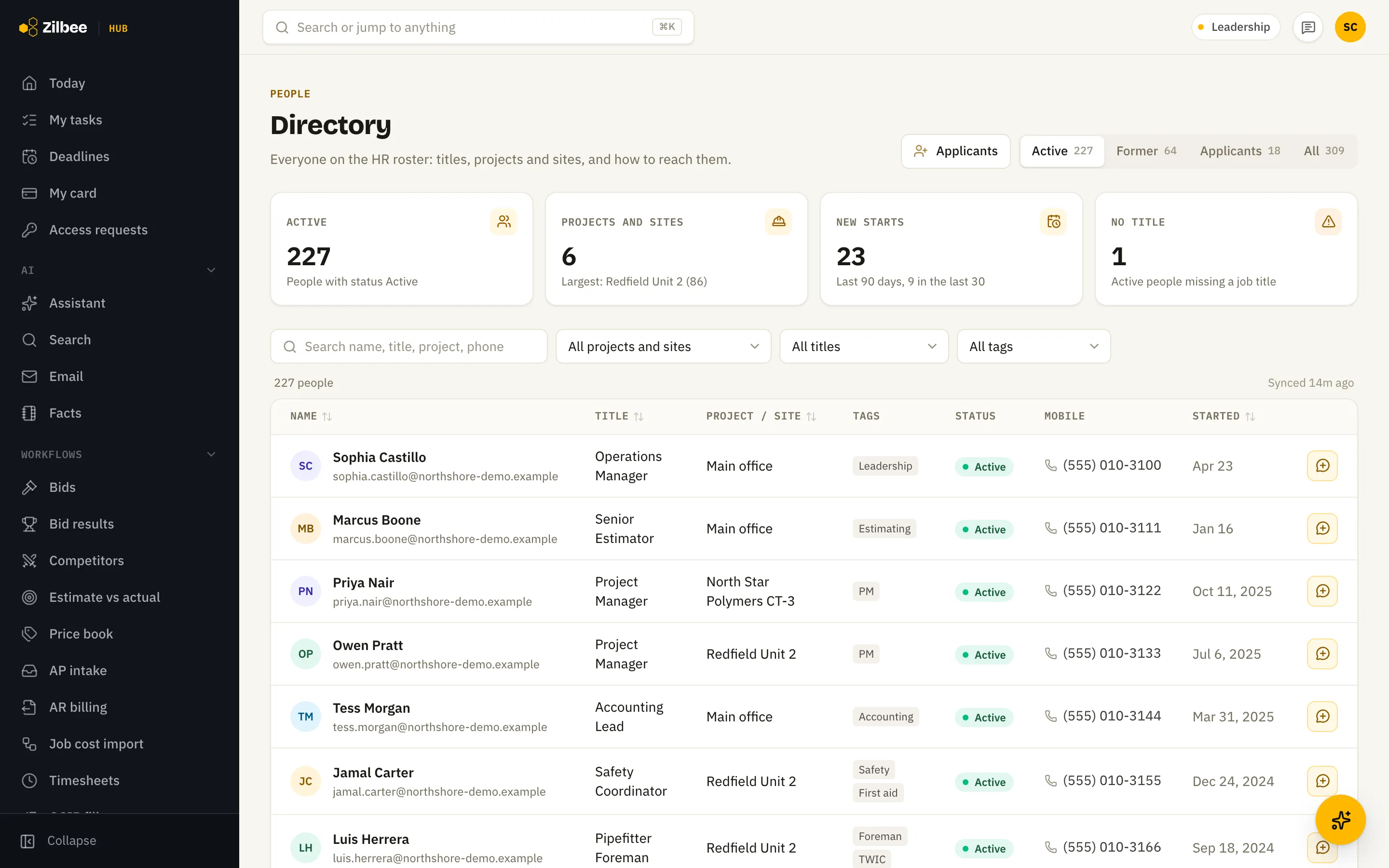
People directory
Find anyone by name, title, site or tag, with their company email and mobile number one click away.
14.02
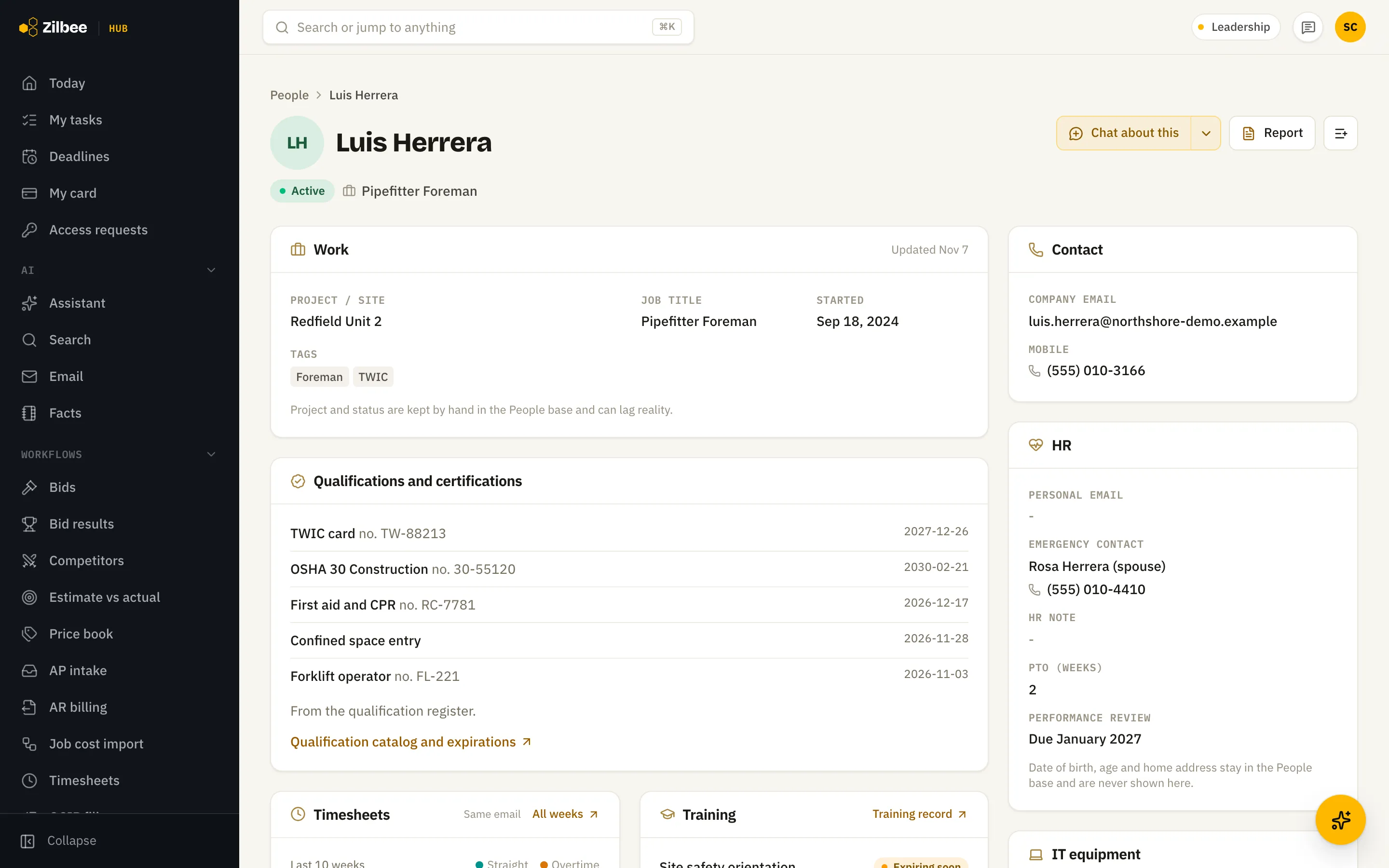
Person profile
One page per person with their site, certifications and expiry dates, recent timesheet hours, training status and emergency contact.
14.03Runs on its own
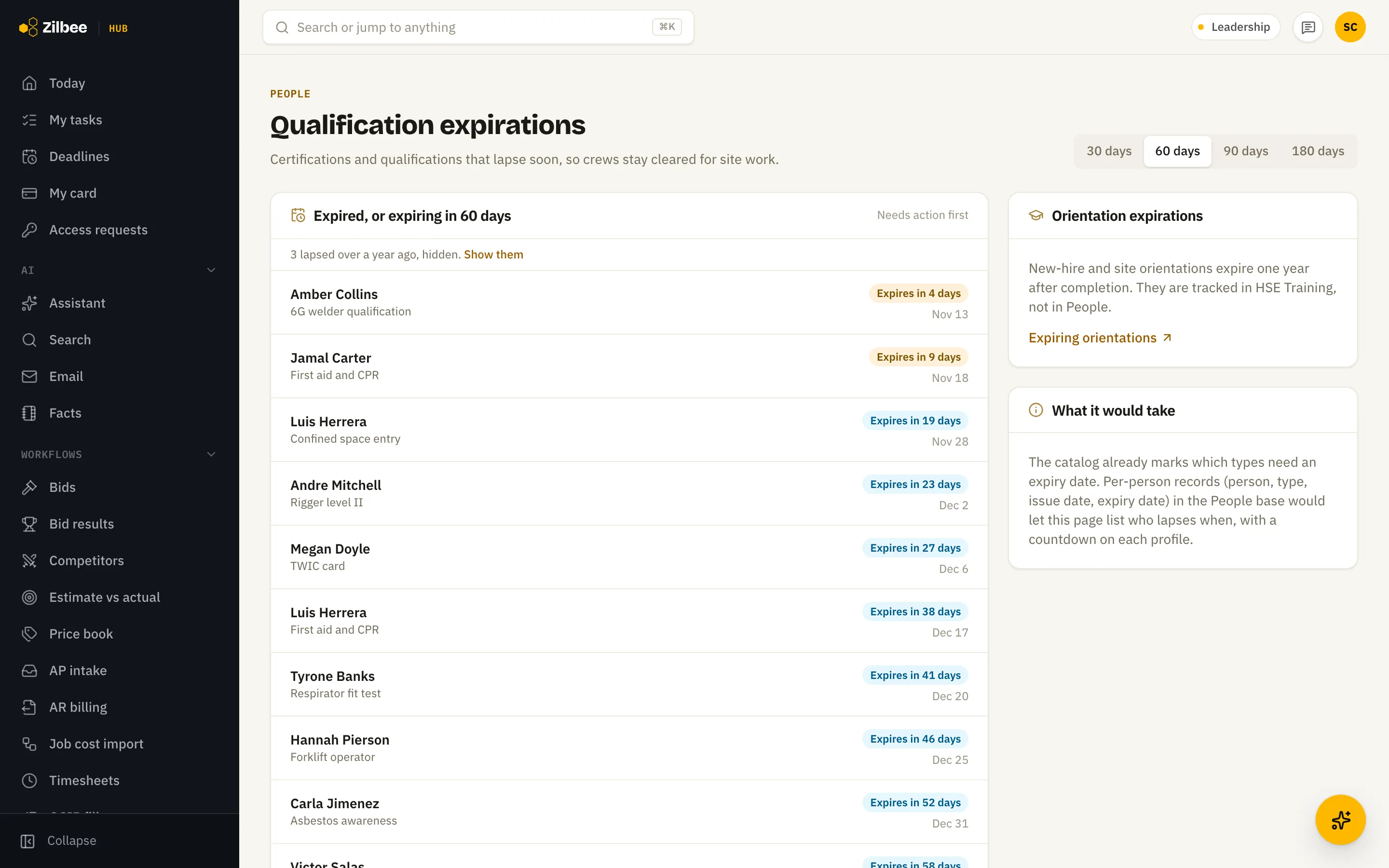
Certification expirations
A running list of certifications and qualifications that expire in the next 60 days, so renewals get scheduled before anyone is pulled off a job.
15 / 4 features
Compliance
15.01Runs on its own
Licenses
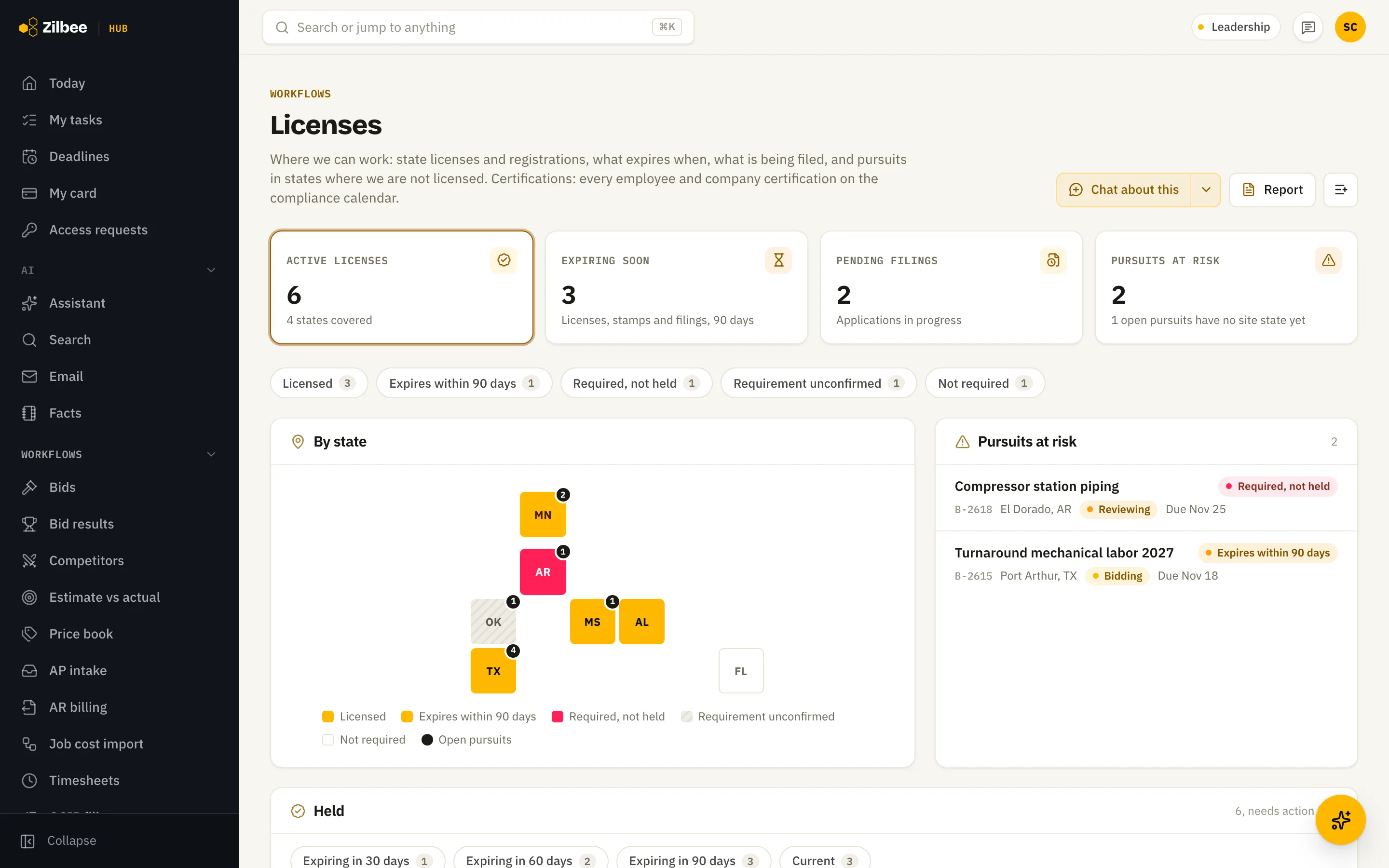
See where the company is licensed, what expires soon and which bids are in states where you are not covered. Leadership can correct a license on screen with a reason and a link to the renewal, add one the register is missing, or mark one no longer held, and each change stays in the license’s history.
Also included
15.02
Document requests answered in one place
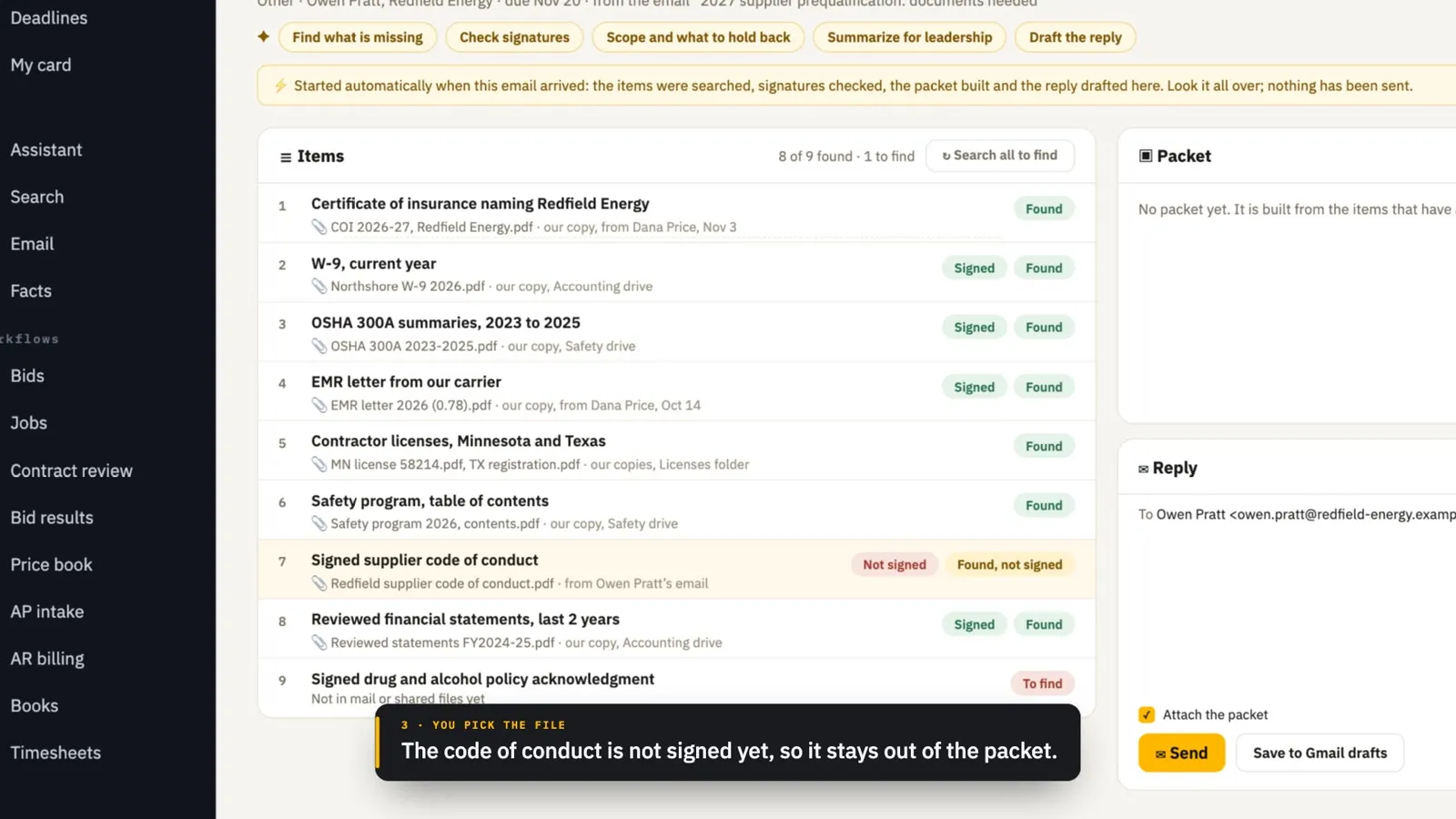
When a customer, lender or prequalification portal asks for a pile of documents, like certificates of insurance, a W-9, safety rates, licenses and financials, the request gets its own page. The hub splits it into items, searches mail and shared files for each one with your own company’s copies first, and you pin the right file to each item. It checks which files still need a signature, builds one numbered packet of the pinned files, and drafts the reply that names only what is attached. Nothing is sent until a person presses Send.
15.03Runs on its own
Document requests started when the email arrives
An email asking for documents starts a request on its own, with the items found and the likely files suggested, and the people who handle these get a notification. Email research’s checklist on that email links straight to the request.
15.04Runs on its own
Utility locate tickets on every job
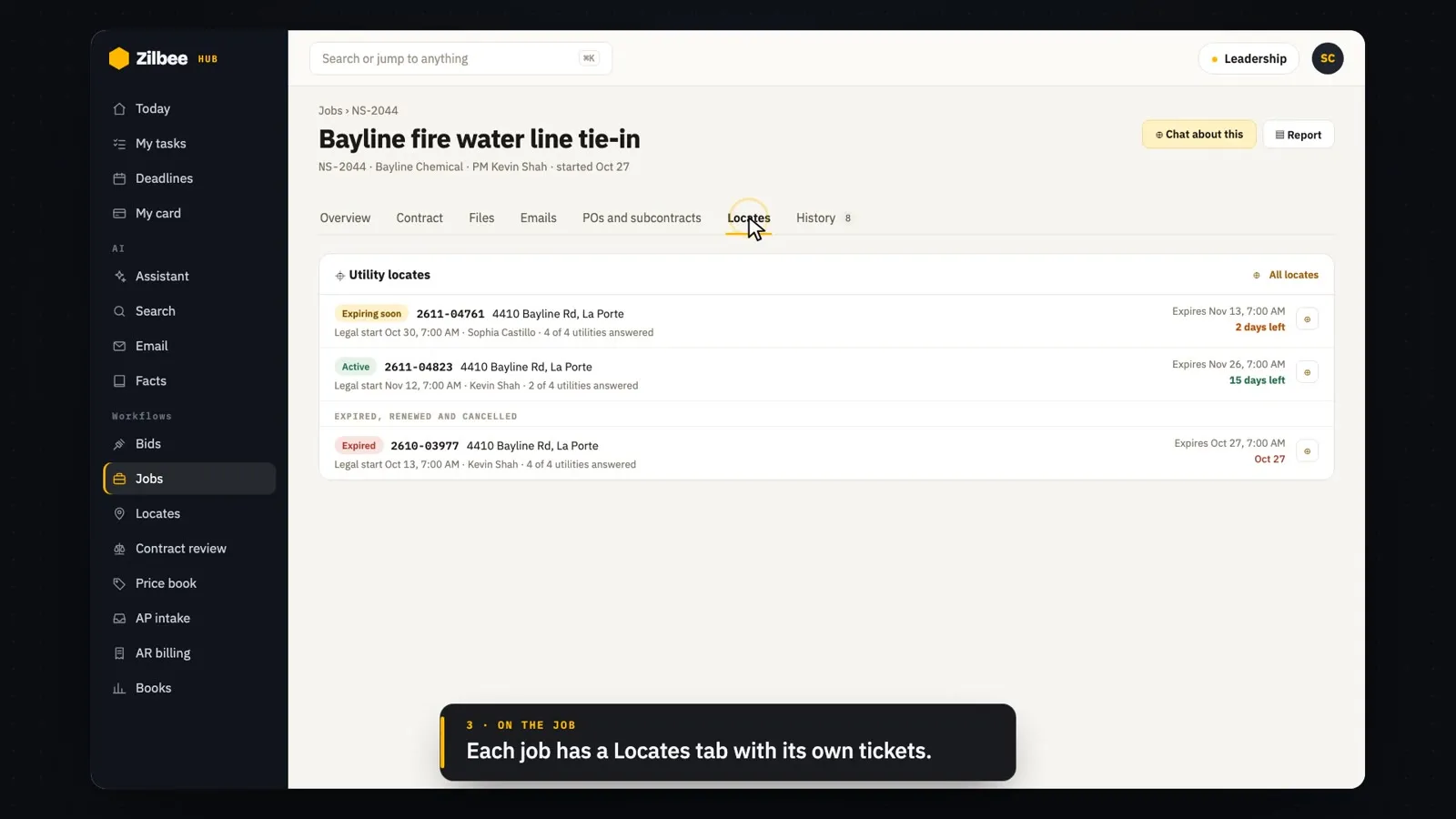
The one-call (811) emails for your locate requests become tickets the hub matches to the right job. A Locates page and a tab on each job show each ticket’s start and expiration dates and the utilities’ answers, and a reminder comes a few days before a ticket expires, with the renewal link.
16 / 7 features
Safety
16.01Runs on its own
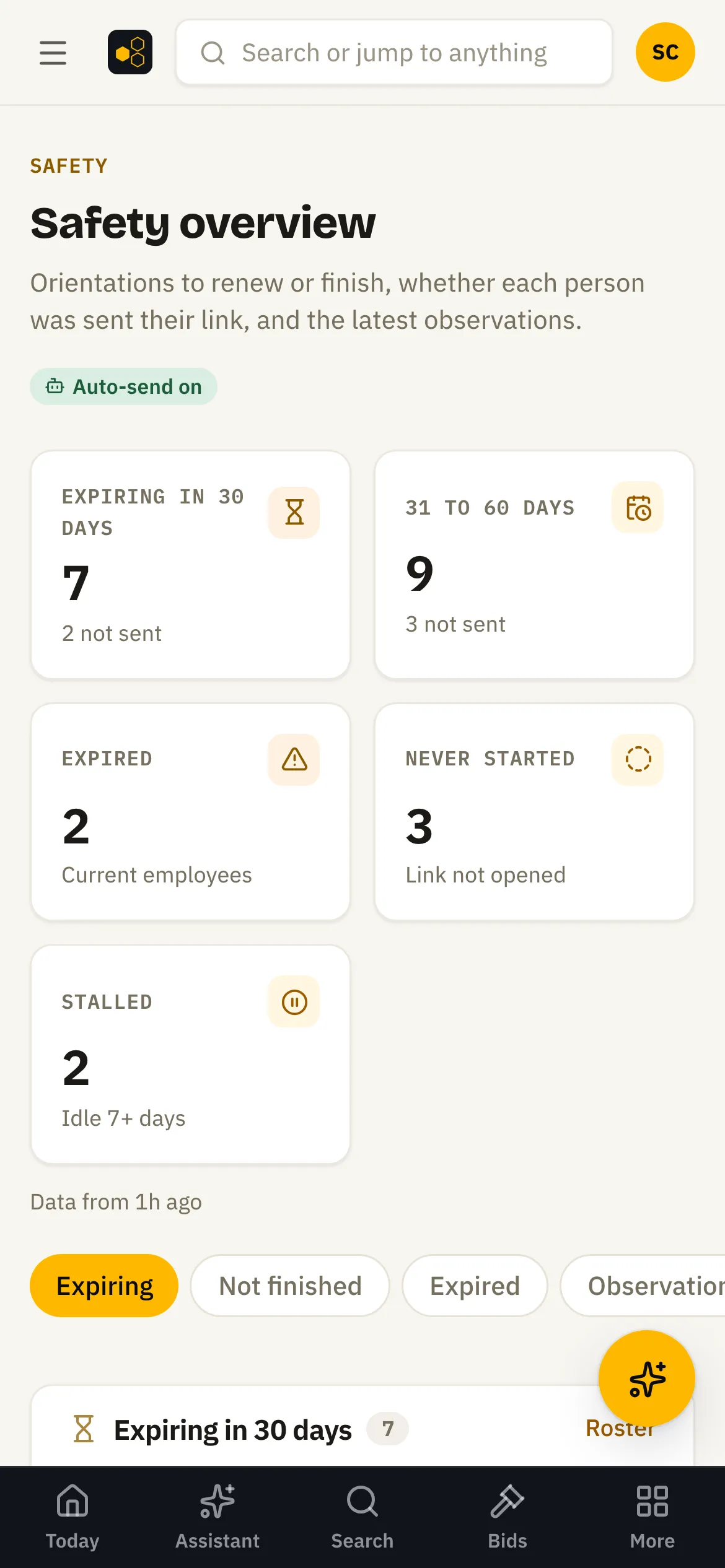
Safety overview
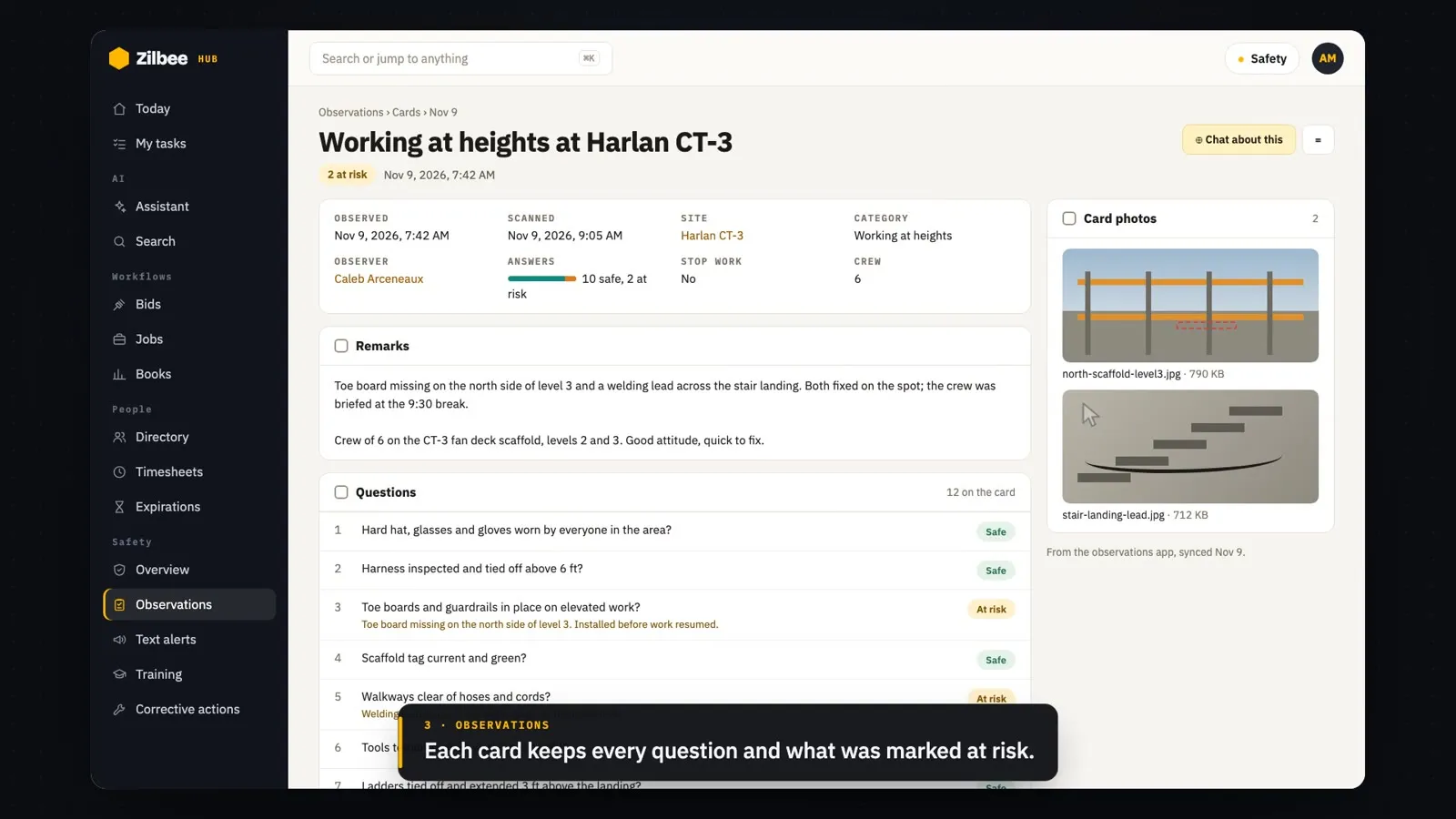
See whose site orientation is about to expire, who never started and who stalled, and whether each person was already texted their link.
16.02
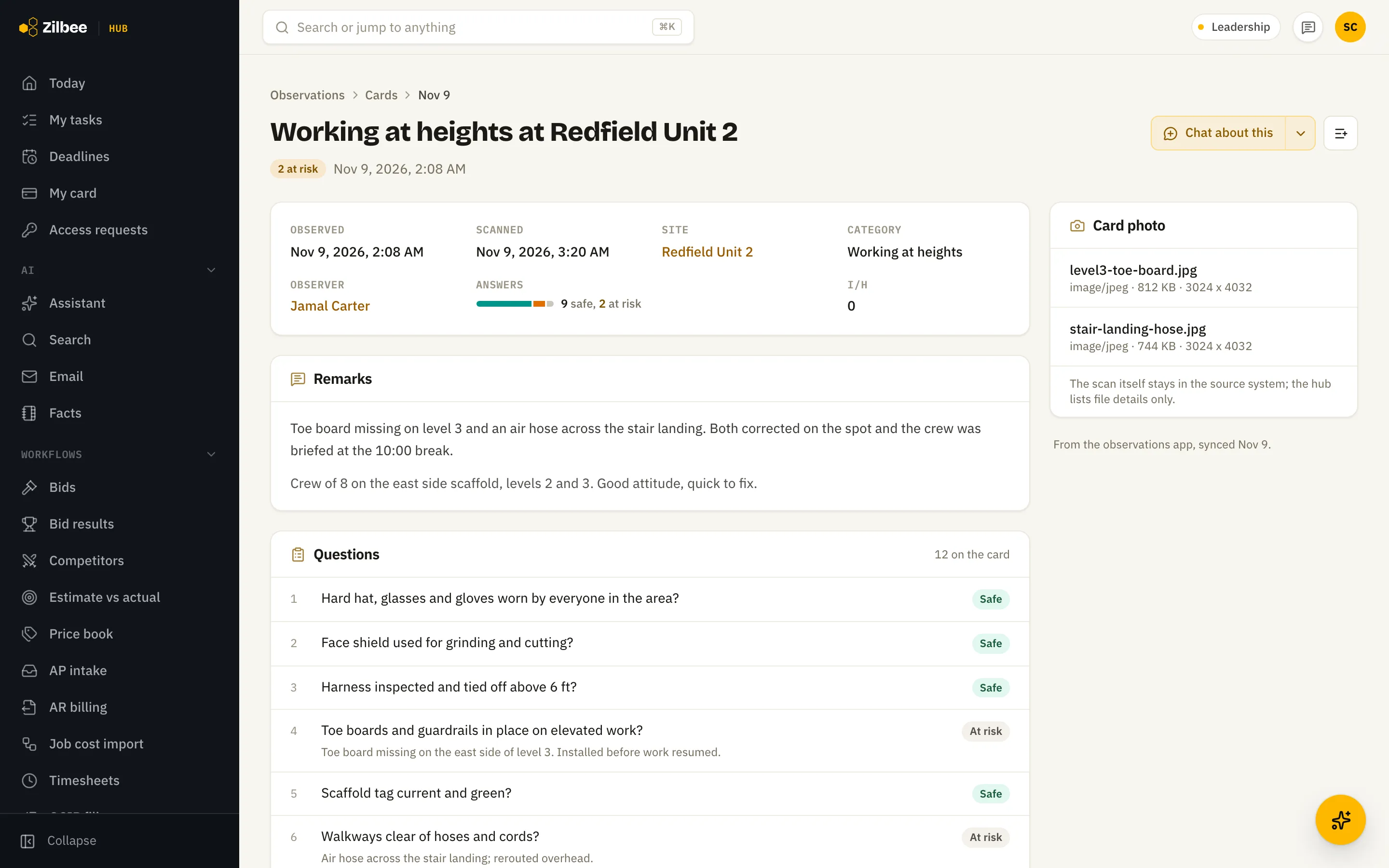
Safety observation card
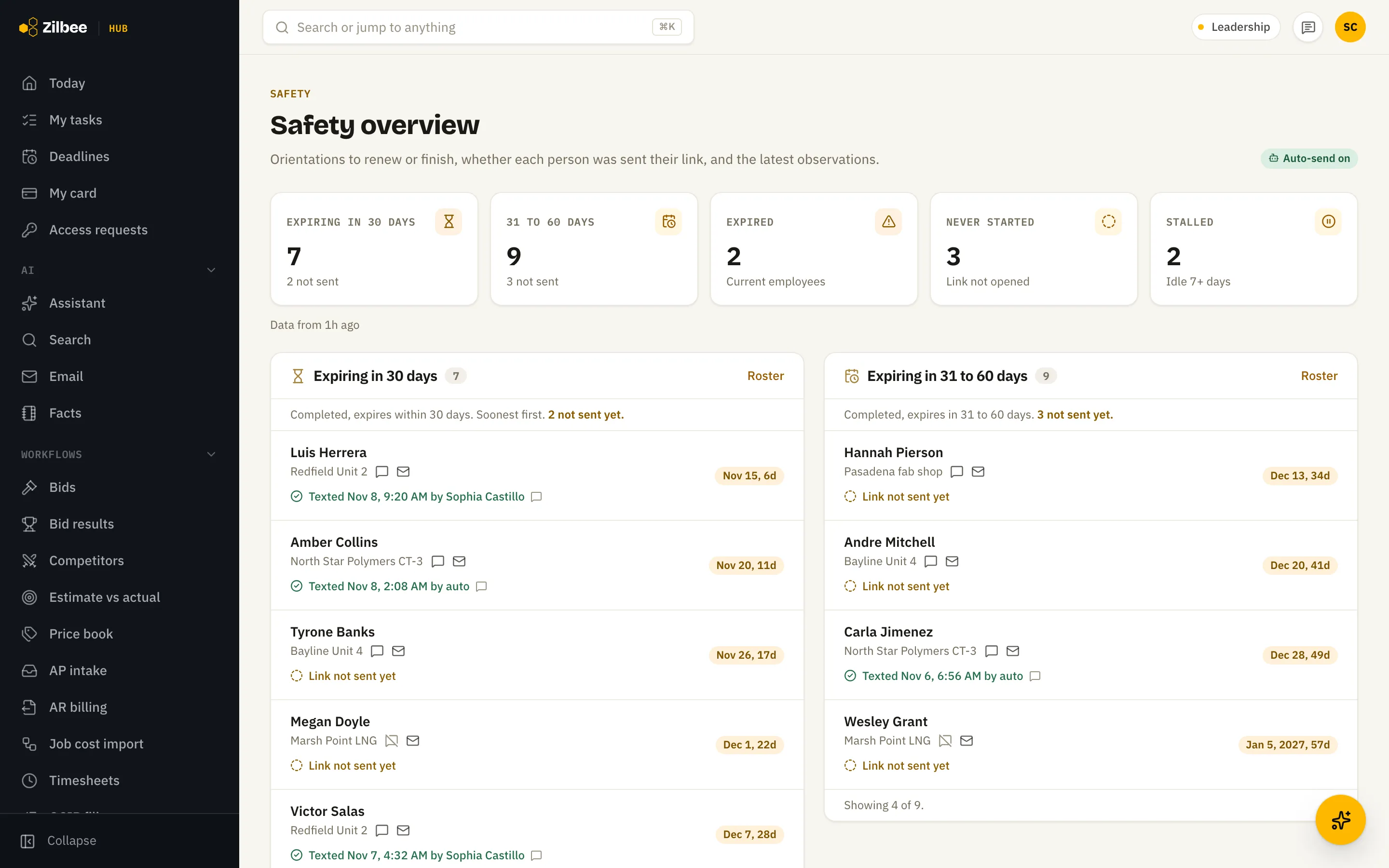
Open any field observation card to see every question, what was marked at risk, the observer's remarks and the photos taken.
16.03
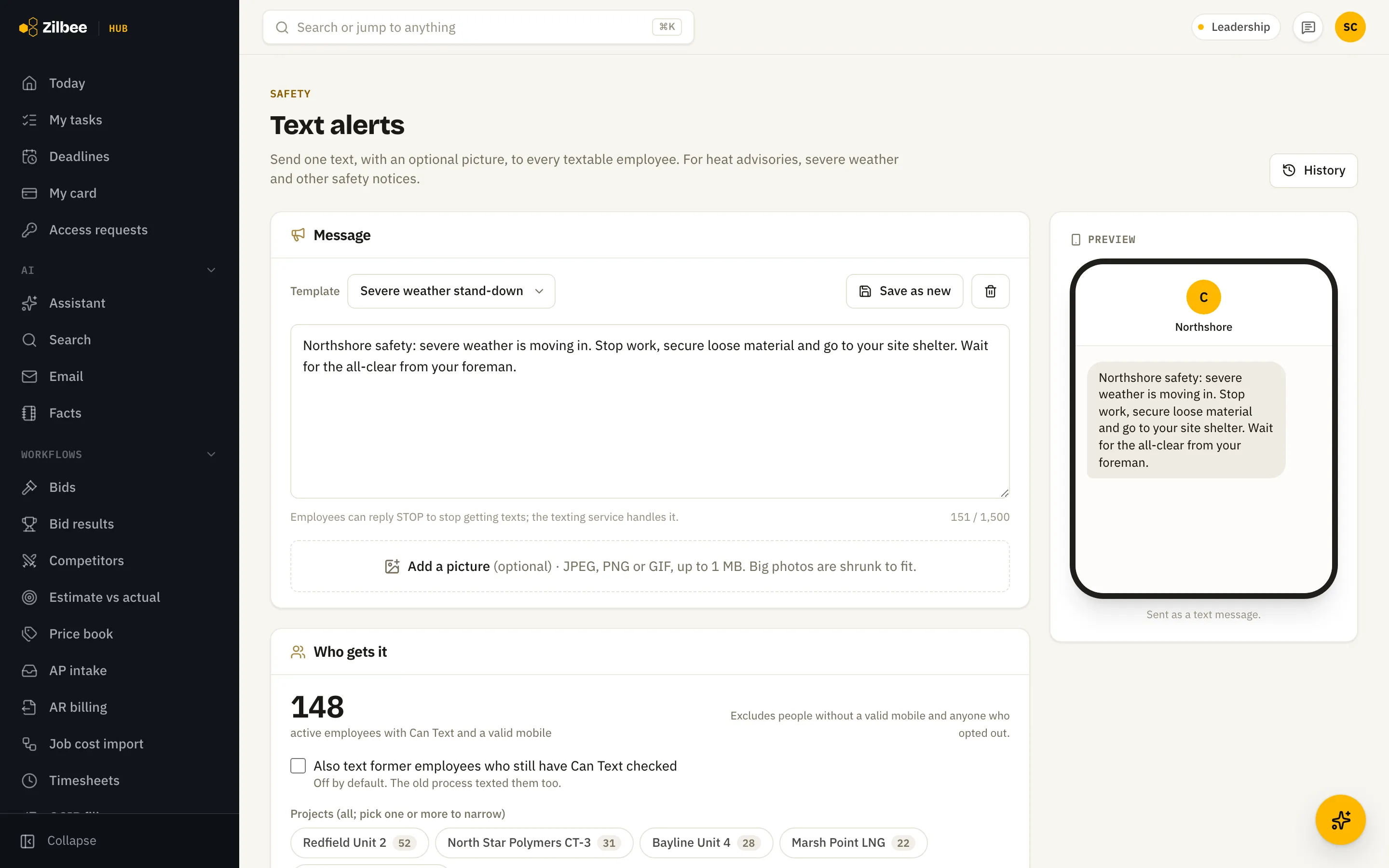
Safety text alerts
Send one text, with an optional picture, to every crew member or just one site, starting from saved templates like severe weather or heat stress.
16.04
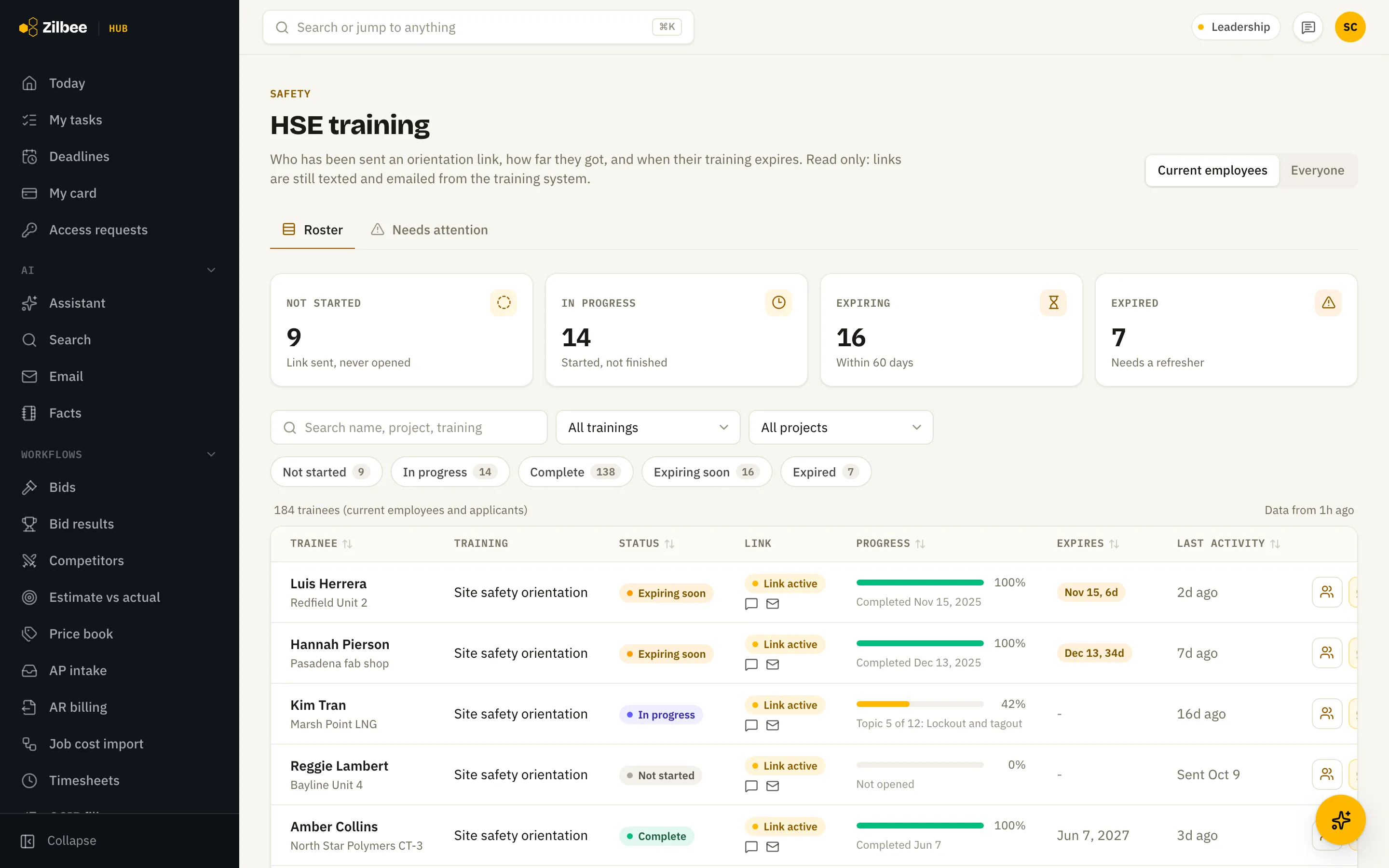
Training roster
Track each person's orientation progress, quiz completion and expiry date, and spot who needs a reminder.
16.05
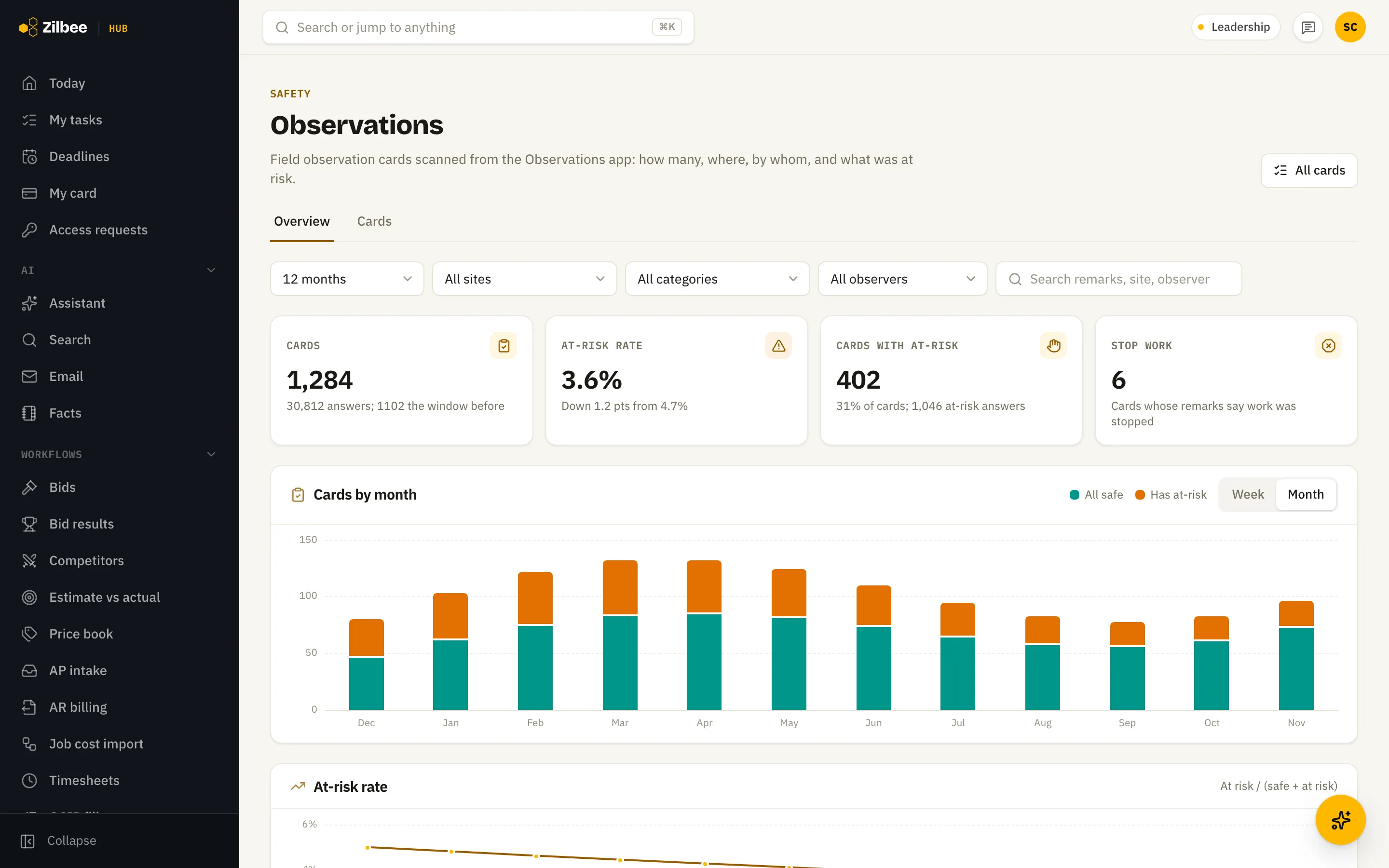
Safety observations
Field observation cards turned into trends: at-risk rate, sites and the questions that fail most.
16.06Runs on its own
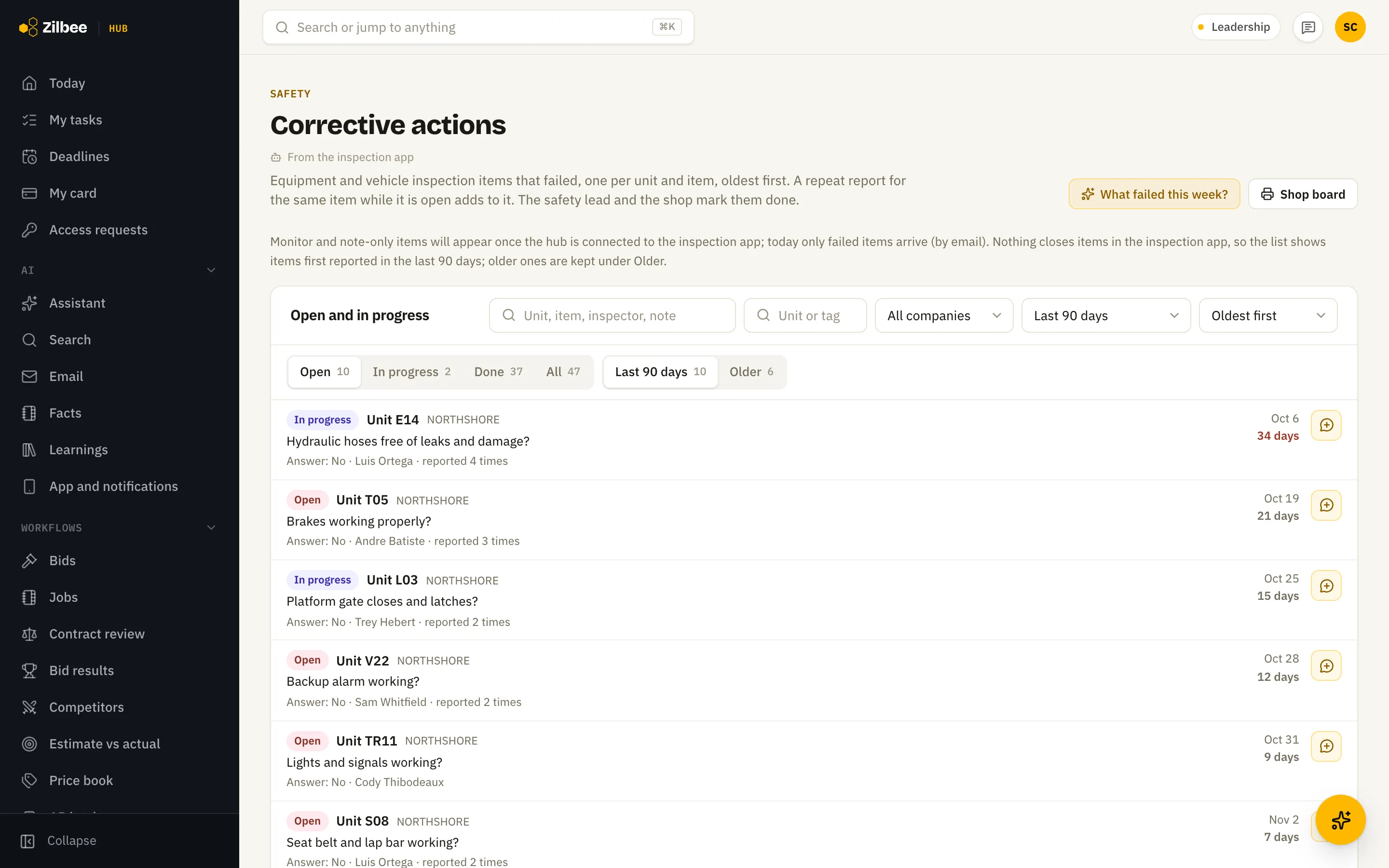
Corrective actions from failed inspections
Failed equipment and vehicle inspection items become a worklist, one line per unit and item, with what failed, who reported it, when and how often. The safety lead and the shop mark each one in progress or done with a note and a repair reference, and open items show on the unit’s page and the printable shop board.
Also included
16.07Runs on its own
Training sessions from the trainer’s calendar
The hub reads the trainer’s calendar and shows each person the sessions they are invited to, with their answer, on Today. The trainer sees every session and who is coming.
17 / 7 features
Mobile
17.01
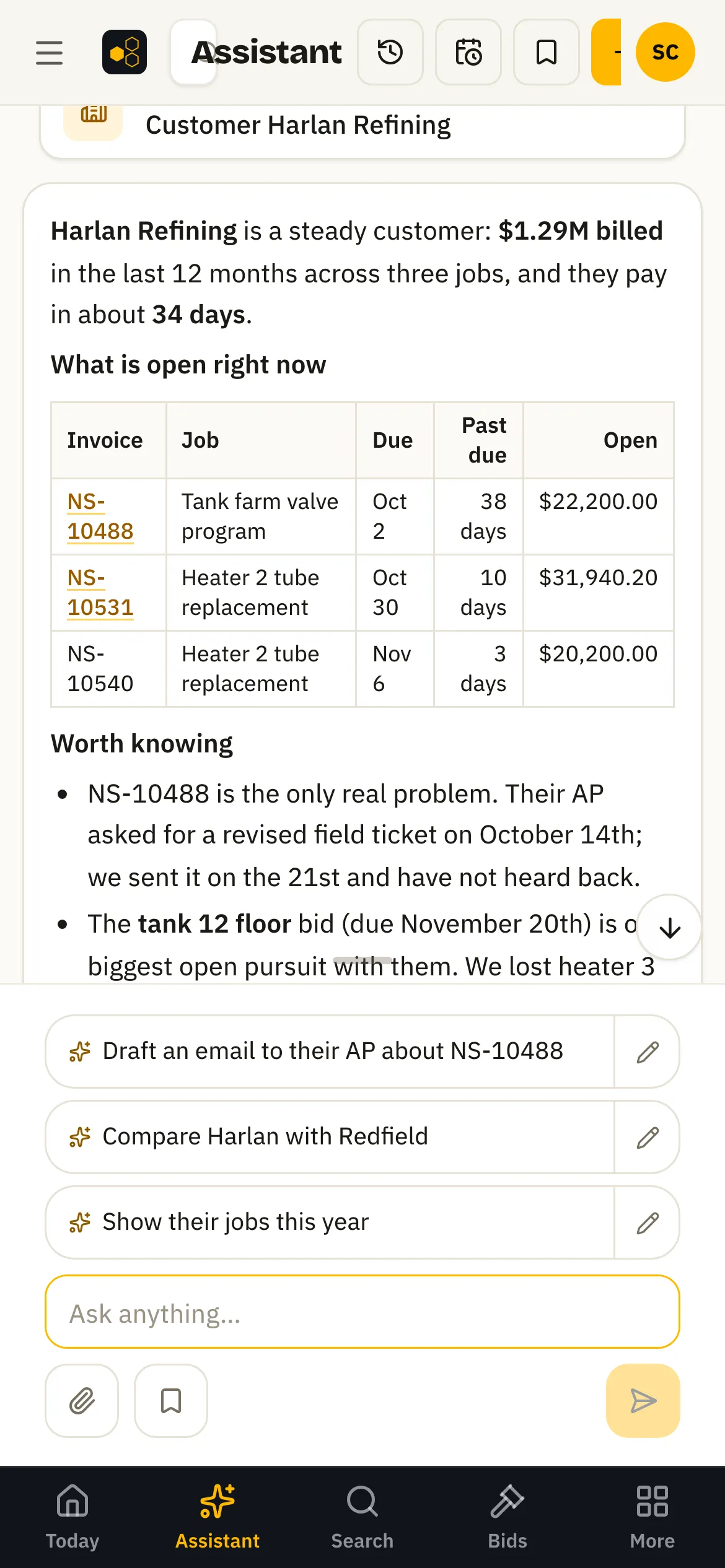
The assistant on your phone
The same assistant, answers and sources, sized for a phone, with your chat history, scheduled checks and saved prompts one tap away.
17.02
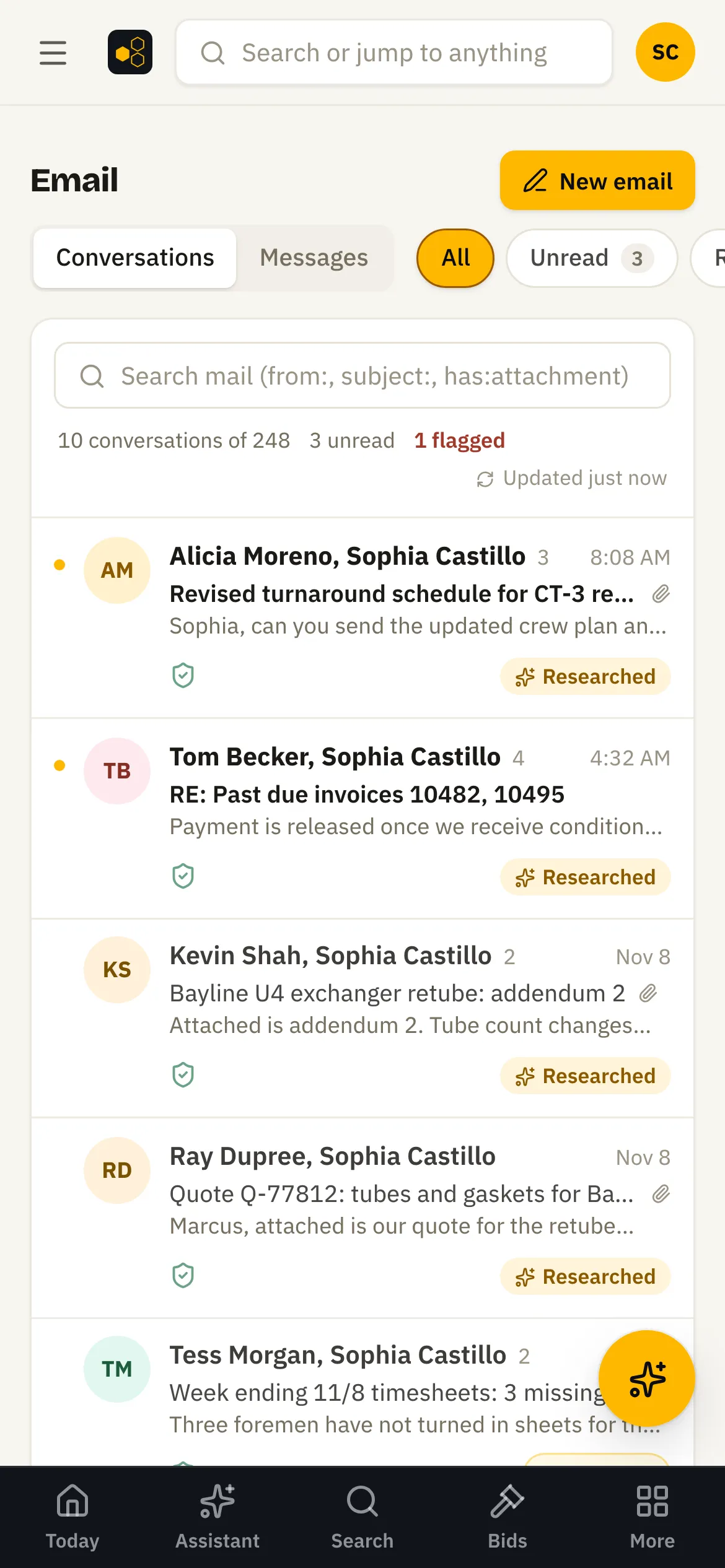
Email on your phone
Your inbox and each email's research brief work on a phone, so you can triage between jobsites.
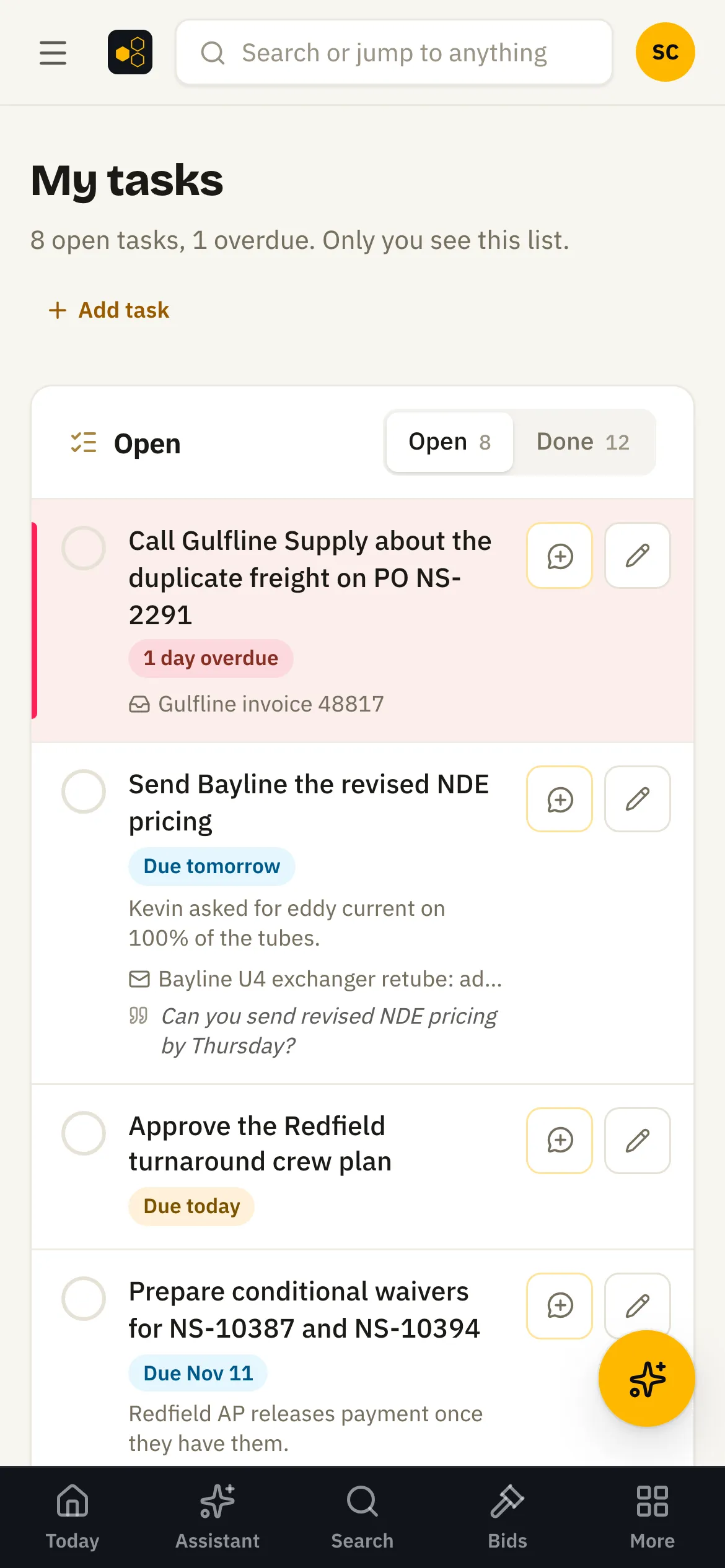
17.03
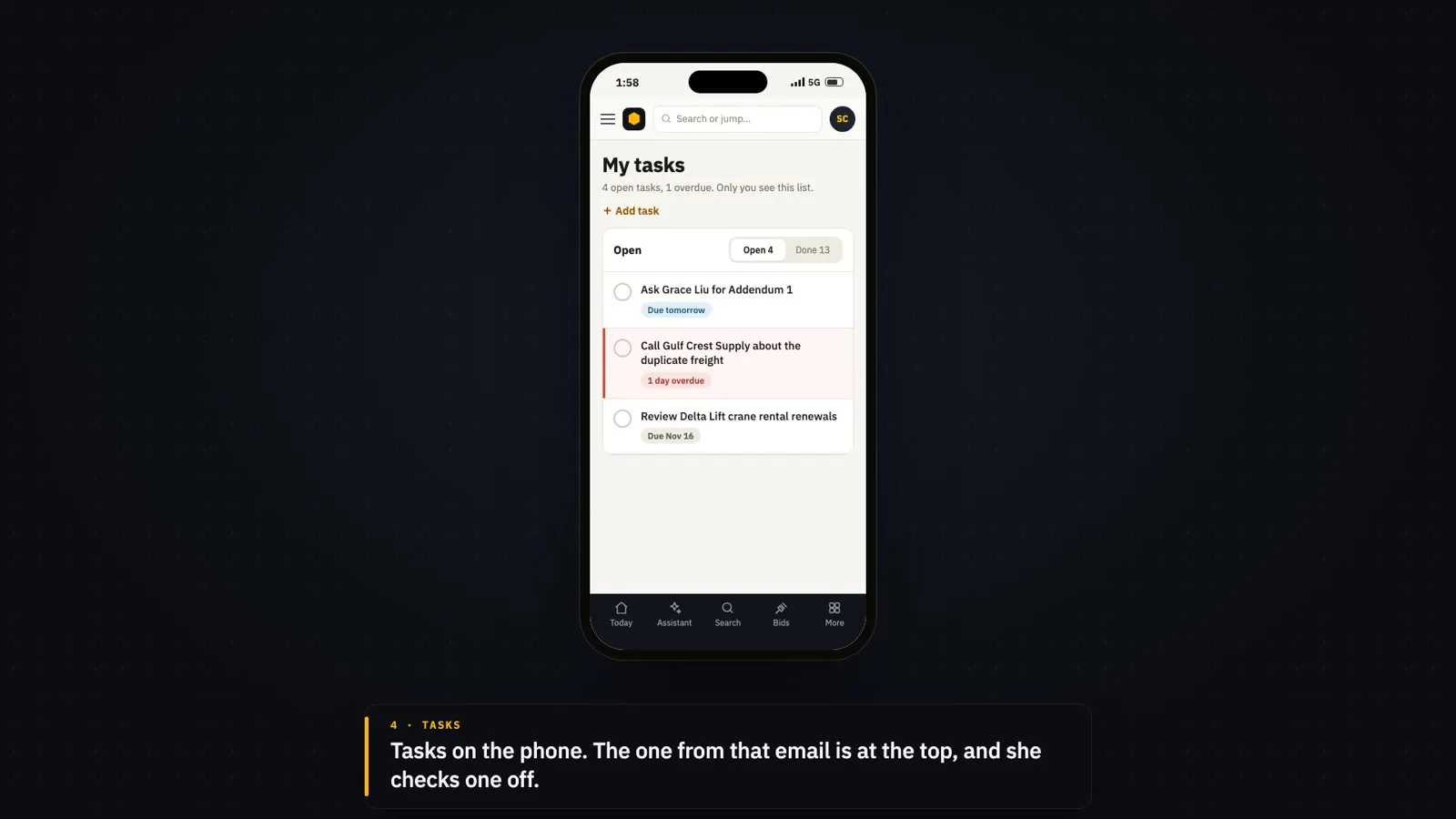
Tasks on a phone
Your own task list, due dates and overdue items work the same on a phone as on a desktop.
Also included
17.04
The hub as a phone app
Add the hub to a phone’s home screen and it opens like an app, with shortcuts to the assistant, Today, Bids and Jobs. The pages you looked at last, like Today, your tasks, chats and recent bids and jobs, stay readable with no signal, and a question or task change made offline goes through once the phone is back online. Mail and documents are never kept on the phone.
17.05Runs on its own
Notifications on phones and computers
Turn on notifications and the hub tells you when an answer is ready, someone mentions you or adds you to a chat, a scheduled check or task is due, a contract review finishes, or a document request is ready to look over. Each person picks which events they get and sets quiet hours. The notification is a short line and a link, never the details, and it only links to screens the person can open.
17.06
Photos on work orders and jobs
A Take photo button on a work order or job opens the phone’s camera. The photo is turned upright, kept small, captioned if you like and filed on the record with who took it and when. With no signal it waits on the phone and uploads once the phone is back online.
17.07Runs on its own
Job-site photos from your photo app
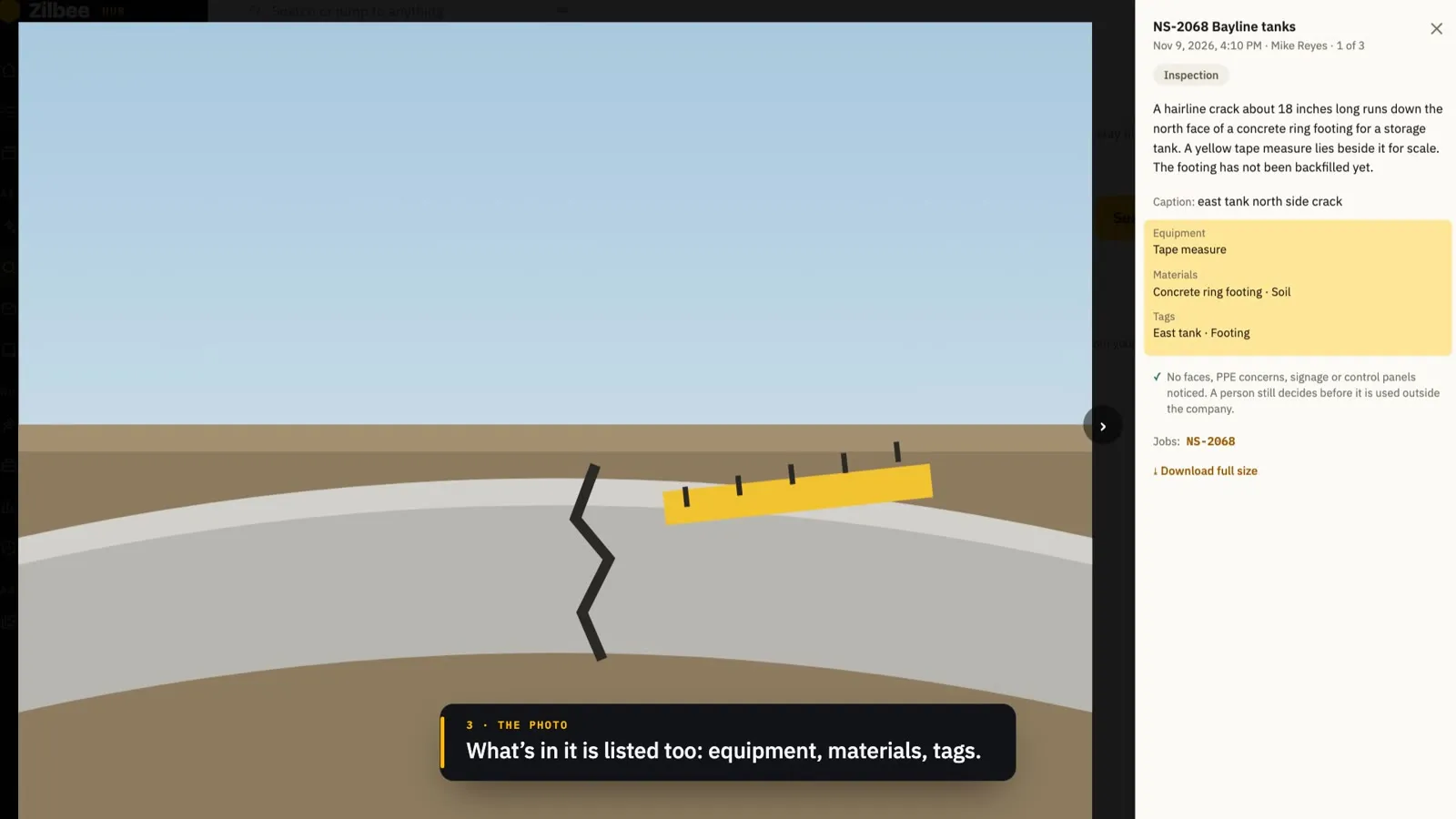
Photos your crews take in your job-site photo app come into the hub, are matched to the right job and described in plain words, so a search like "the cracked footing at the east tank" finds them. Each job gets a Photos tab, and photos the hub can’t place wait for a person to match.
18 / 2 features
Connections
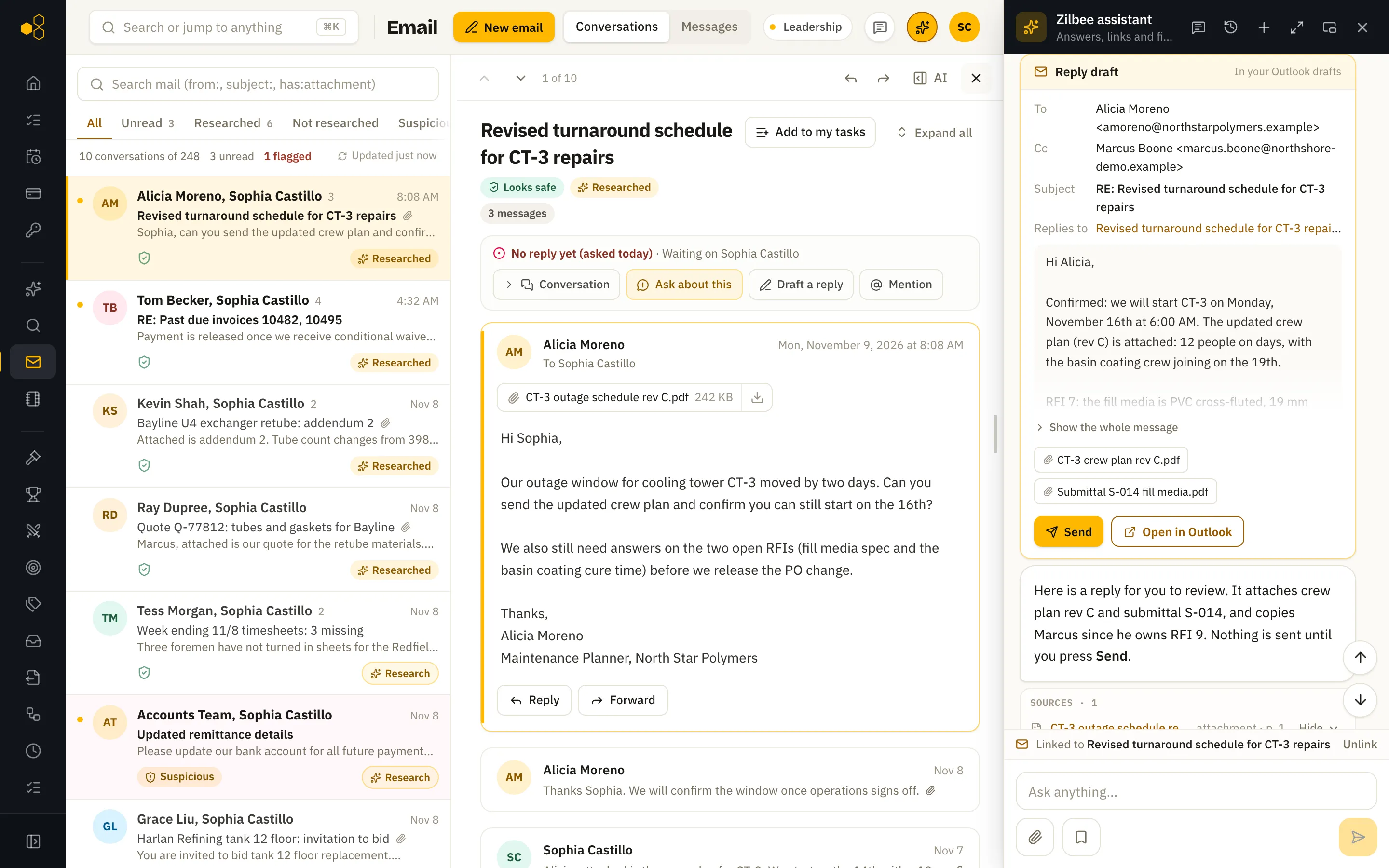
18.01
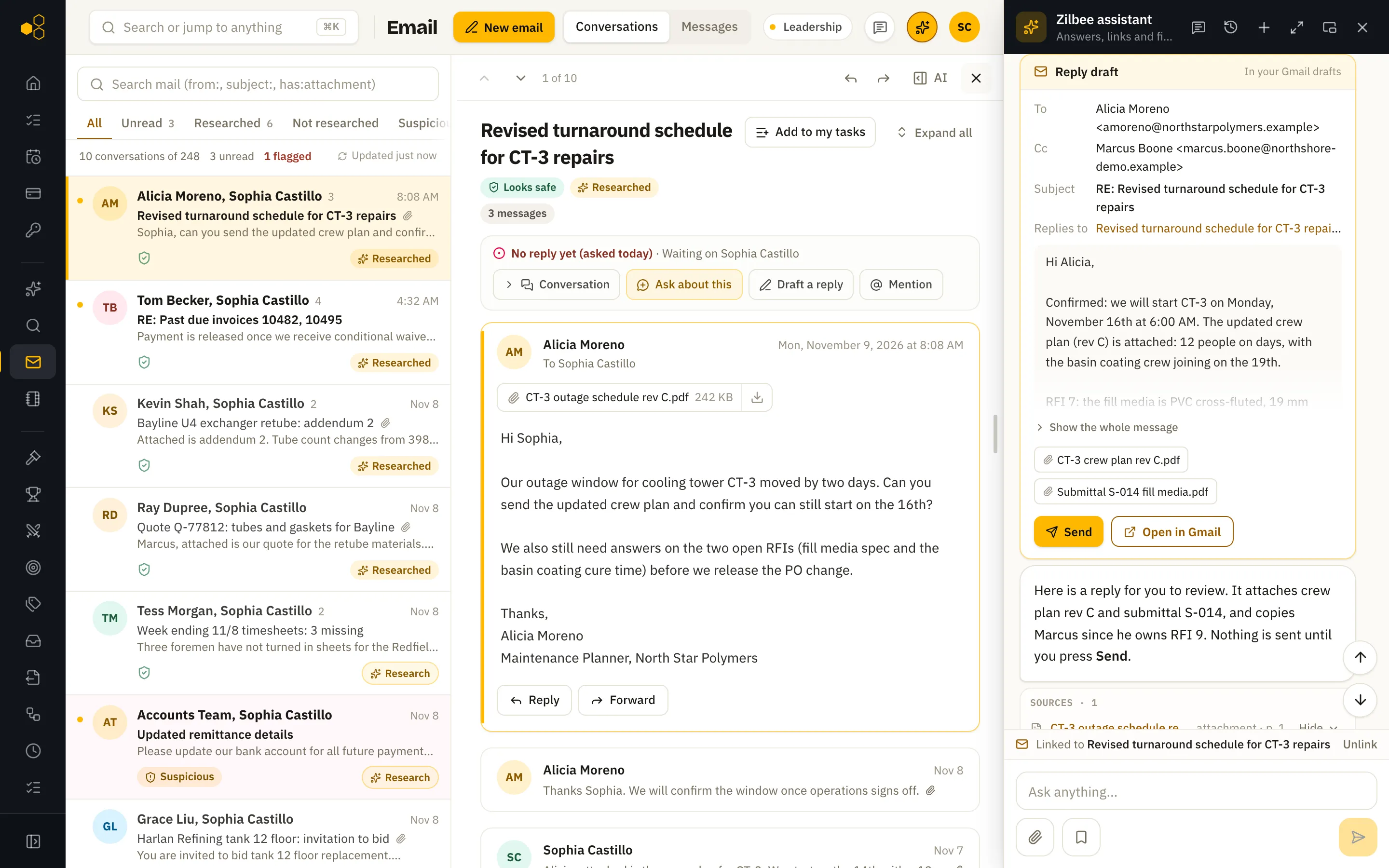
Gmail or Outlook, Drive or SharePoint
Reads every mailbox and shared drive on Google Workspace or Microsoft 365. Drafts land in the person’s own Gmail or Outlook drafts.
Also included
18.02
Sister companies in one hub
When a group runs more than one company, the hub reads them all, whether they share one Microsoft 365 or Google Workspace account or each has its own Google Workspace. Mail between the companies counts as internal, a person with an address at each company is one person, and a company that hasn’t allowed changes stays read-only: no drafts, sends or saves there.
19 / 3 features
Branding
19.01
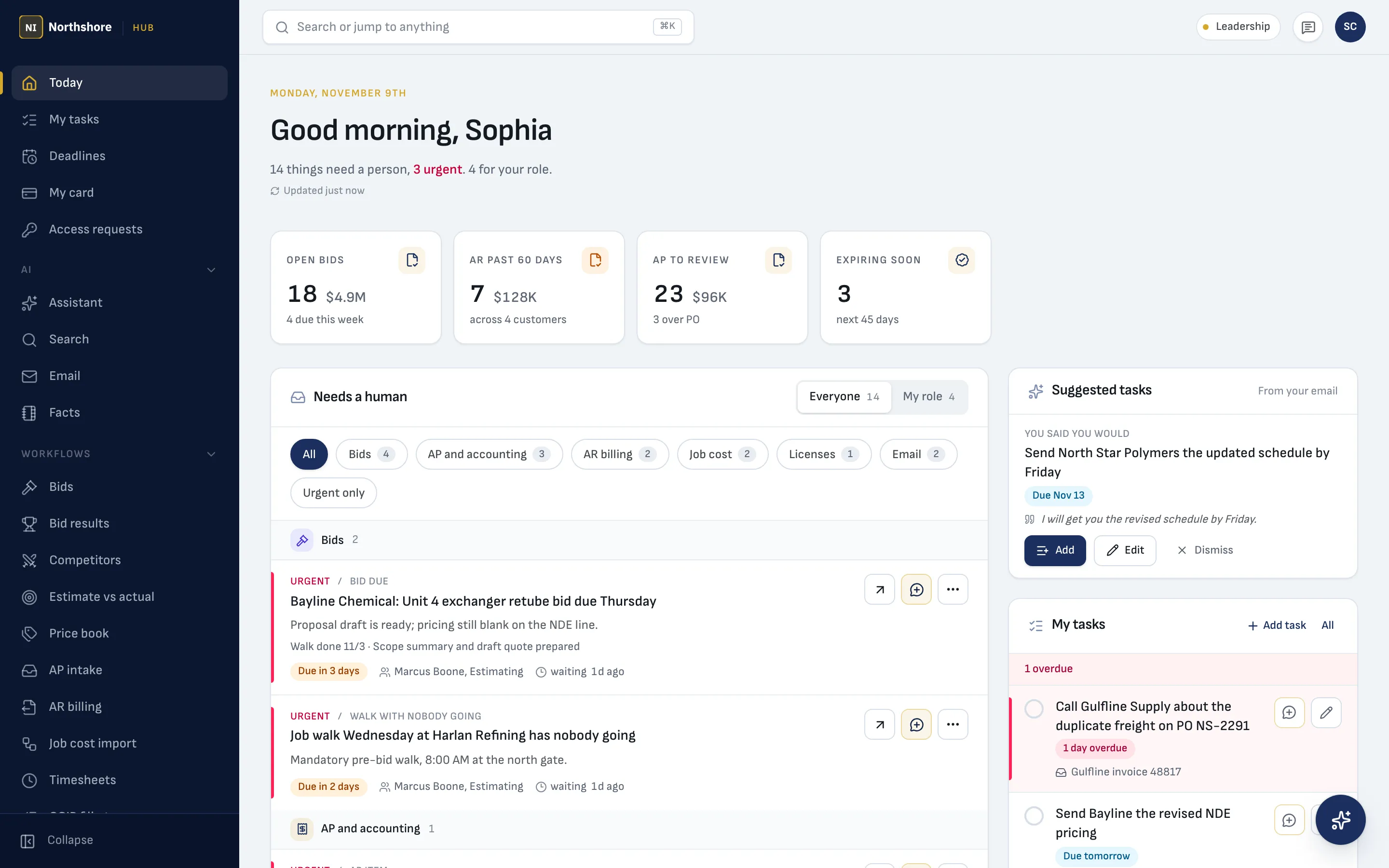
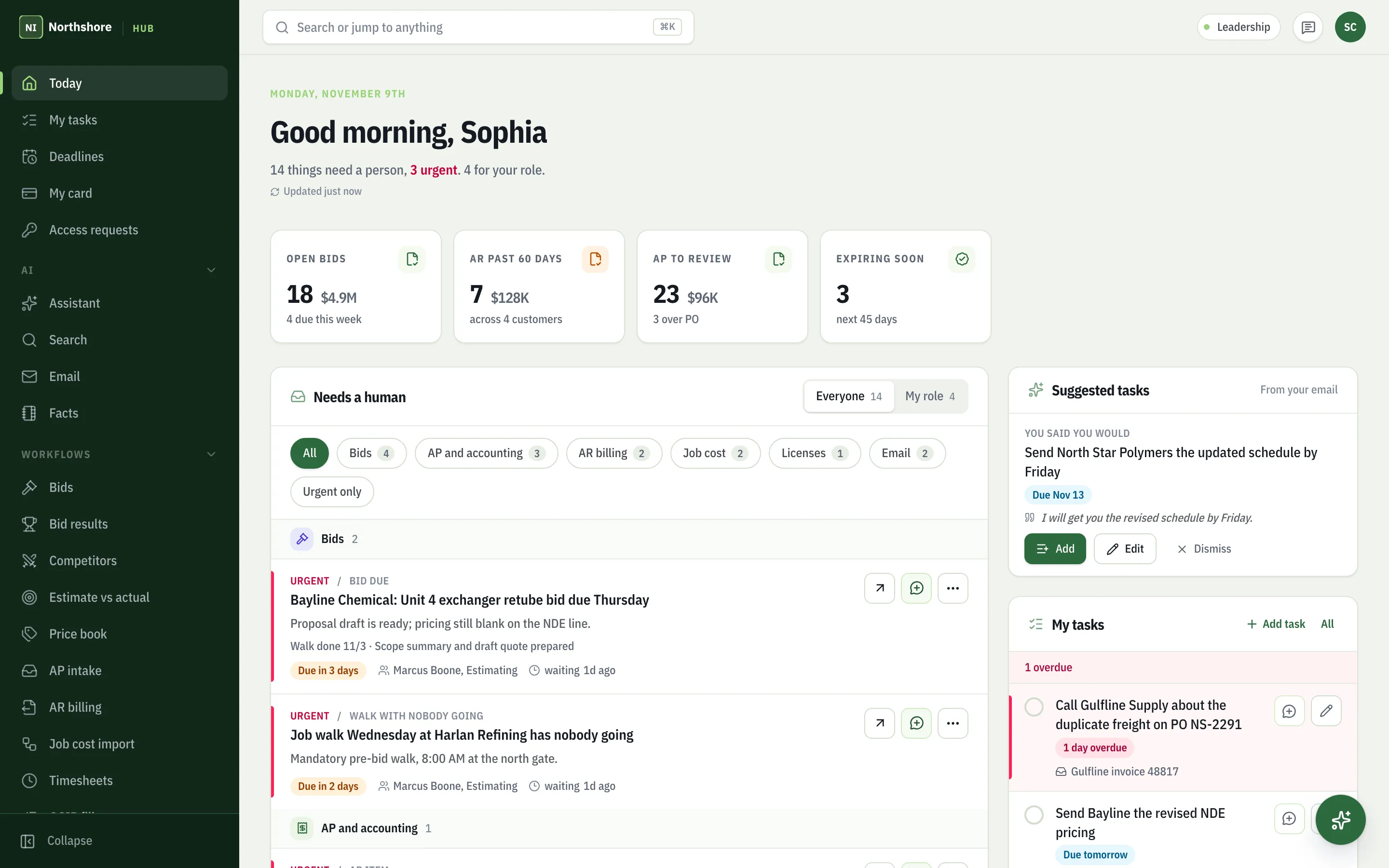
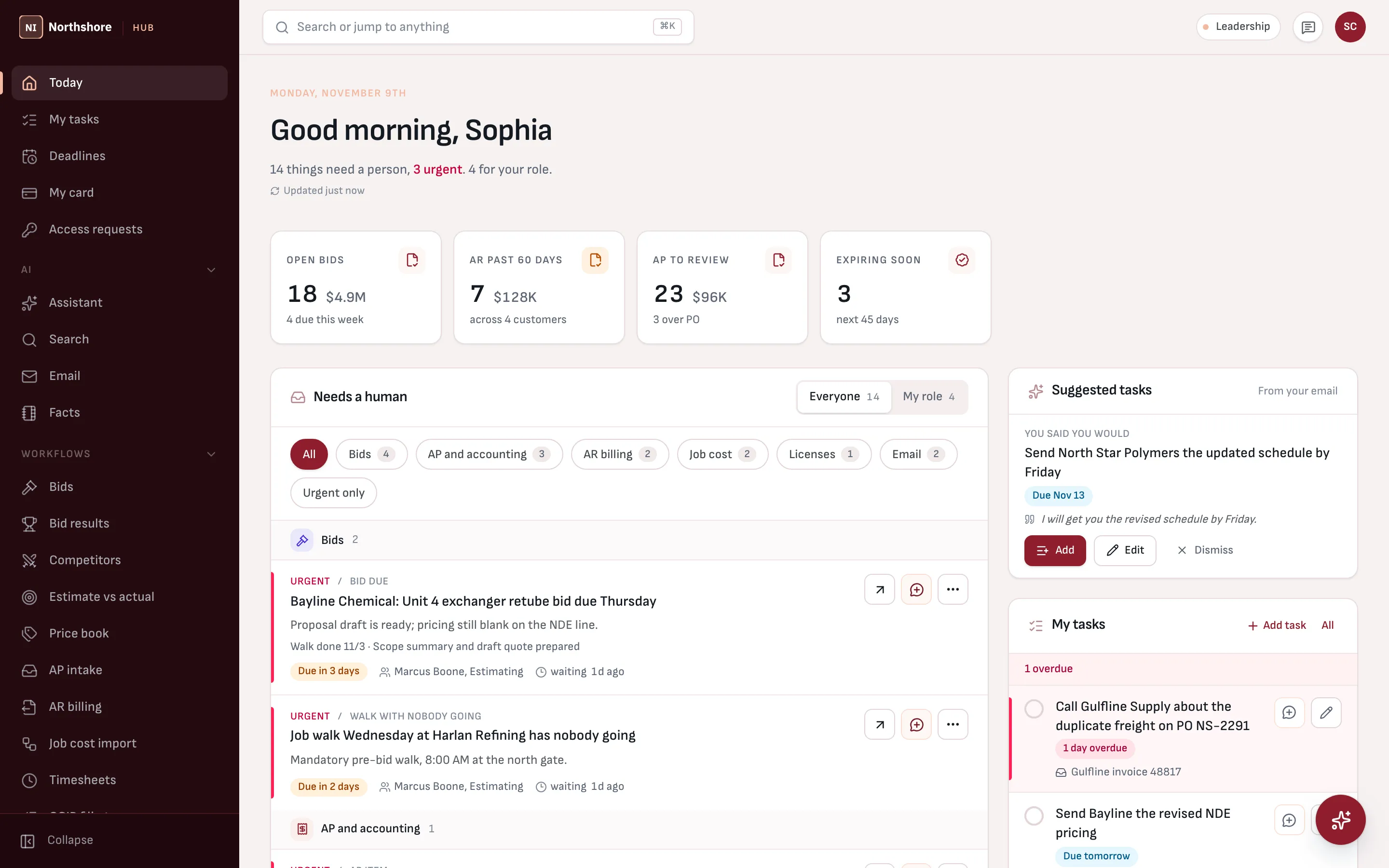
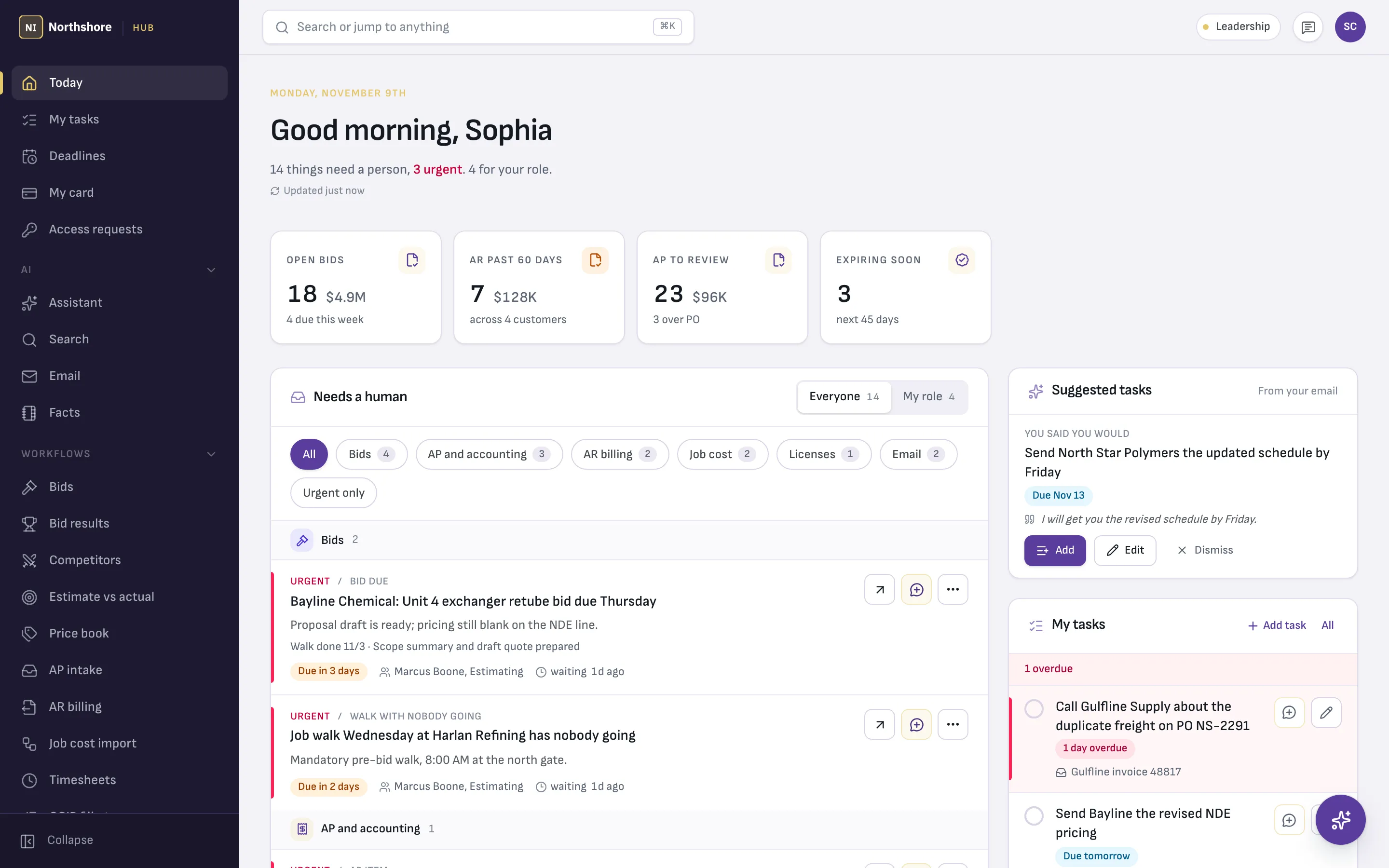
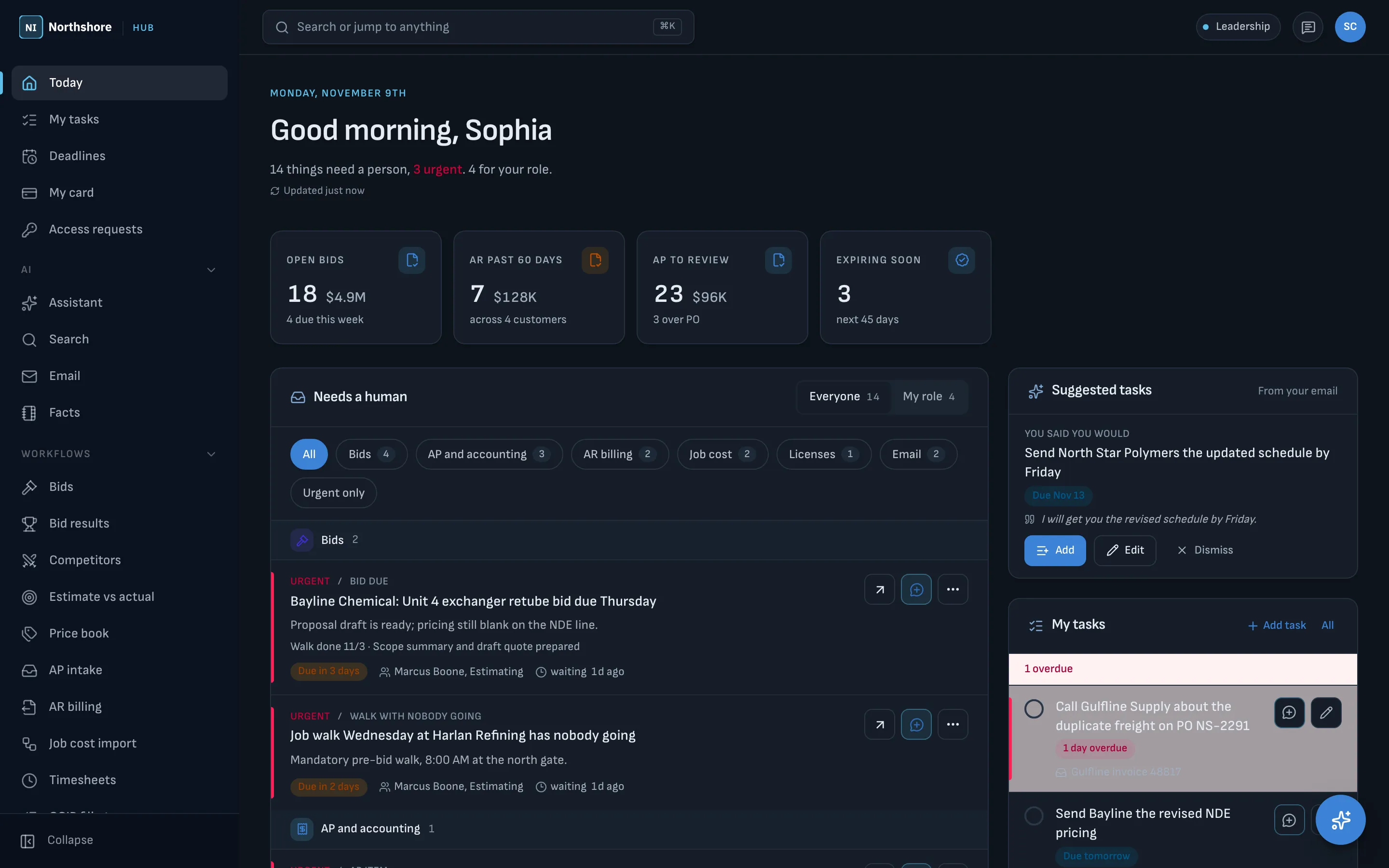
Your brand
Each company gets its own colors, logo and product name.
19.02
Dark mode
Pick Light, Dark or System from the sidebar or the phone menu, and the whole hub follows. Documents, email bodies and page images stay white like paper, so they look the way they print.
Also included
19.03
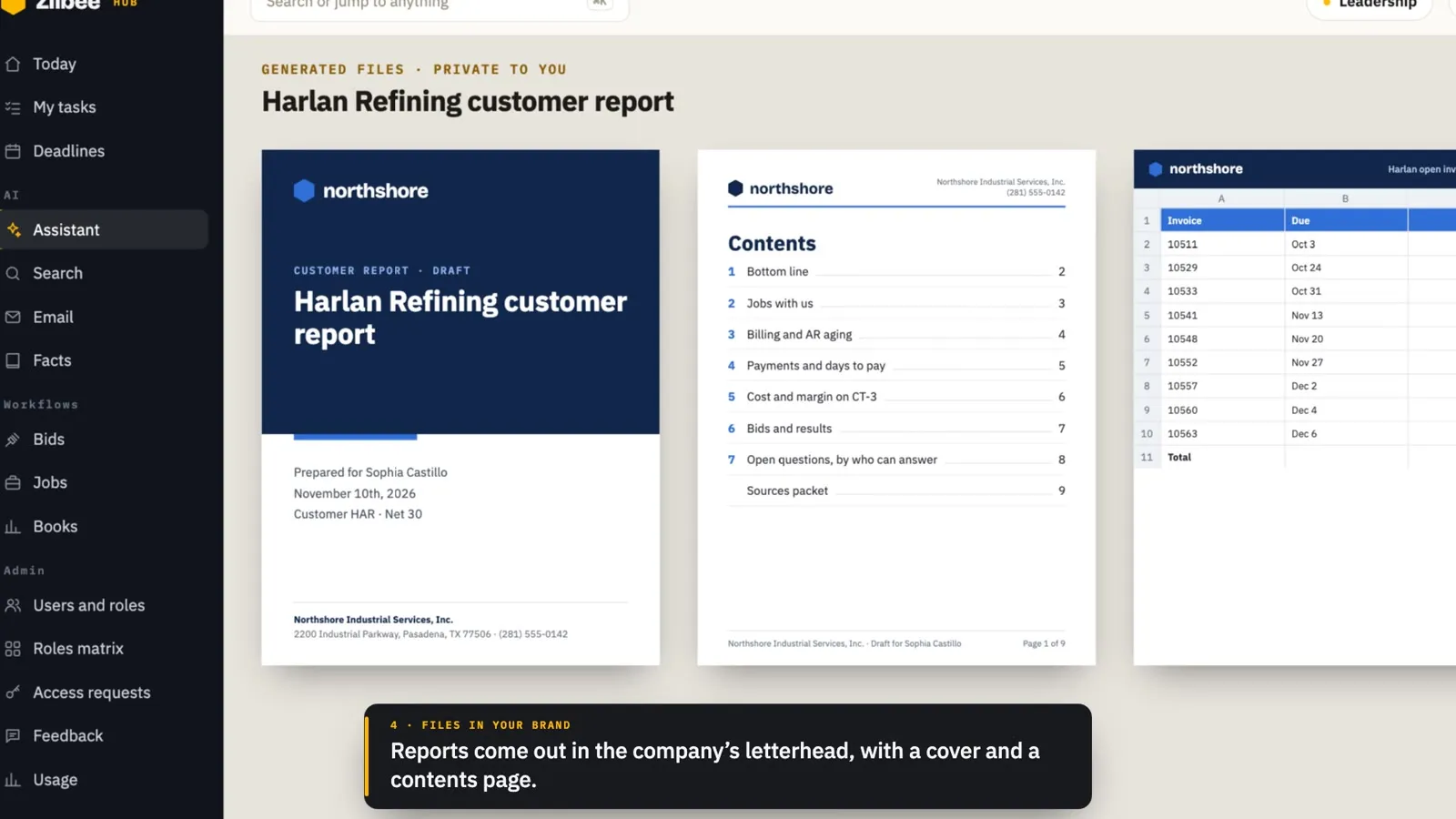
Files in your brand, with report covers
PDFs and Word files the assistant makes use your colors, logo, fonts and letterhead, and longer reports open on a cover page with a contents page after it. A business that issues documents under more than one company name can print each one on that company’s own letterhead and logo.
20 / 5 features
Service
20.01
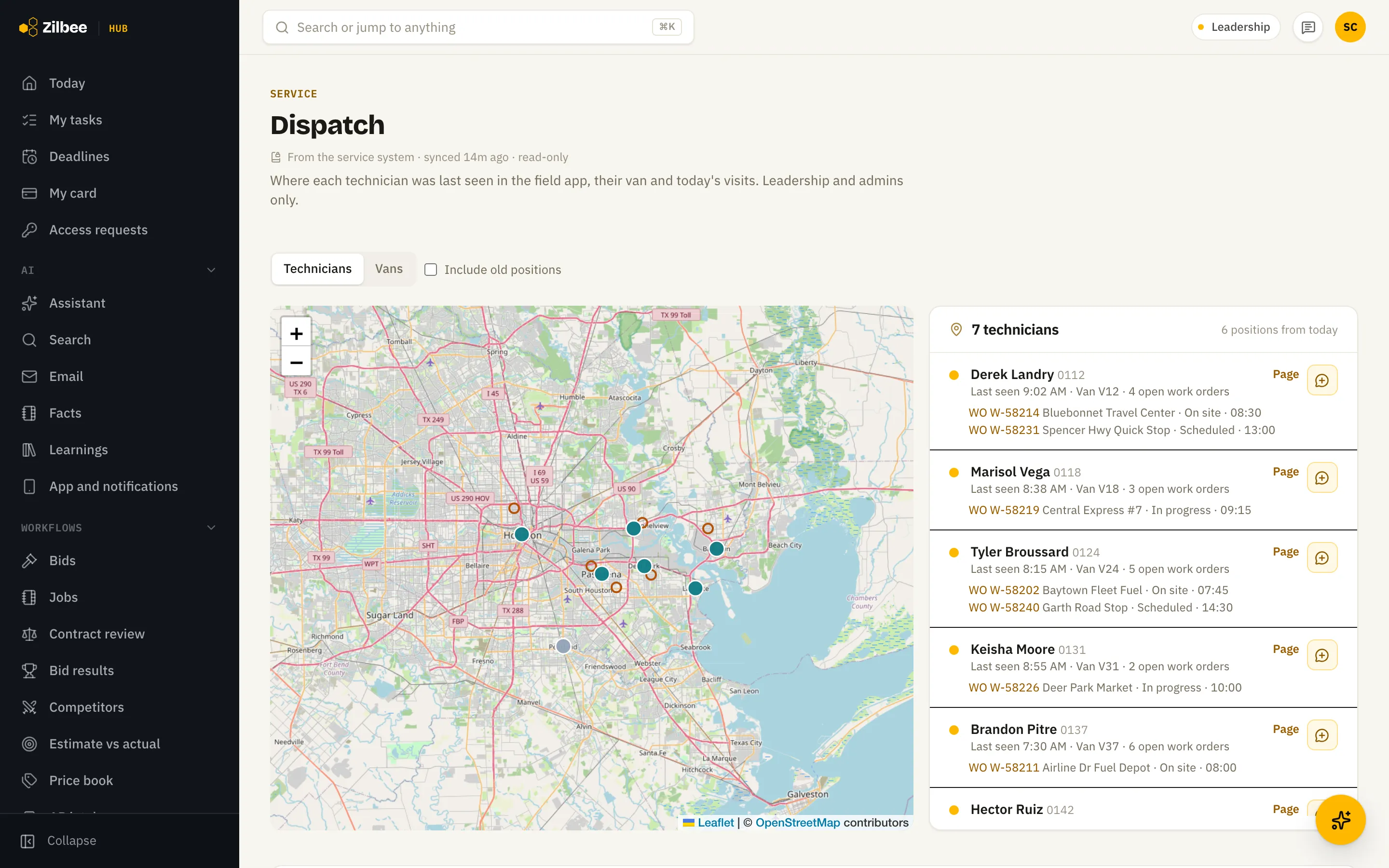
Dispatch view for dispatchers
Named dispatchers see where technicians are and the labor on service invoices. Other roles don’t.
Also included
20.02
Service work orders
Service calls, sites, technicians and parts from the service system in one place.
20.03
Technician locations from the hub app
Technicians who agree share where their phone is when they use the hub, and Dispatch shows each one’s last known location. Nobody is asked without a card that explains what is recorded first, and a switch turns it off and deletes the reading.
20.04
Service invoices held back from accounting
See which service invoices were sent to the accounting system and which were held back, like warranty or internal work, totaled by reason for any date range.
20.05
Customers by equipment serviced
Ask for every customer whose equipment of certain makes or models was serviced in the last two years, and get one spreadsheet: each customer once, with the last service date, the site and work order, and a contact to call.
21 / 8 features
Admin
21.01
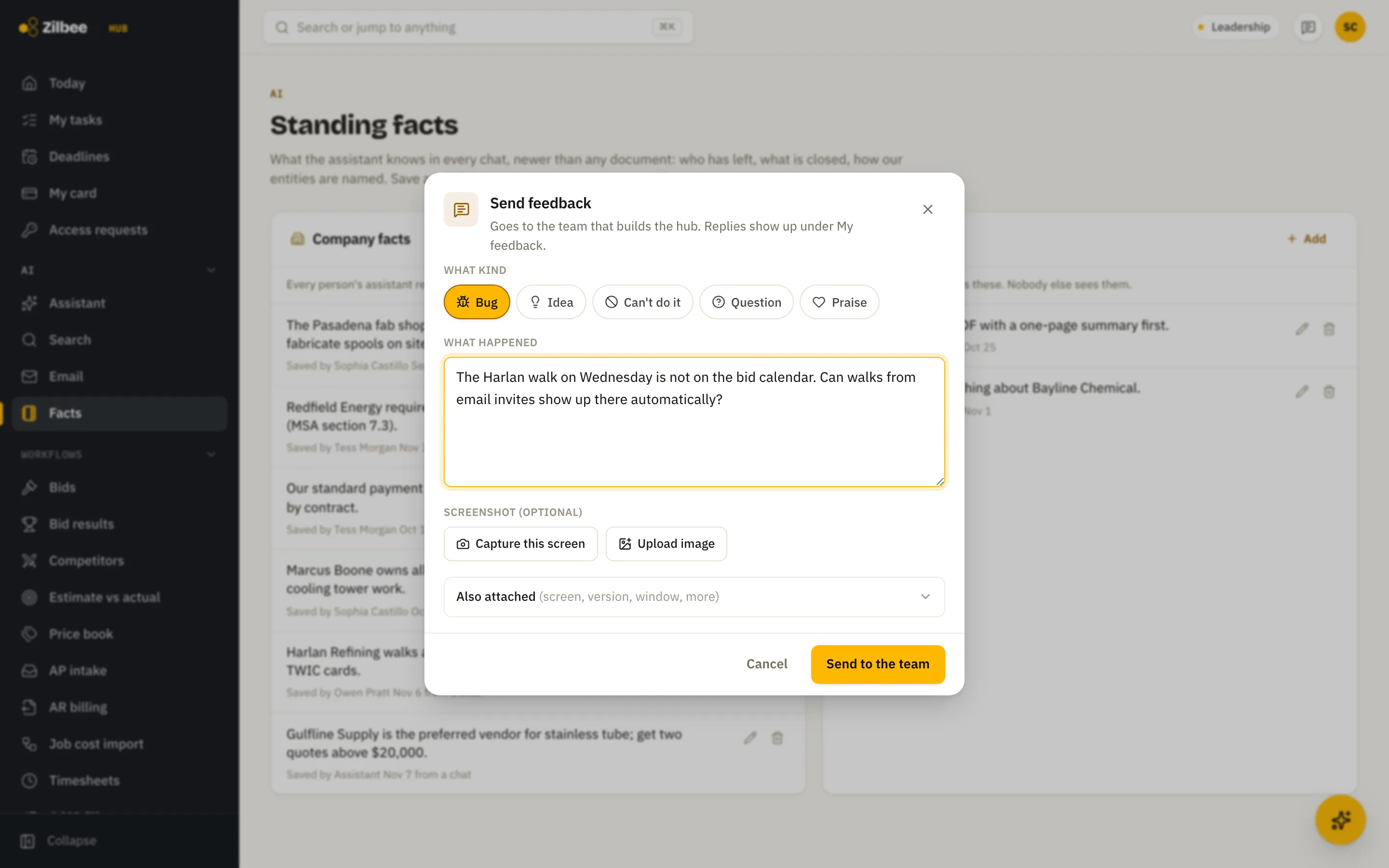
Send feedback
Tell the team about a bug or an idea from any screen; the screen, version and an optional screenshot go along automatically.
21.02
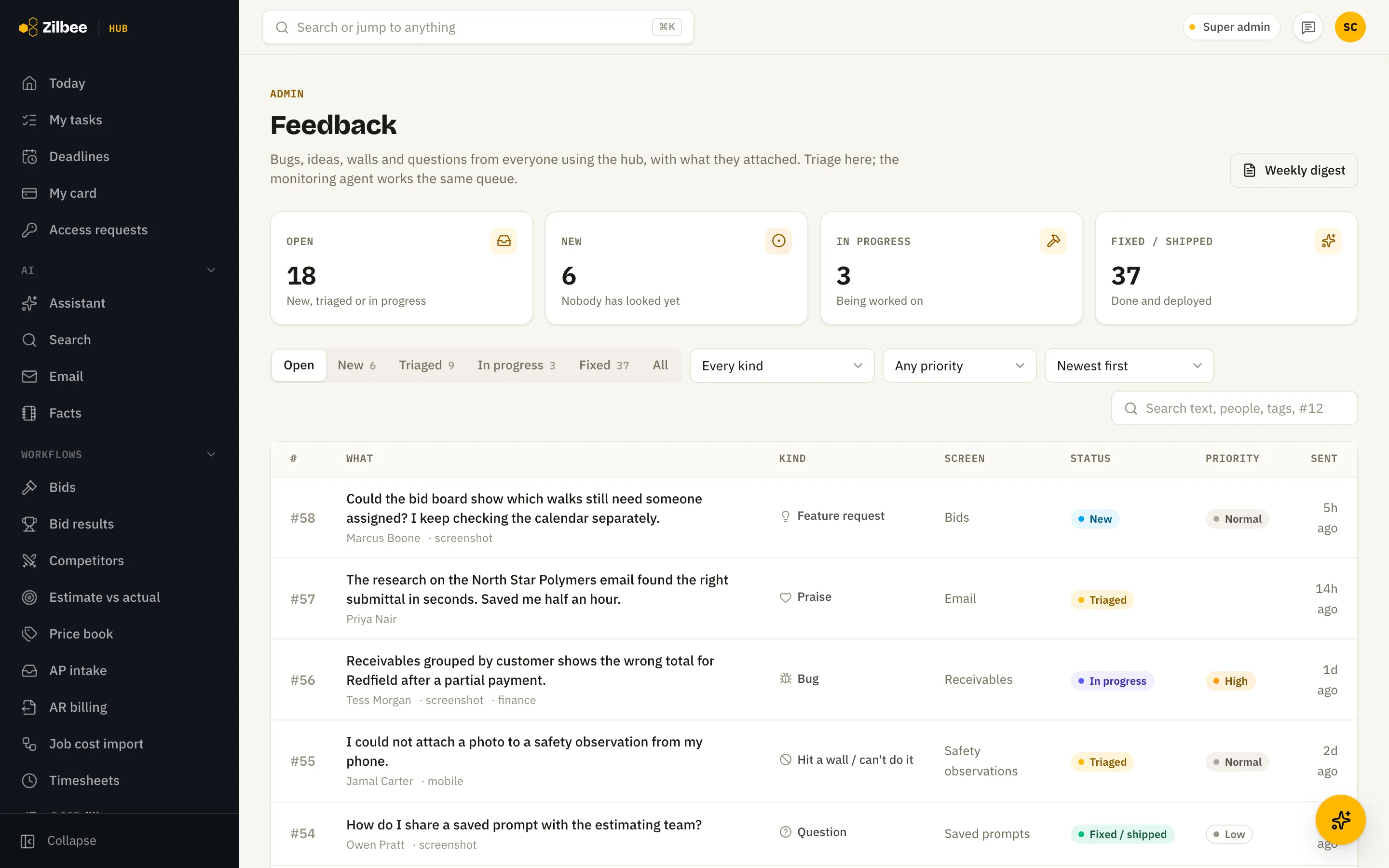
Feedback inbox
Everyone's bug reports, ideas and questions in one list with status, priority and replies.
21.03
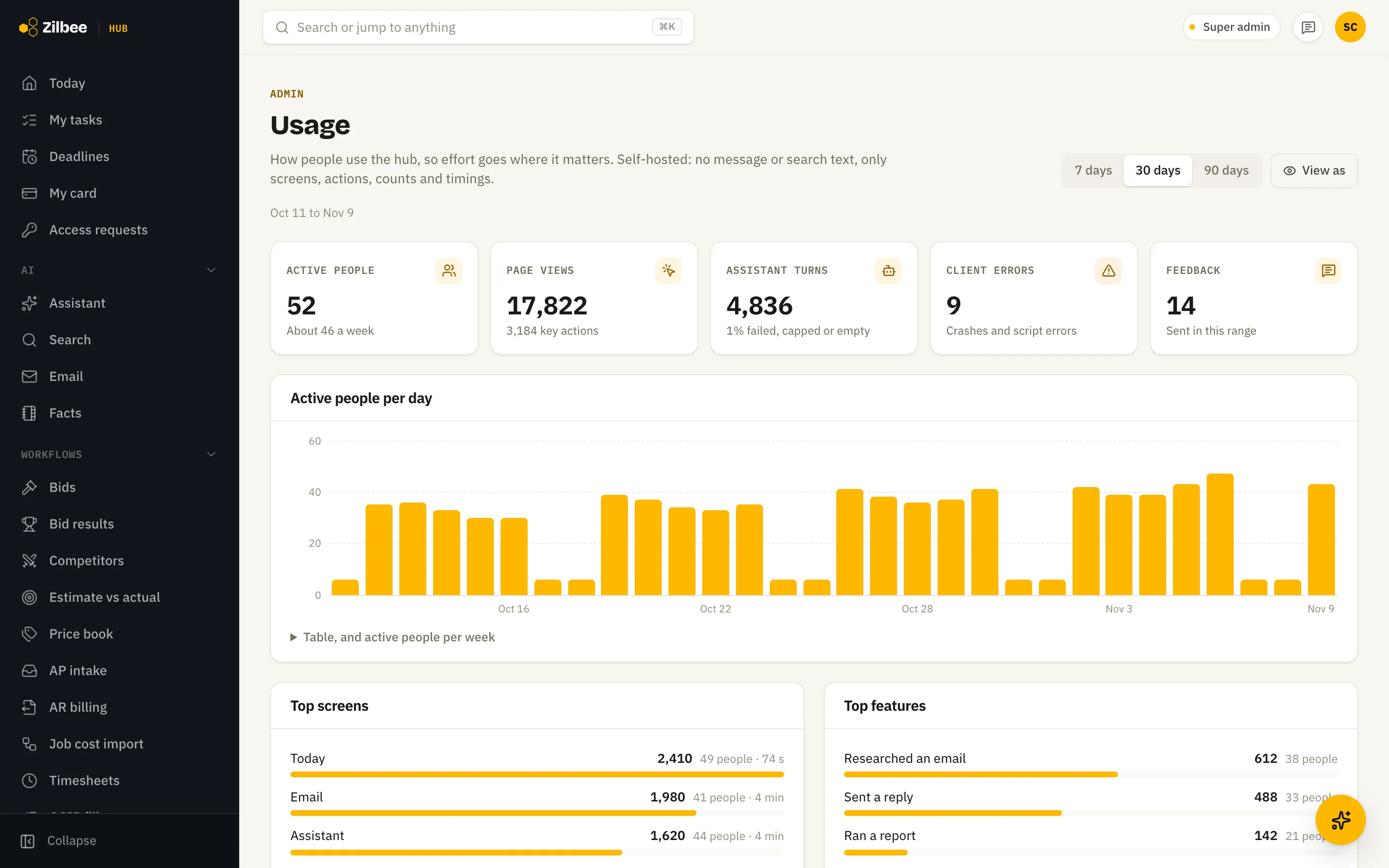
Usage analytics
See how many people use the hub each day, which screens and features they rely on, and where they get stuck, without recording what anyone typed.
21.04
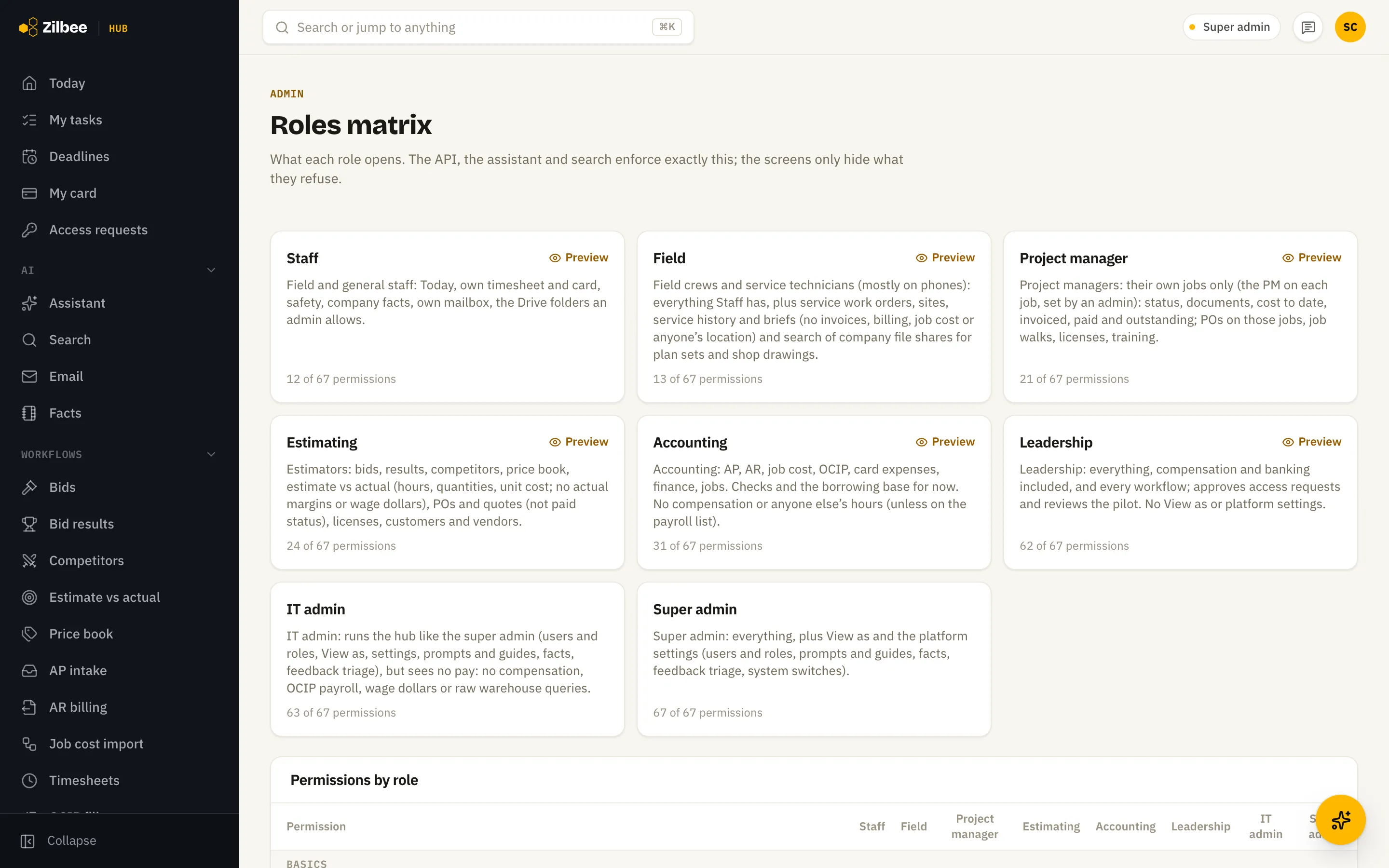
Roles matrix
A plain-language view of what each role can see and do, permission by permission, with a preview of the hub as that role.
21.05
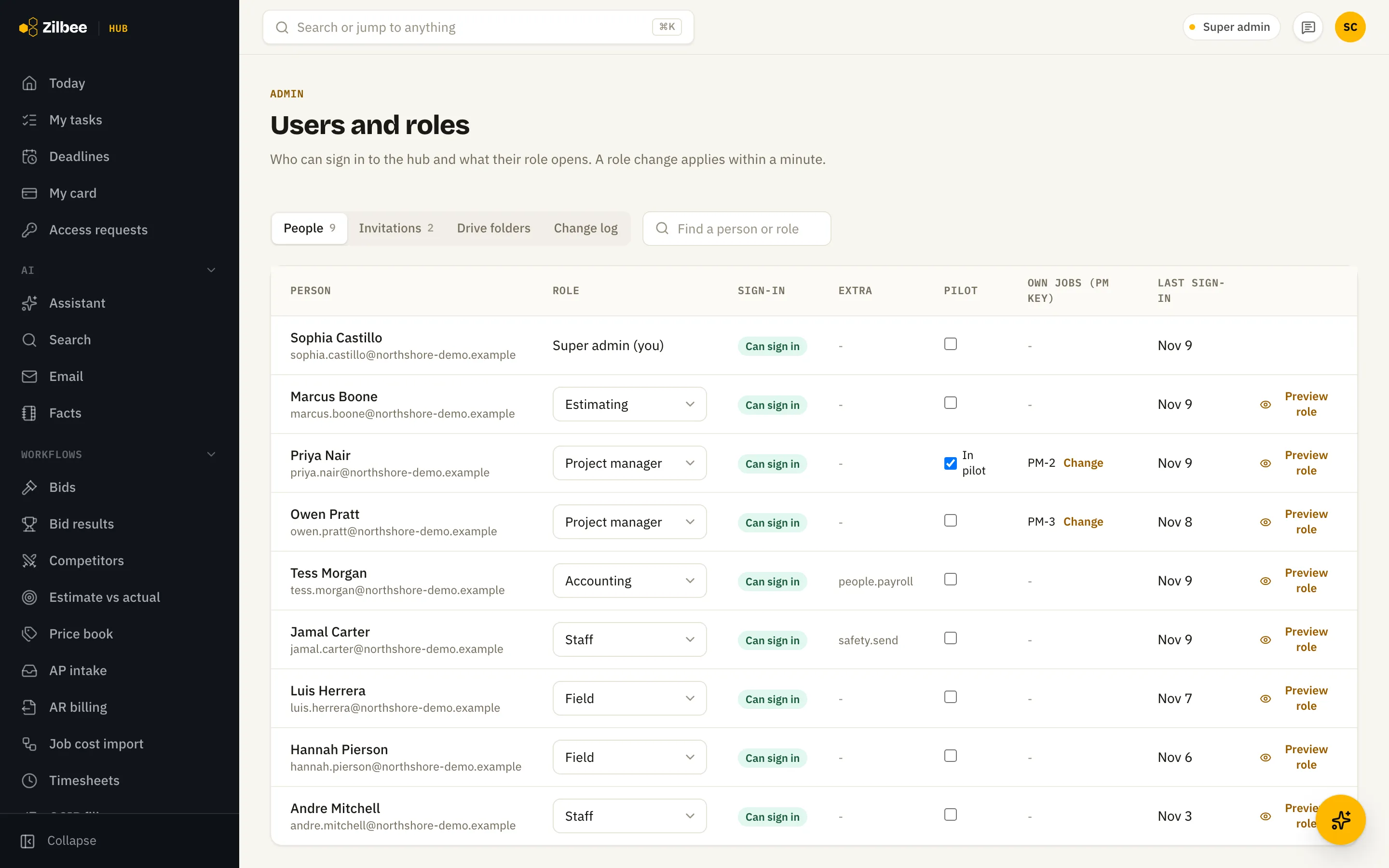
Users and roles
Invite people, set their role and give extra access in one table, with who signed in when.
21.06
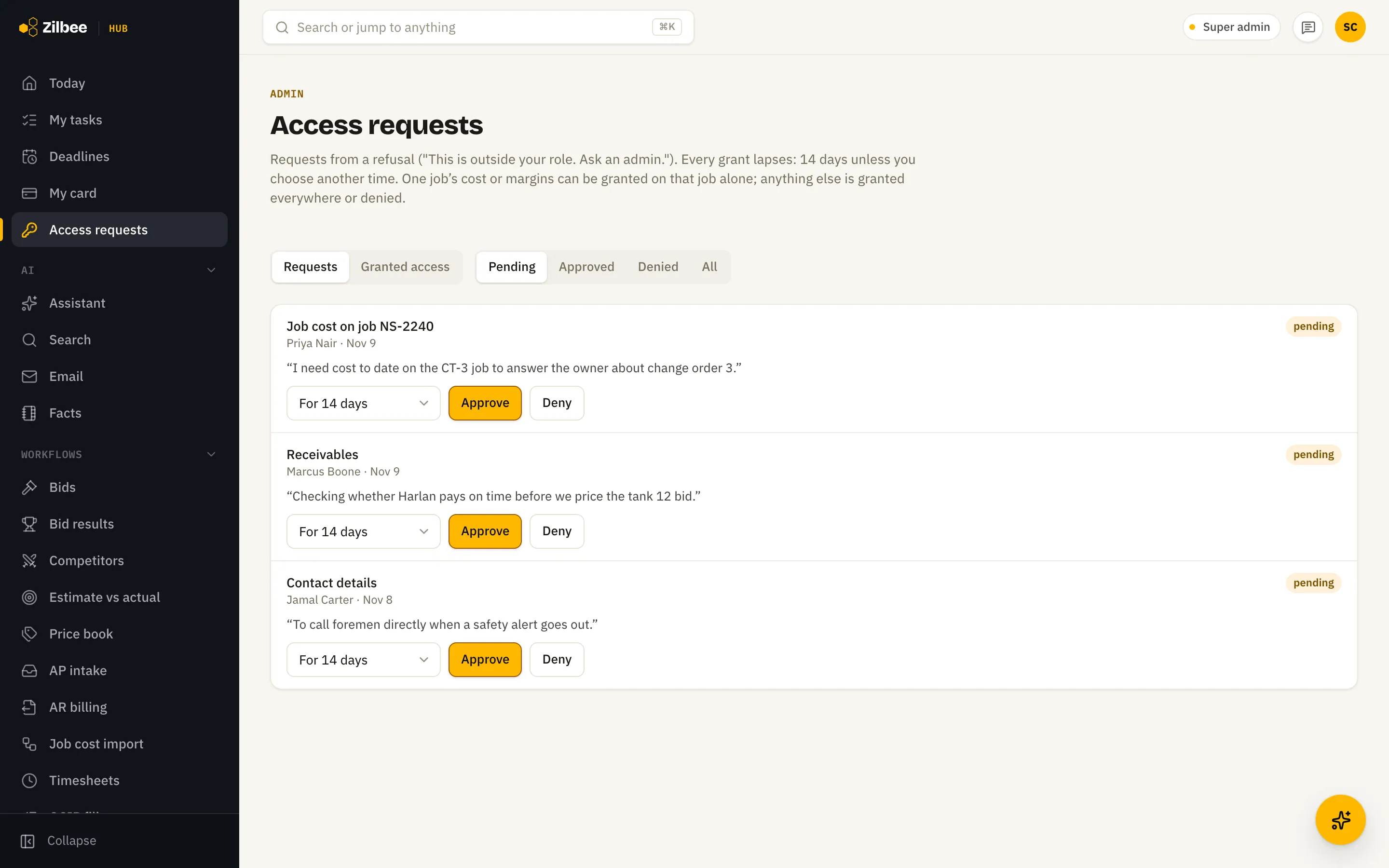
Access requests
When someone hits a screen outside their role they can ask for access; an admin approves it for one job or for a set number of days.
21.07
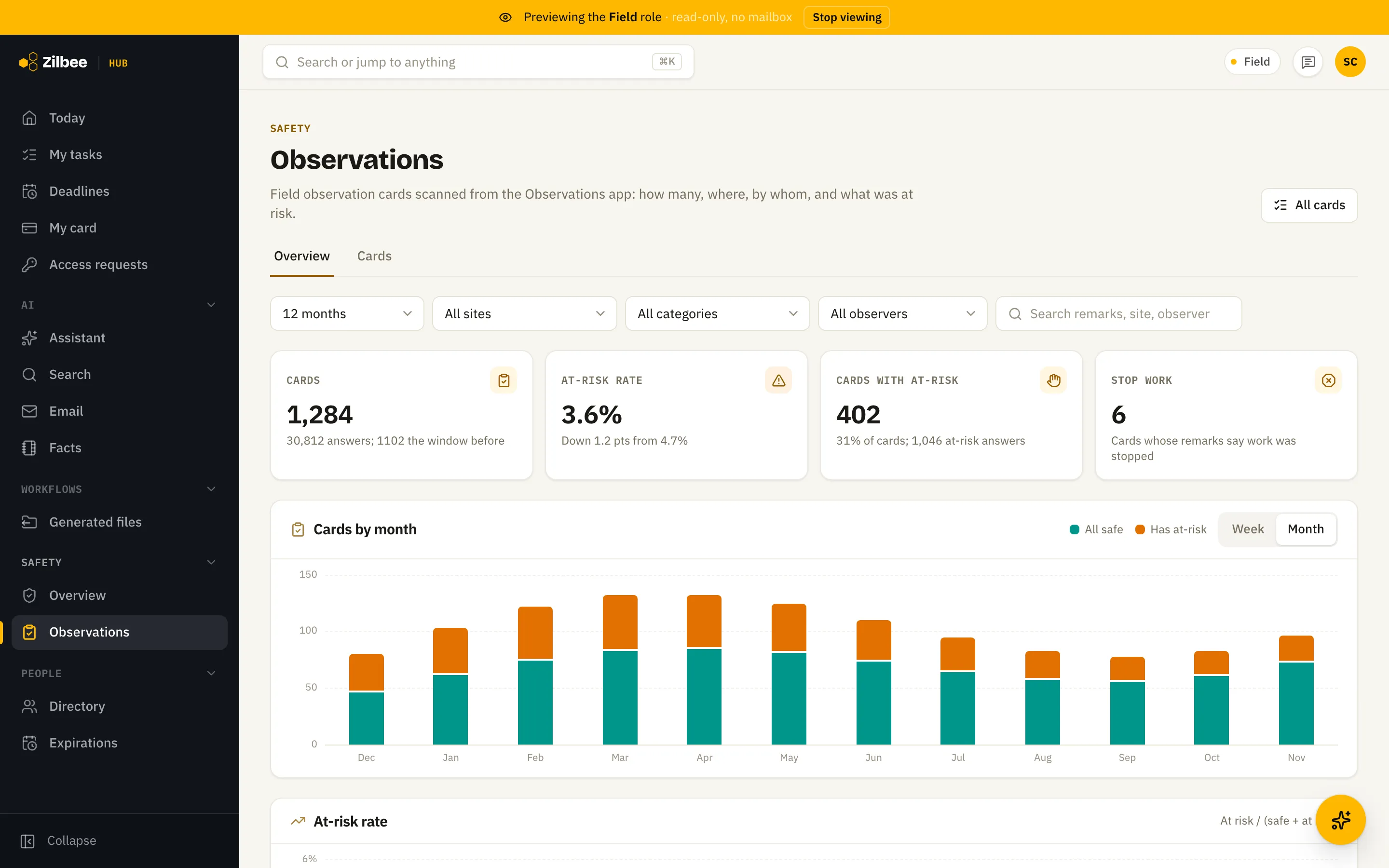
View as a role
Preview the hub exactly as a field worker or any other role sees it, before inviting anyone. The preview is read-only and never opens that person’s chats.
Also included
21.08
Updates never cut off an answer
When the hub updates, it finishes the answers already in progress before it restarts, and asks new questions to wait a minute. If an answer is ever cut off, the chat says so instead of leaving you waiting.
See any of it live
Pick the features that matter to your team and we will walk through them on real screens.
Start a free trial